Overview
The Optimisation Advanced Settings feature provides administrators with additional control over how the HamiltonAI optimiser behaves during optimisation runs.
By default, HamiltonAI uses Adaptive Mode, where optimisation parameters are automatically selected and tuned by the platform. For advanced use cases, authorised administrators can switch to User-Defined Mode and manually configure optimisation hyperparameters.
These settings are intended for experienced users who understand optimisation concepts and require greater control over optimisation performance, convergence behaviour, uncertainty handling, or system configuration.
Important: Incorrect parameter settings may increase optimisation runtime, affect result quality, or prevent optimisation from completing successfully. Unless specifically advised, users should continue using Adaptive Mode.
TABLE OF CONTENT
- Overview
- Who Can Access This Feature?
- Adaptive vs User-Defined Mode
- Advanced Settings Categories
- Viewing Advanced Settings in the Optimisation Brief
- Best Practice Recommendations
- Frequently Asked Questions
Who Can Access This Feature?
This feature is available to Administrators only.
The Advanced Settings page can be accessed from the Optimisation workflow by selecting the Settings (⚙️) icon available on the Optimisation card.
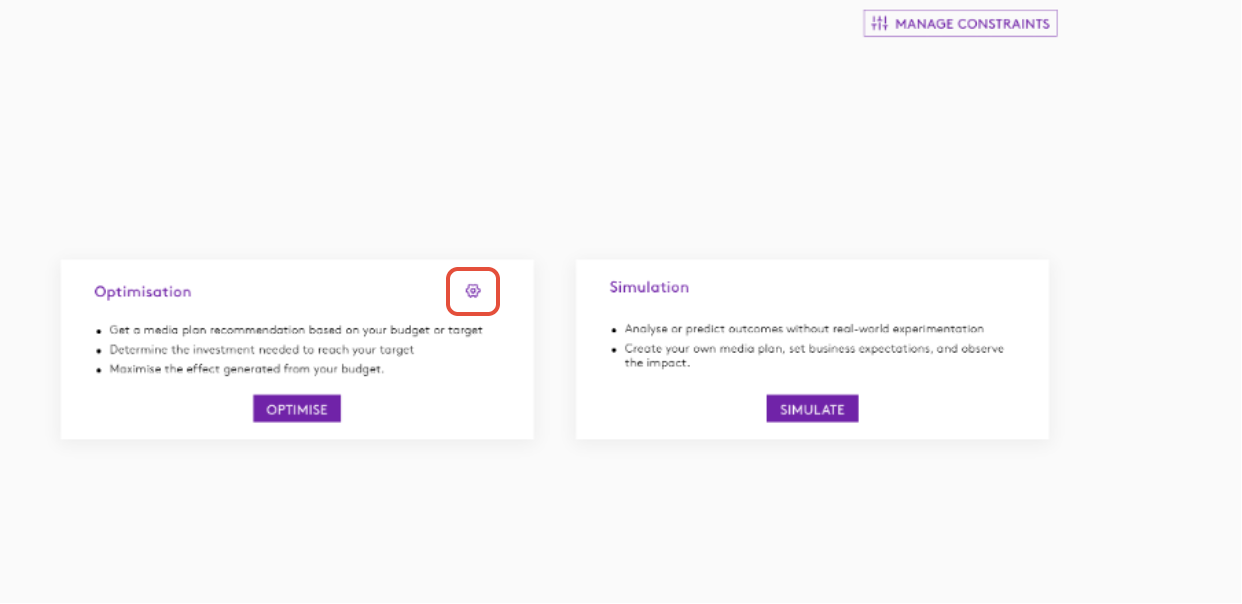
Navigation
- Open a model.
- Navigate to Predictions.
- Select Optimisation.
- Click the Settings (⚙️) icon.
- The Optimisation - Advanced Settings page opens.
Adaptive vs User-Defined Mode
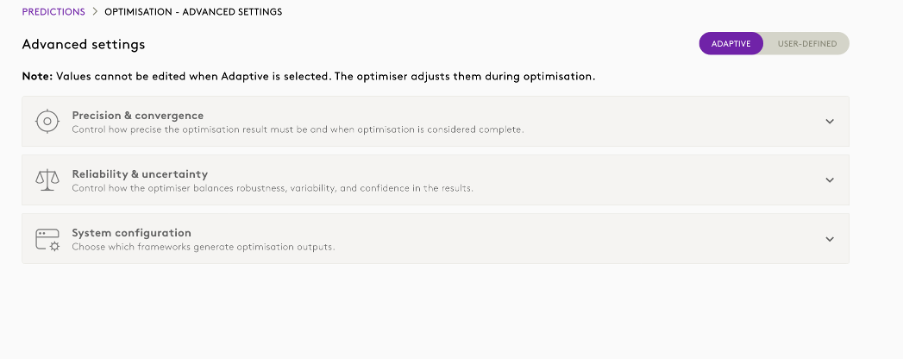
Adaptive Mode (Recommended)
When Adaptive is selected, HamiltonAI automatically determines the most suitable optimisation parameters based on factors such as:
- Model type
- Optimisation duration
- Budget size
- Model complexity
- Available uncertainty samples
The optimiser continuously adjusts settings to provide a balance between performance, stability, and runtime. No manual configuration is required.
User-Defined Mode
When User-Defined is selected:
- Administrators can manually configure optimisation parameters.
- Saved values remain active until changed.
- Optimisation runs use the configured values exactly as specified.
- Validation rules are applied before saving.
A warning banner is displayed:
"Your saved values will be used as provided. Set values manually only if you understand the impact or are advised to do so."
Advanced Settings Categories
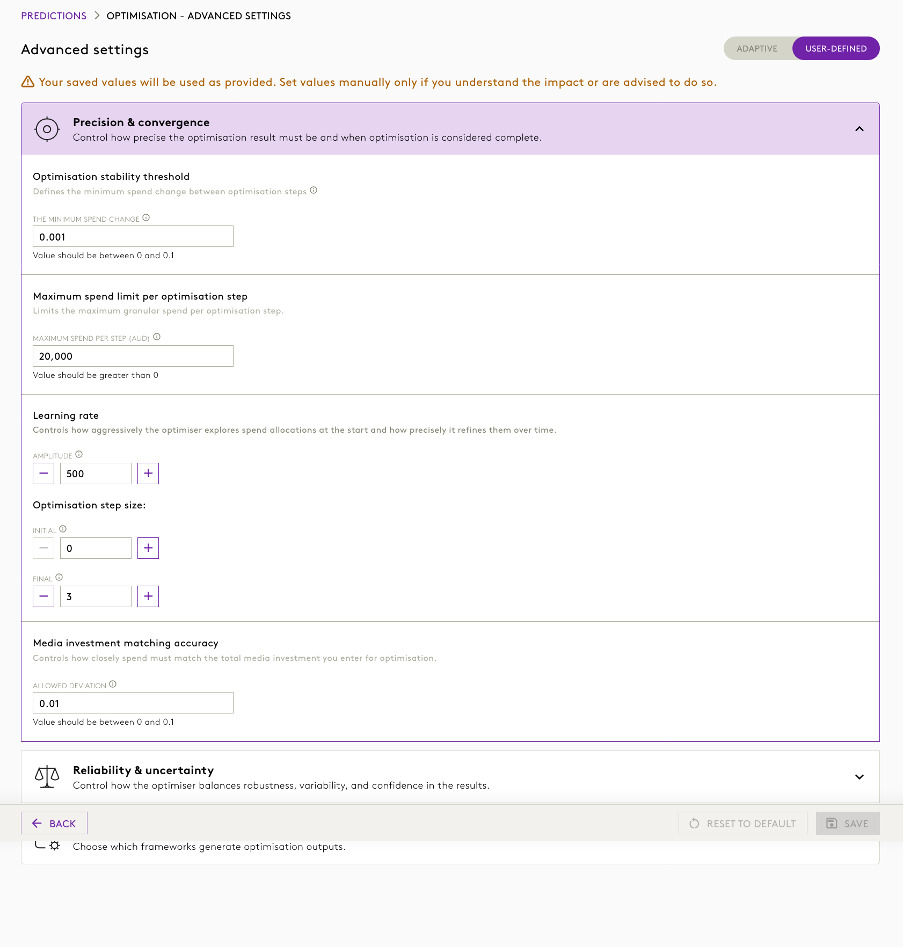
The settings are organised into three sections:
1. Precision & Convergence
Controls how accurately the optimiser searches for a solution and when optimisation is considered complete.
A. Optimisation Stability Threshold
Parameter: solutionTolerance
Default Value: 0.001
What it does
Determines the minimum change in media investment between optimisation iterations before the optimiser considers the solution stable.
Lower values:
- Produce more precise results
- May increase optimisation runtime
Higher values:
- Complete faster
- May stop optimisation earlier
Allowed Range
- 0.0000000001 to 0.1
B. Maximum Spend Limit Per Optimisation Step
Parameter: clipGradValue
Default Value: 20,000
What it does
Limits how much spend can change during a single optimisation step.
Lower values:
- Encourage smoother investment changes
- Increase optimisation stability
Higher values:
- Allow larger spend movements
- May speed up exploration
Allowed Values
- Any value greater than 0
C. Learning Rate
Controls how aggressively the optimiser explores alternative spend allocations.
Learning Rate Amplitude
Parameter: learningRateAmplitude
Default Value: 500
What it does
Controls the overall size of optimisation adjustments during the optimisation process.
Allowed Values
- Integer greater than 0
D. Initial Optimisation Step Size
Parameter: learningRateExpDecayInit
Default Value: 0
What it does
Defines the starting point of the optimiser's learning rate decay schedule.
Allowed Values
- Integer ≥ 0
- Must be lower than Final Step Size
E. Final Optimisation Step Size
Parameter: learningRateExpDecayFin
Default Value: 3
What it does
Defines the end point of the optimisation learning rate decay schedule.
Allowed Values
- Integer ≥ 0
- Must be greater than Initial Step Size
F. Media Investment Matching Accuracy
Parameter: budgetTolerance
Default Value: 0.01
What it does
Determines how closely the optimiser must match the total investment budget specified by the user.
Lower values:
- Produce tighter budget matching
Higher values:
- Allow slightly greater deviation
Allowed Range
- 0.0000000001 to 0.1
2. Reliability & Uncertainty
Controls how the optimiser balances certainty, robustness, and variability in results.
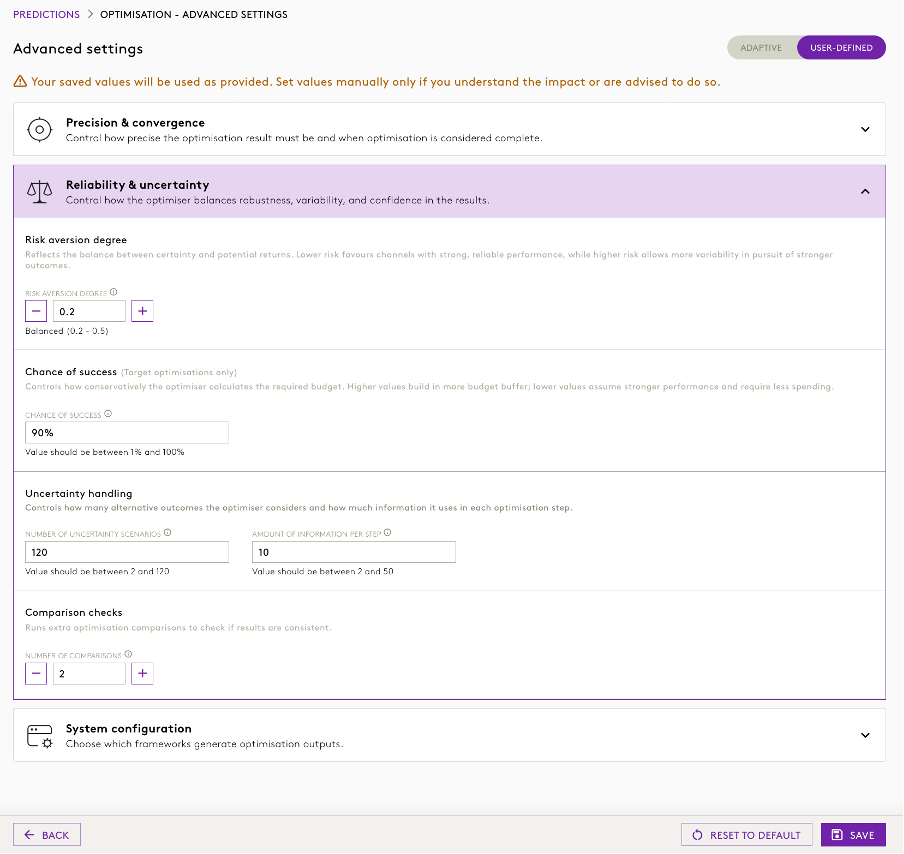
A. Risk Aversion Degree
Parameter: riskAversenessDegree
Default Value: 0.1
What it does
Controls the balance between risk and reward when selecting media allocations.
Lower values:
- Prioritise higher-return opportunities
- Accept greater variability
Higher values:
- Produce more conservative recommendations
- Prioritise predictable performance
Allowed Range
- 0 to 1
Please note that default value will be 0.9
B. Uncertainty Scenarios
Parameter: posteriorSubsetSize
Default Value: 120
What it does
Determines how many uncertainty scenarios are considered during optimisation.
Increasing this value:
- Improves robustness
- May increase runtime
Allowed Values
- Minimum: 2
- Maximum: Number of posterior samples available in the model
C. Information Per Optimisation Step
Parameter: batchSize
Default Value: 10
What it does
Determines how much model information is evaluated during each optimisation iteration.
Increasing this value:
- May provide more stable results
- May increase optimisation time
Allowed Range
- 2 to 50
- Must be less than or equal to the selected Uncertainty Scenario count
D. Comparison Checks
Parameter: numberOfSweeps
Default Value: 1
What it does
Runs additional optimisation passes to verify consistency of results.
Increasing this value:
- May improve confidence in results
- Increases runtime
Allowed Values
- 1 or 2
3. System Configuration
Controls which optimisation frameworks are used during optimisation processing.
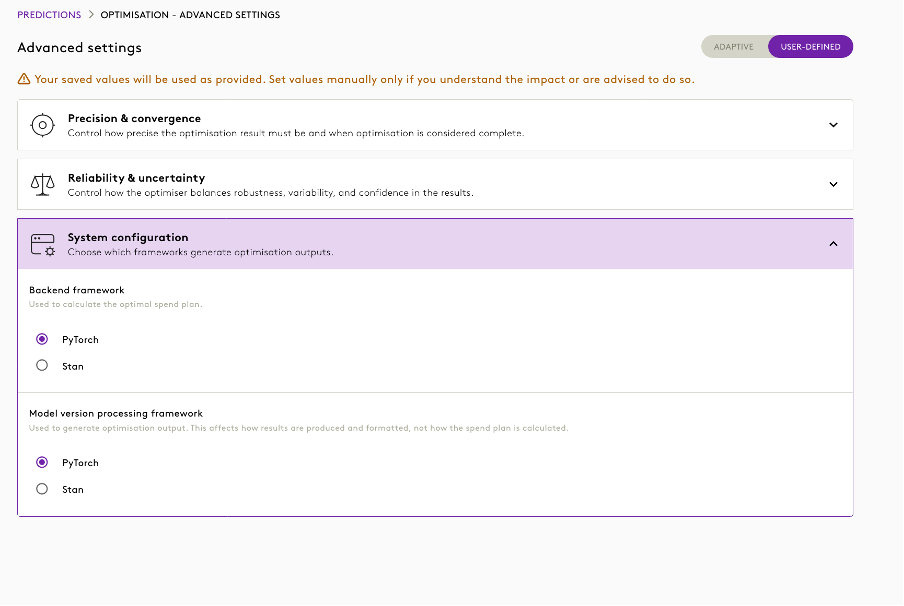
A. Backend Framework
Parameter: optimizationBackend
Default Value: PyTorch
What it does
Determines the optimisation engine used to calculate the optimal media allocation.
Supported Values
- PyTorch
- Stan
B. Model Version Processing Framework
Parameter: optimizationExtractsBackend
Default Value: PyTorch
What it does
Determines how optimisation outputs are generated and processed.
This affects result generation and formatting rather than optimisation logic.
Supported Values
- PyTorch
- Stan
Additional Parameters
The following optimisation parameters are supported by the optimisation engine but are not currently exposed in the user interface but will come as future enhancements.
A. Optimisation Look-back Period
Parameter: startDateOptimization
Defines how far before the optimisation period the optimiser should consider historical effects.
Applicable primarily to models with long-term effects.
B. Initialisation Vector Count
Parameter: initialVectorCount
Controls how many starting points are generated before optimisation begins.
More starting vectors may improve solution quality but increase runtime.
C. Adaptive Values Flag
Parameter: useAdaptiveValues
Default Value: TRUE
When enabled, all manually configured hyperparameters are ignored and HamiltonAI automatically selects optimisation settings.
Resetting to Default Values
Users can restore all settings to platform defaults by selecting: Reset to Default → Save
This immediately reinstates system recommended values. This is only available in User-define mode.
Viewing Advanced Settings in the Optimisation Brief
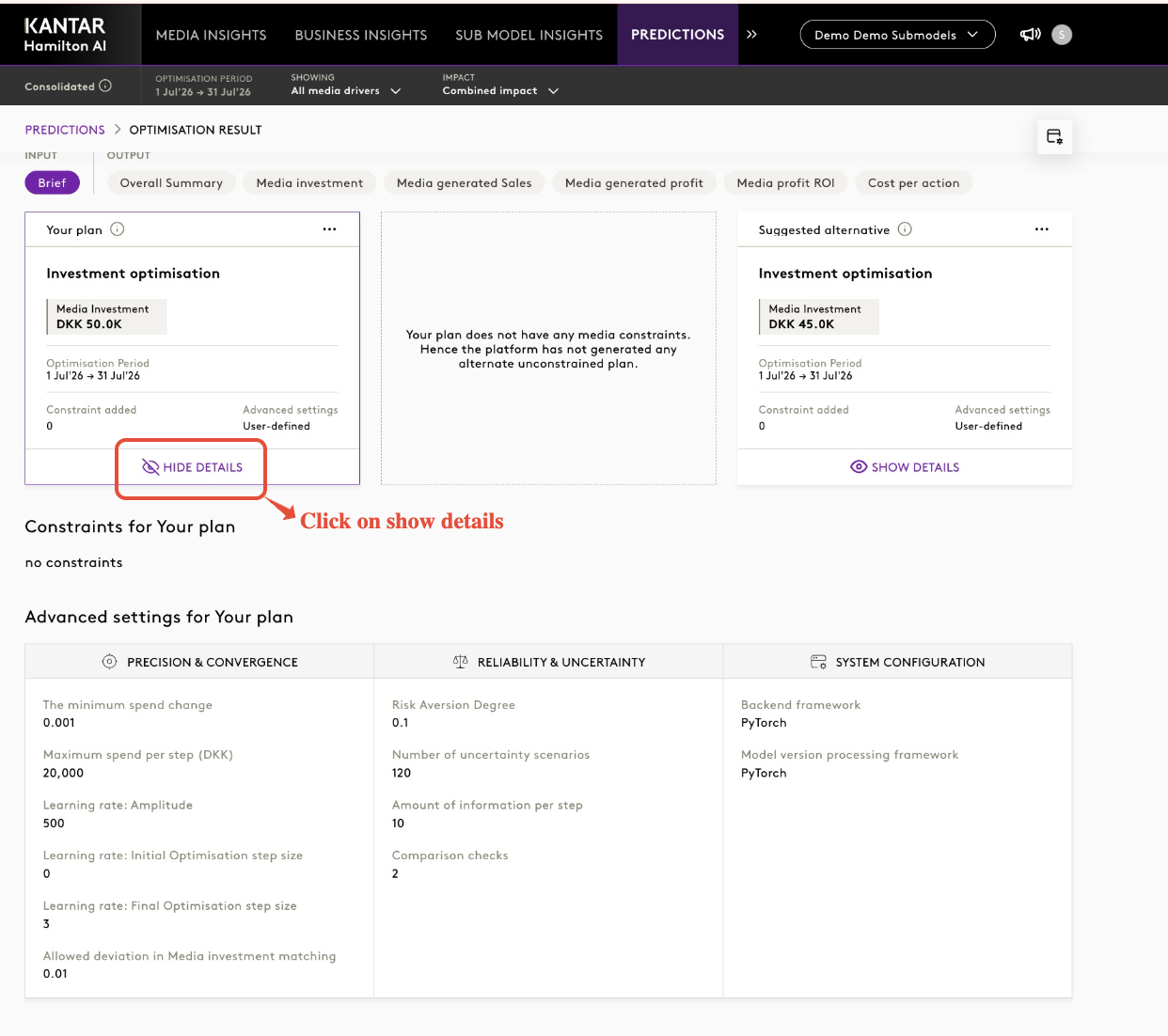
Once an optimisation is created, the selected Advanced Settings are captured as part of the optimisation input and can be reviewed at any time from the Optimisation Brief.
This provides full visibility into the configuration used when generating an optimisation result and makes it easier to:
- Review optimisation assumptions.
- Compare optimisation runs using different settings.
- Troubleshoot unexpected optimisation outcomes.
- Verify whether Adaptive or User-Defined settings were used.
How to View Advanced Settings after running an optimisation
- Navigate to Predictions or Activities section to view saved optimisation plans.
- Open an existing optimisation.
- Select Input Brief.
- Scroll to the Advanced Settings section.
- Review the optimisation parameters applied to that run.
What Information Is Displayed?
Depending on the selected mode, the Input Brief displays:
Adaptive Mode
When Adaptive Mode is used:
- The optimisation is marked as Adaptive.
- HamiltonAI automatically determines the parameter values used during optimisation.
- User-defined values are not applied.
User-Defined Mode
When User-Defined Mode is used:
- The optimisation is marked as User-Defined.
- All manually configured hyperparameters are displayed.
- Values reflect the exact settings used for that optimisation run.
Best Practice Recommendations
For most optimisation scenarios:
✅ Use Adaptive Mode
✅ Keep default settings whenever possible
✅ Only modify settings when instructed by the Product, AI or Engineering teams
✅ Make small changes and test results before making large adjustments
Avoid increasing multiple parameters simultaneously, as this can make it difficult to identify the cause of changes in optimisation behaviour.
Frequently Asked Questions
When should I use User-Defined Mode?
Only when you have a specific optimisation requirement or have been advised to do so by the HamiltonAI Product, AI or Engineering teams.
Will changing these settings affect existing optimisations?
No. Changes apply only to future optimisation runs.
What happens if I enter invalid values?
Validation rules prevent unsupported values from being saved.
What happens when Adaptive Mode is enabled?
HamiltonAI ignores all manually configured hyperparameters and automatically selects the most appropriate configuration for each optimisation run.
Was this article helpful?
That’s Great!
Thank you for your feedback
Sorry! We couldn't be helpful
Thank you for your feedback
Feedback sent
We appreciate your effort and will try to fix the article