1. Overview
We’re excited to introduce a smoother, faster, and more reliable way to evaluate total business impact in LIFT ROI.
The new capability allows users to directly load completed optimisation results into the Simulator, eliminating the need for manual data entry and ensuring that simulations are based on accurate, system‑generated optimiser outputs.
This feature is built to enhance the connection between:
- Optimiser → best possible media plan, and
- Simulator → full business impact evaluation (media + non‑media)
It supports teams in creating more accurate scenarios, faster decisions, and improved collaboration.
TABLE OF CONTENTS
- 1. Overview
- 2. Why This Feature Exists
- 3. Why This Matters?
- 5. What is Auto‑Populated vs What You Must Manually Update?
- 6. How to Use This Feature
- 7. How to Access This Feature
2. Why This Feature Exists
To understand the purpose of this feature, it’s important to clarify the functional boundary between the Optimiser and the Simulator within LIFT ROI.
2.1 What the Optimiser Does
The Optimiser ONLY handles media variables.
Its capabilities include:
- Optimising media budgets
- Recommending channel mixes
- Allocating weekly spends
- Providing performance‑maximised media outputs
- Determining optimal media distribution patterns
The Optimiser focuses exclusively on media‑driven inputs because it is designed to optimise media effectiveness, not full business outcomes. It does not handle: Price, Promotions, Distribution, Competitor actions and other non‑media drivers
2.2 What the Simulator Does
The Simulator allows teams to:
- Evaluate full business performance
- Model both media inputs and non-media factors
- See the final outcome (sales, KPIs, ROI, etc.)
Because real business results depend on both media and non‑media, users need a way to combine Optimiser output with Simulator flexibility.
This Feature Bridges the Gap
It ensures:
- Optimiser provides the best media plan
- Simulator lets users add the required non‑media variables
- Together they produce the total business impact (media + non-media)
3. Why This Matters?
Eliminates Manual Input
Previously, users had to manually transfer Optimiser results into the Simulator.
This involved copying weekly spends, channel splits, or activity values — a repetitive, error‑prone task.
Ensures Data Accuracy
Loading directly from the Optimiser:
- Keeps media values consistent
- Prevents transcription errors
- Ensures simulation results reflect true optimiser output
Enables Complete Business Evaluation
Optimiser → finds the best media plan
Simulator → models the real business impact
Loading the results ensures the two steps stay connected.
Saves Time and Reduces Cognitive Load
No more switching tabs, exporting, entering values manually — users can instantly begin exploring scenarios.
Supports Better Decision-Making
Scenario testing happens on:
- Optimiser-recommended media
- Realistic non-media settings
This strengthens strategy discussions and final recommendations.
Before loading, ensure that:
The optimisation’s date range falls within the Simulator’s allowed simulation period.
If not:
- The system will block the load action
- Users may see error messages
- Simulation cannot be created
Note : Always check simulation availability windows before running Optimiser plans intended for scenario testing.
5. What is Auto‑Populated vs What You Must Manually Update?
This is one of the most important parts of the feature.
5.1 Auto‑Populated Inputs (From Optimiser)
When loading optimisation results:
- All media variables auto-populate, including:
- Media spends
- Channel-level allocations
- Weekly splits
- Media weights
- Optimised budget distributions
- Any optimiser-generated media input fields
These are pulled exactly as the Optimiser produced them.
Note: Media values remain editable inside the Simulator for scenario flexibility.
5.2 Manual Inputs Required (In Simulator)
Because the Optimiser handles only media variables, users must update non‑media variables manually in the Simulator, such as:
- Price
- Promotions
- Distribution levels
- Competition inputs
- External factors
- Any custom non‑media variable supported in your model
Simulation results will not be accurate unless these variables are reviewed and completed.
6. How to Use This Feature
A. Loading Directly From Optimisation Results
Step 1: Run or Open a Completed Optimisation
Open any completed Optimiser run whose results you want to simulate.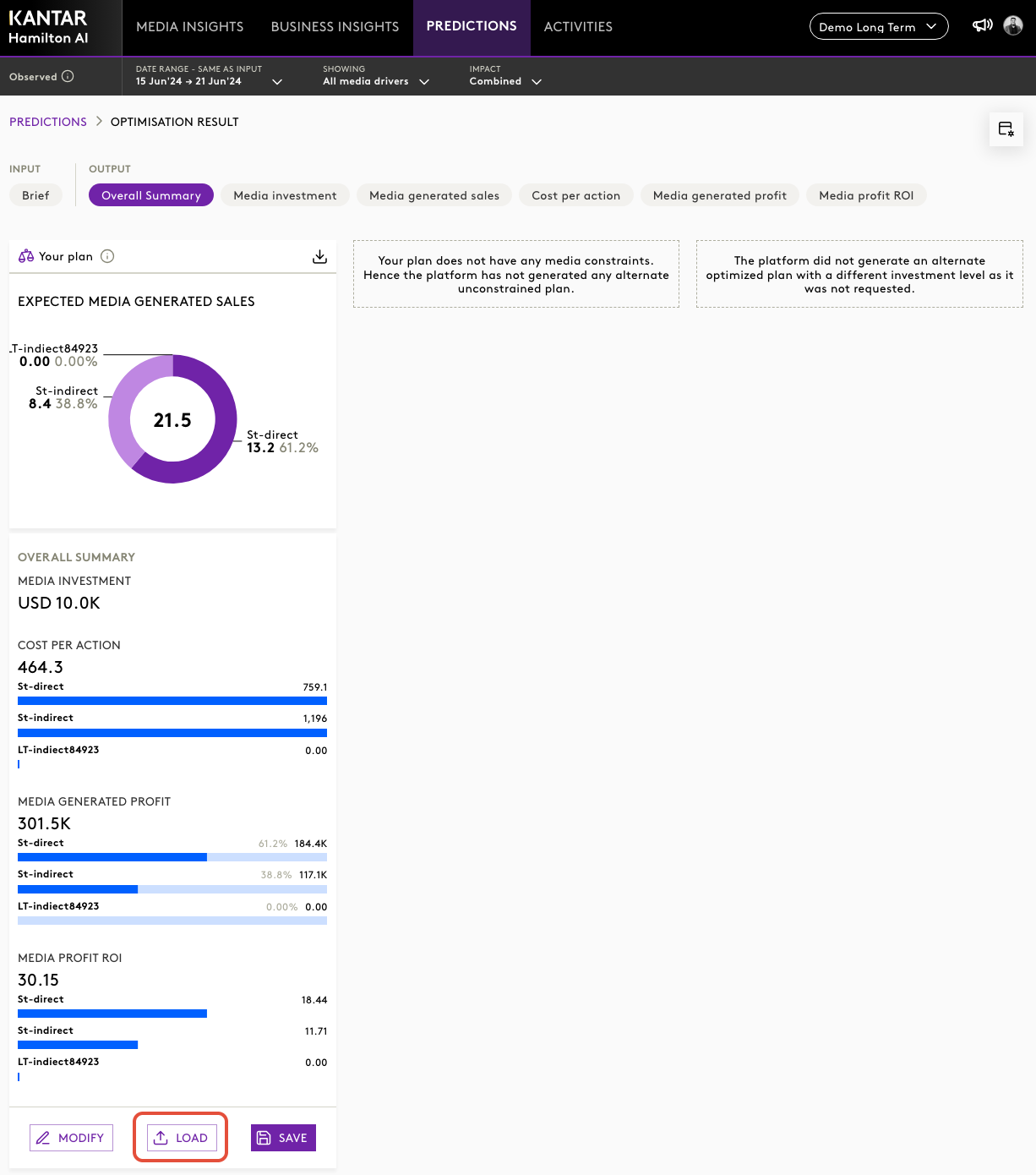
Step 2: Click “Load” Into Simulator
On the optimisation output card → click Load.
This pushes the optimiser run straight into the Simulator.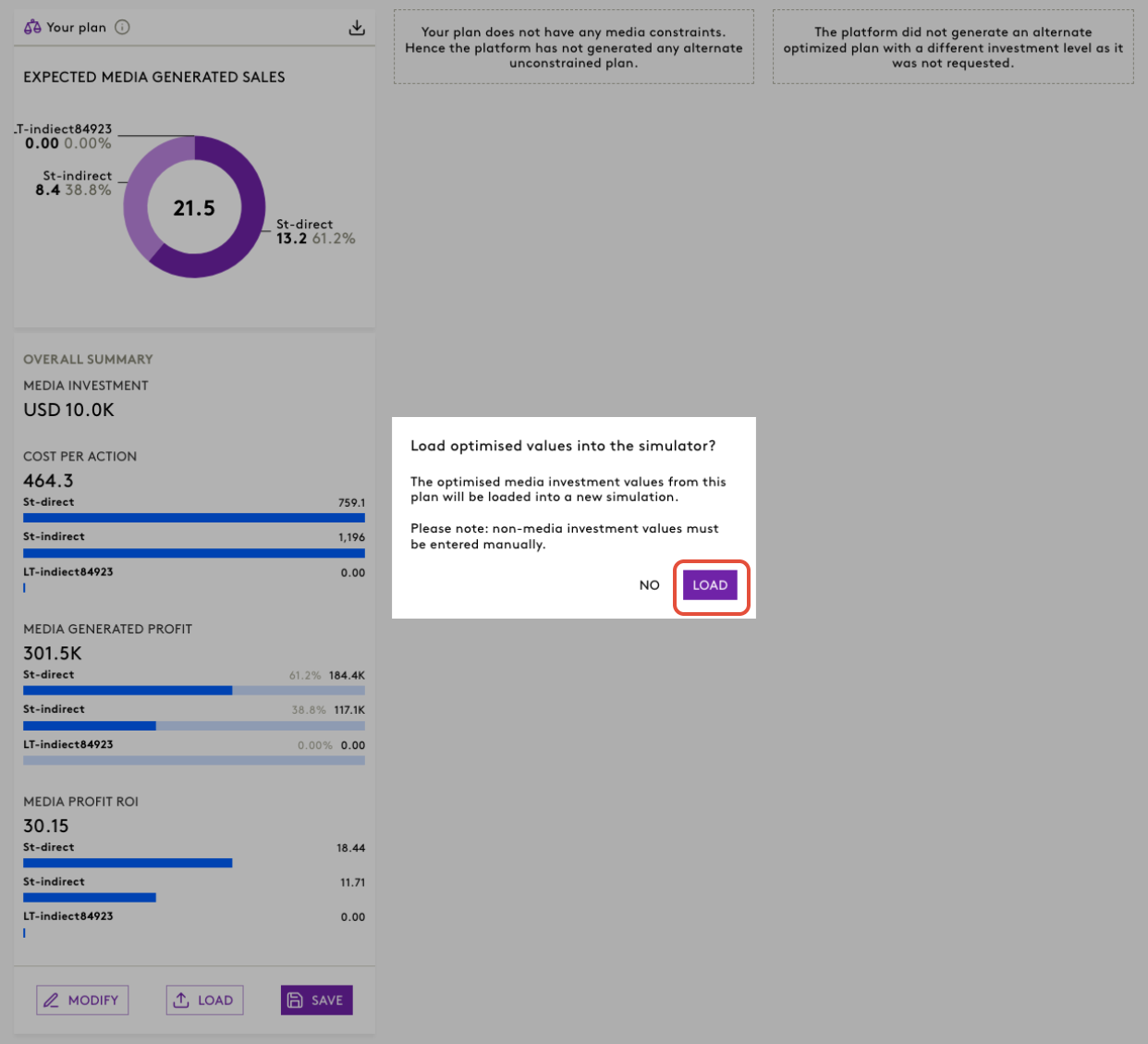
Step 3: System Creates a New Simulation Scenario
A new scenario appears with:
- Media variables already populated
- Scenario name based on optimiser run
- Ready for non‑media inputs
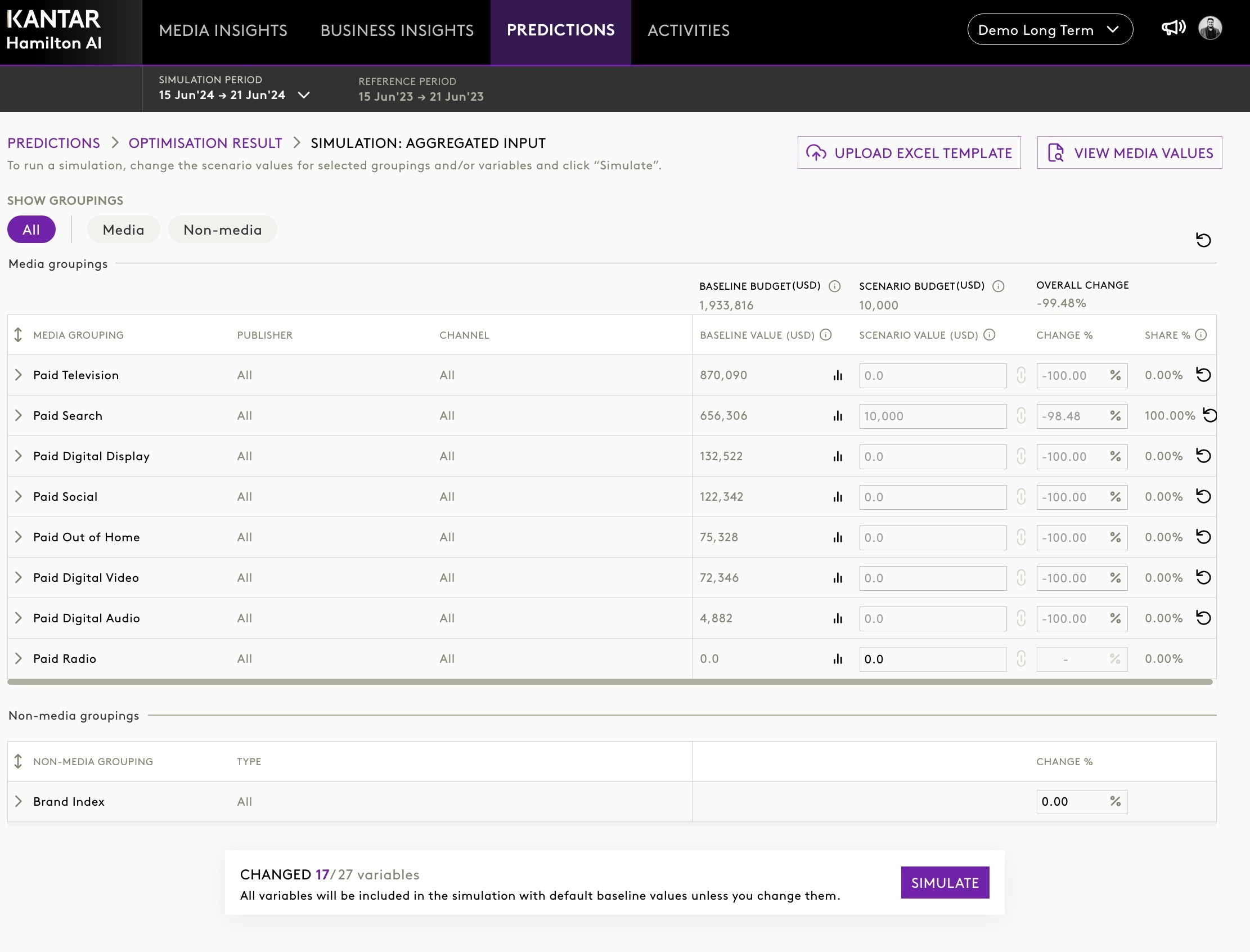
Step 4: Review Inputs
Inside the Simulator:
- Media values → pre‑filled and editable
- Non‑media variables → must be updated manually
Step 5: Click “Simulate”
Once all inputs are ready → run the simulation.
B. Loading From the Activities Module
Step 1: Go to Activities
Open the Activities module from the left navigation.
Step 2: Locate a Saved Optimisation
Find the optimiser run you want to simulate.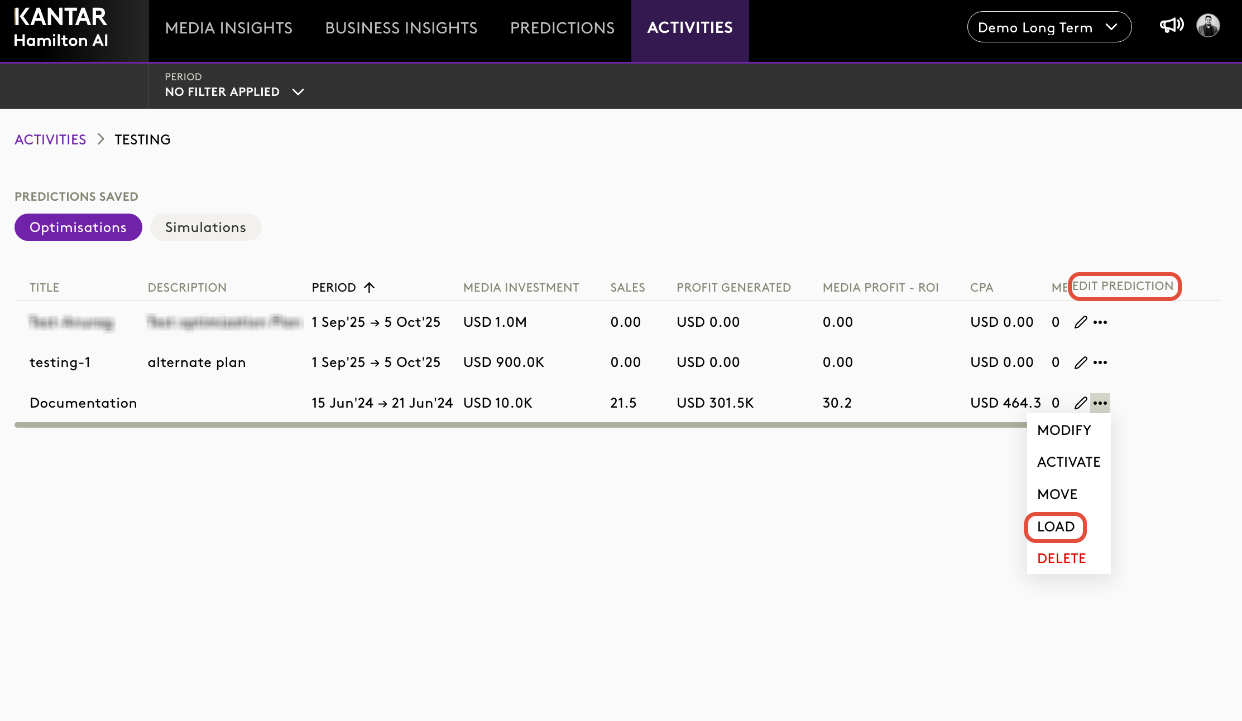
Step 3: Open the 3‑Dots Menu → Select “Load”
Or use the Edit Prediction button, then choose LOAD.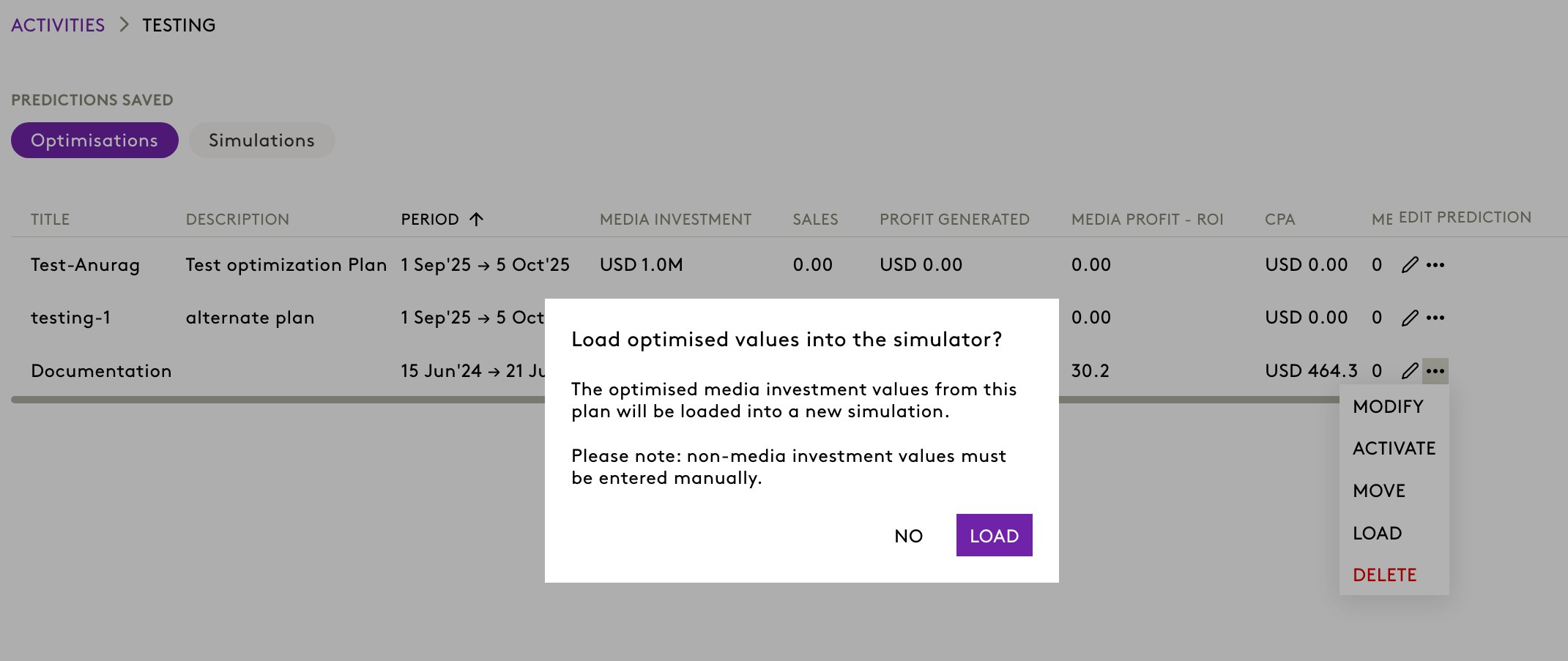
Step 4: Date Range Check
If the optimiser period falls within allowed simulation periods → scenario is created.
If not → system blocks loading.
Step 5: Review and Adjust Inputs
Simulator opens with:
- Auto‑populated media
- Manual non‑media updates required
Step 6: Simulate
Once inputs are finalized → click Simulate.
7. How to Access This Feature
To enable the feature:
- Go to the Feature Toggle (left side navigation)
- Under Feature for Review
- Enable “Directly load optimisation results to simulator”
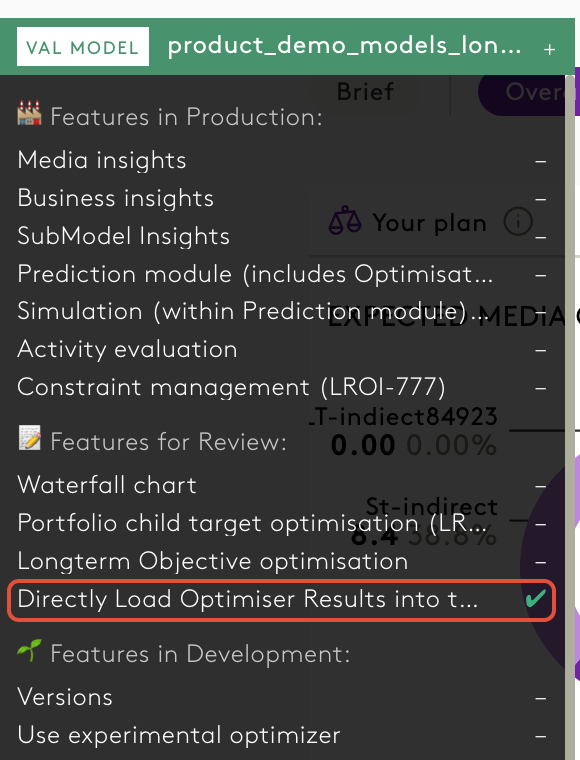
Once enabled, “Load” options appear in:
- Optimisation results cards
- Activities module
Was this article helpful?
That’s Great!
Thank you for your feedback
Sorry! We couldn't be helpful
Thank you for your feedback
Feedback sent
We appreciate your effort and will try to fix the article