This article explains, step by step, how to locate, download, and upload Excel templates for scenario values in the Simulator. Please follow each step carefully to ensure a smooth process.
TABLE OF CONTENTS
- Step 1: Select Your Model and Simulation Period
- Step 2: View Weekly Values
- Step 3: Select Media Groupings
- Step 4: Modify Weekly Values
- Step 5: Download the Excel Template
- Step 6: Upload the Completed Template
- Key Pointers for Uploading Simulator Excel Templates
Step 1: Select Your Model and Simulation Period
- Choose your preferred model for which you wish to upload the Excel template.
- Ensure you have selected the correct simulation period and reference period. This is crucial for accurate data entry.
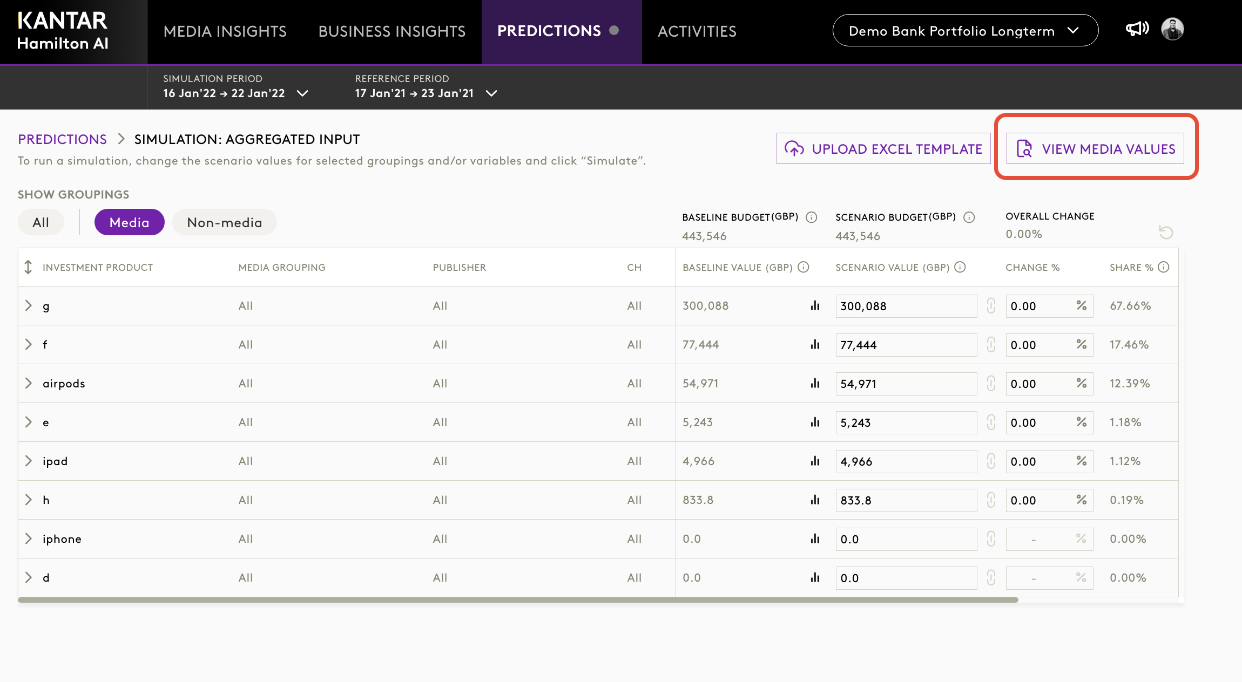
Step 2: View Media Values
- On the top right corner of the screen, click the View Media values button.
- This will display the weekly values for your selected model and period.
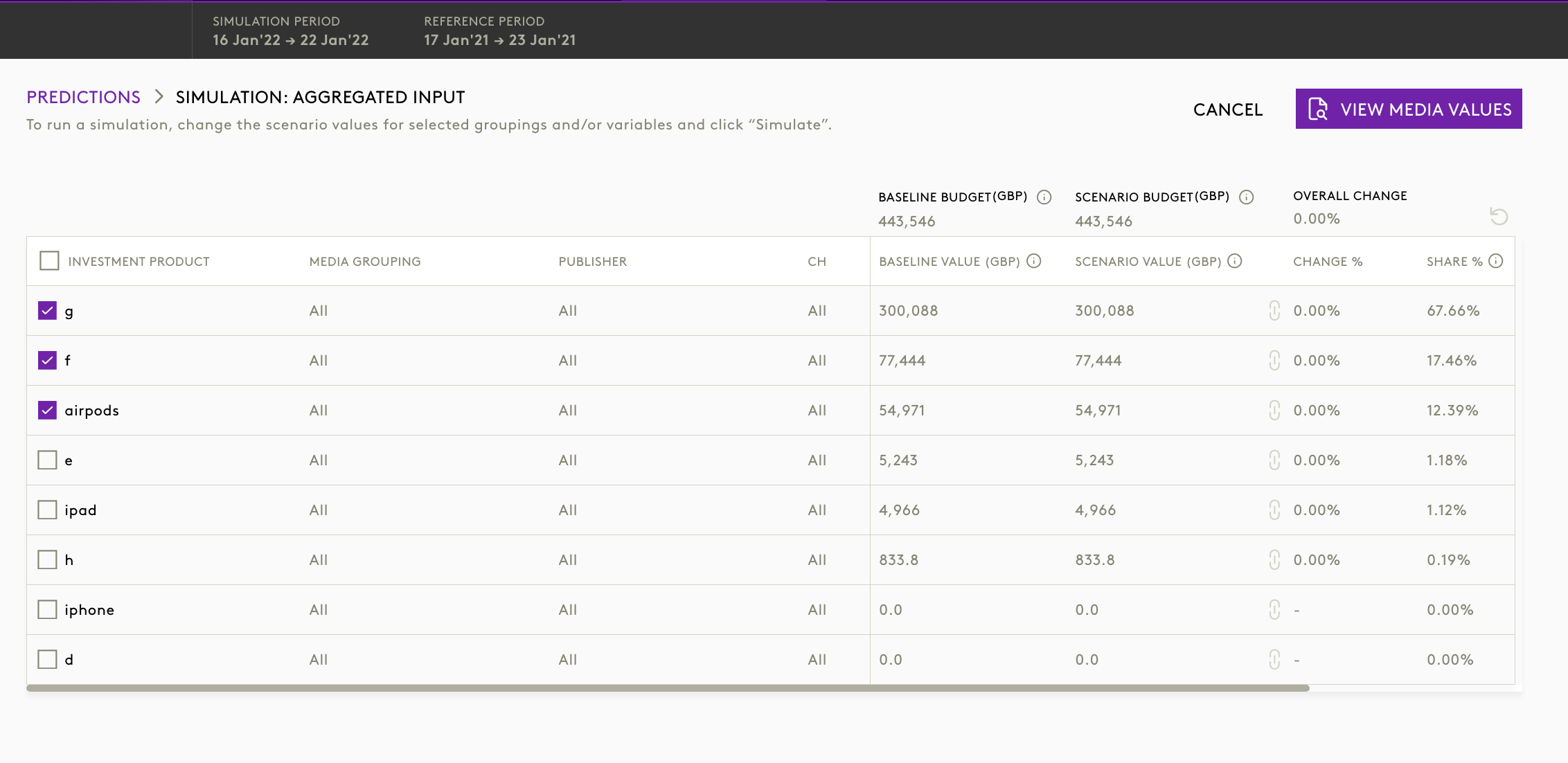
Step 3: Select Media Groupings
- Choose the required media groupings relevant to your scenario.
- Click the View weekly values button again to move to next step.
Step 4: Modify Media Values
- A new screen will appear showing the media values.
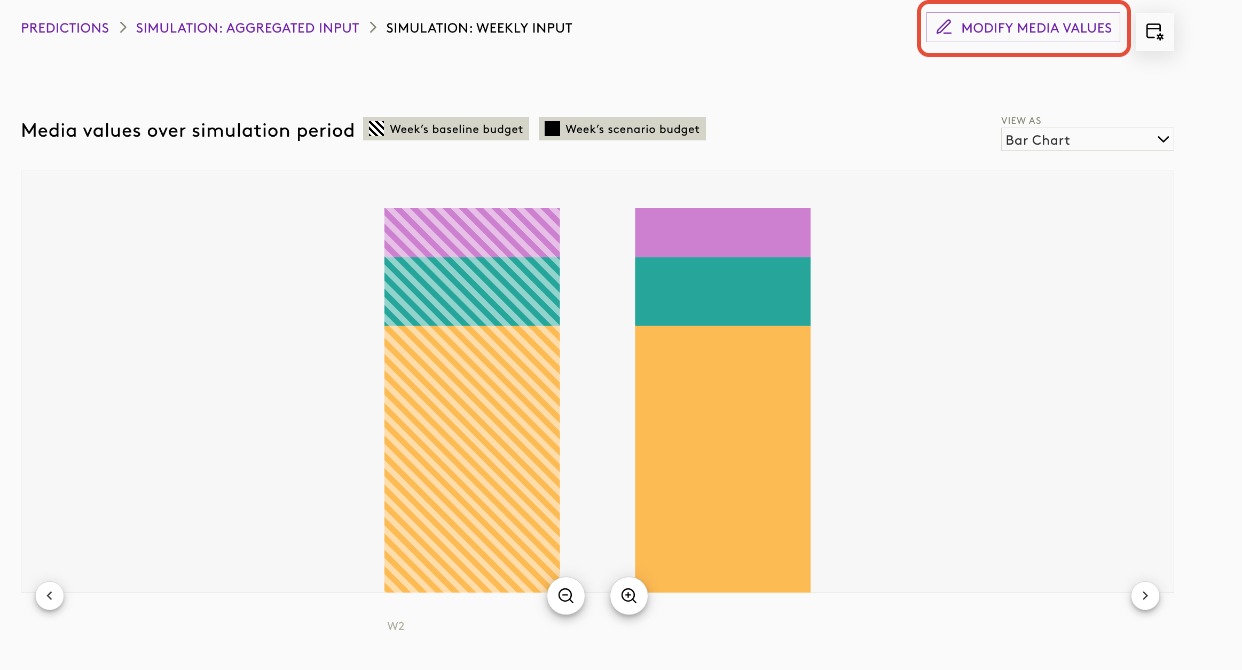
- Click on Modify Media values at the top right corner.
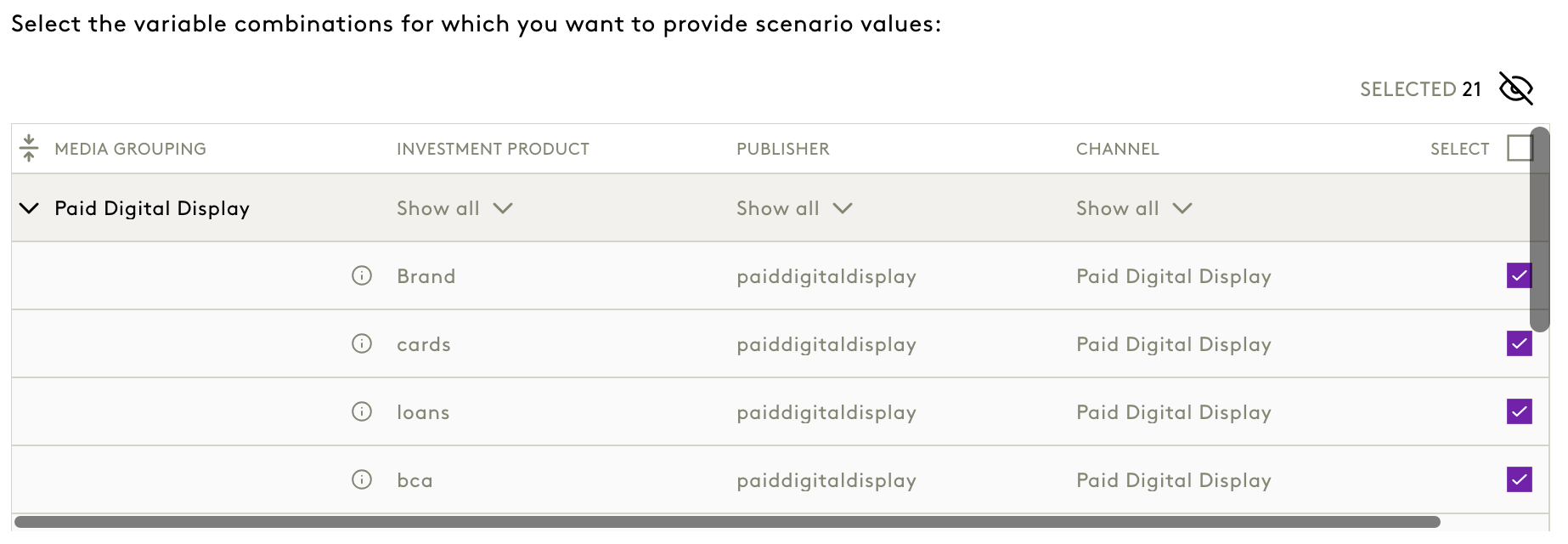
- Here, you can select the variable combinations for which you want to provide scenario values.
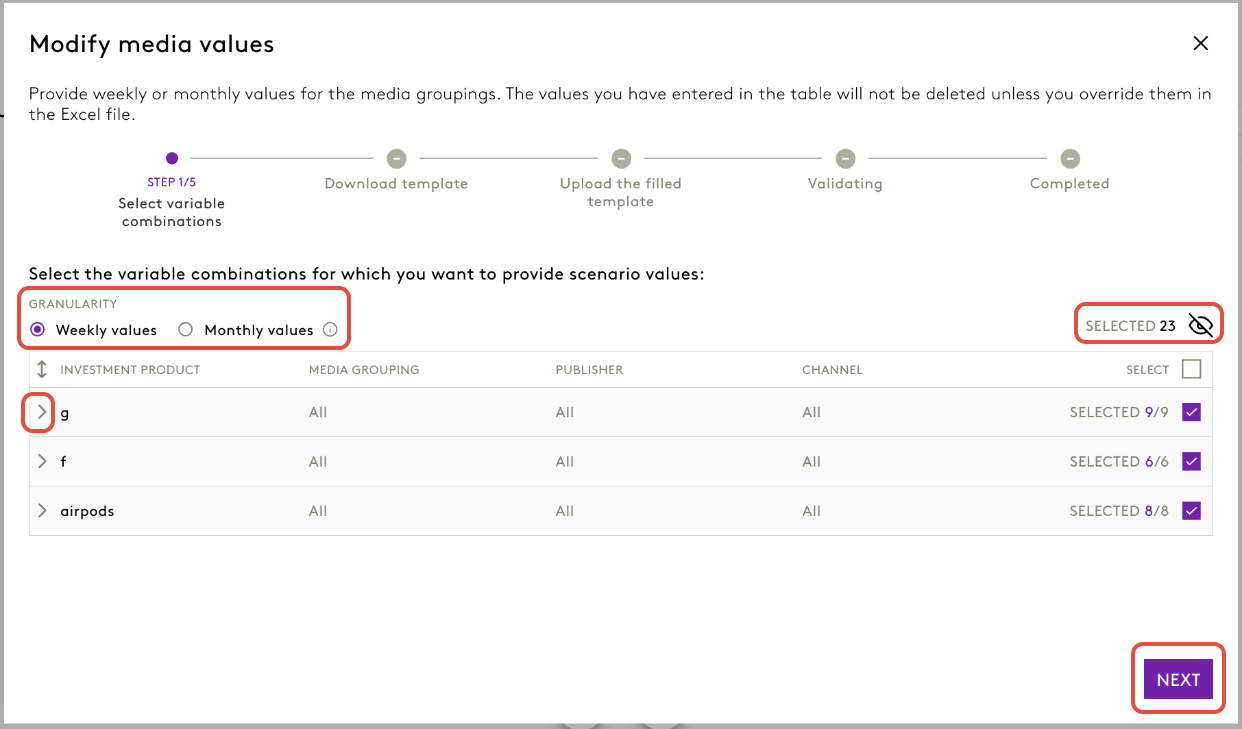
- You can also the choose the granularity, whether you want to modify weekly or monthly values.
- Use the drop-down filters to navigate across the media hierarchy available for your model.
Step 5: Download the Excel Template
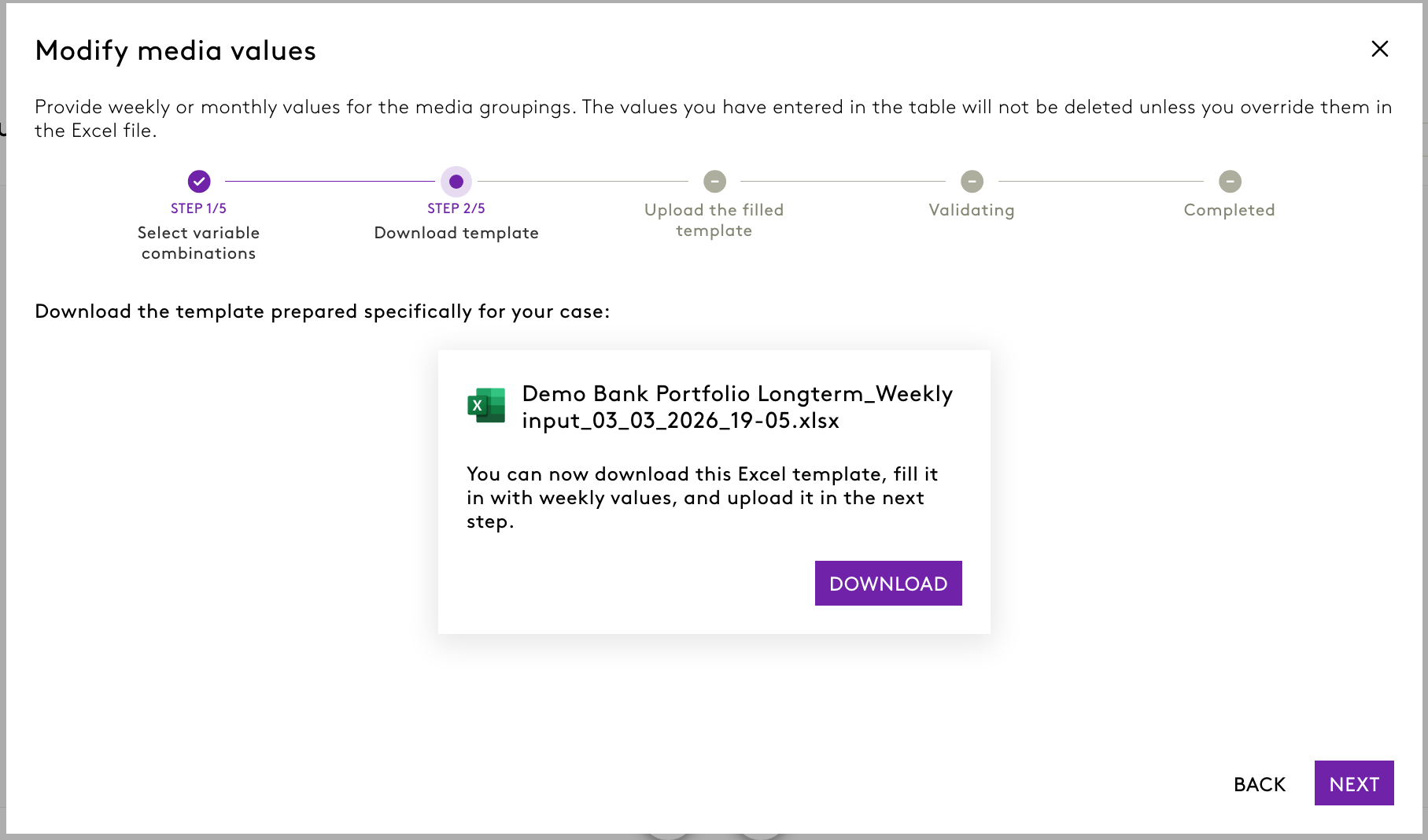
- After selecting the variable combinations, click Next.
- You will now see an option to Download the template prepared specifically for your case.
- Click the Download button to obtain the Excel template.
- Fill in the template with your scenario values.
Step 6: Upload the Completed Template
- Once you have filled in the template, return to the simulator.
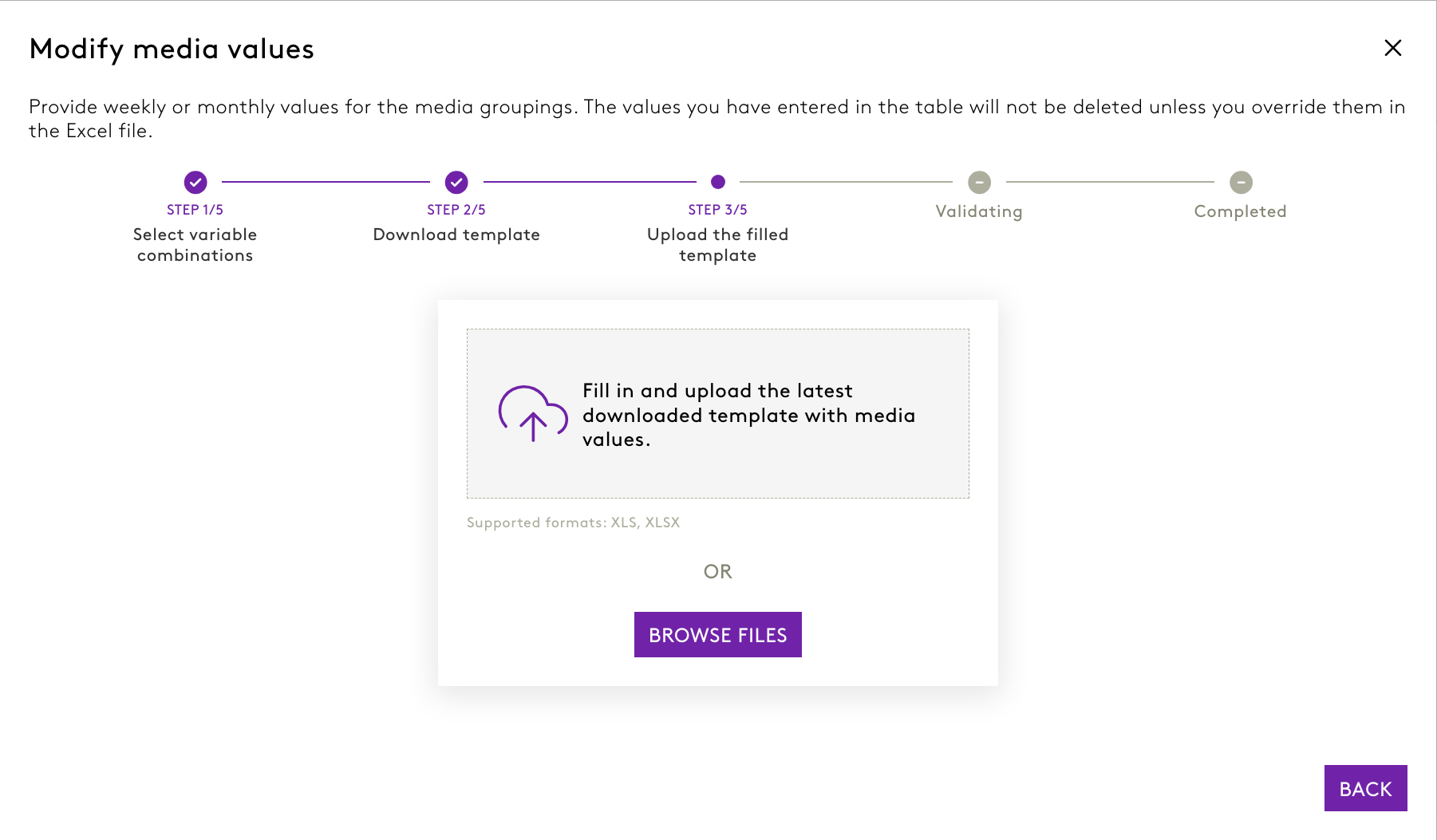
- You can upload the completed template either in the next step.
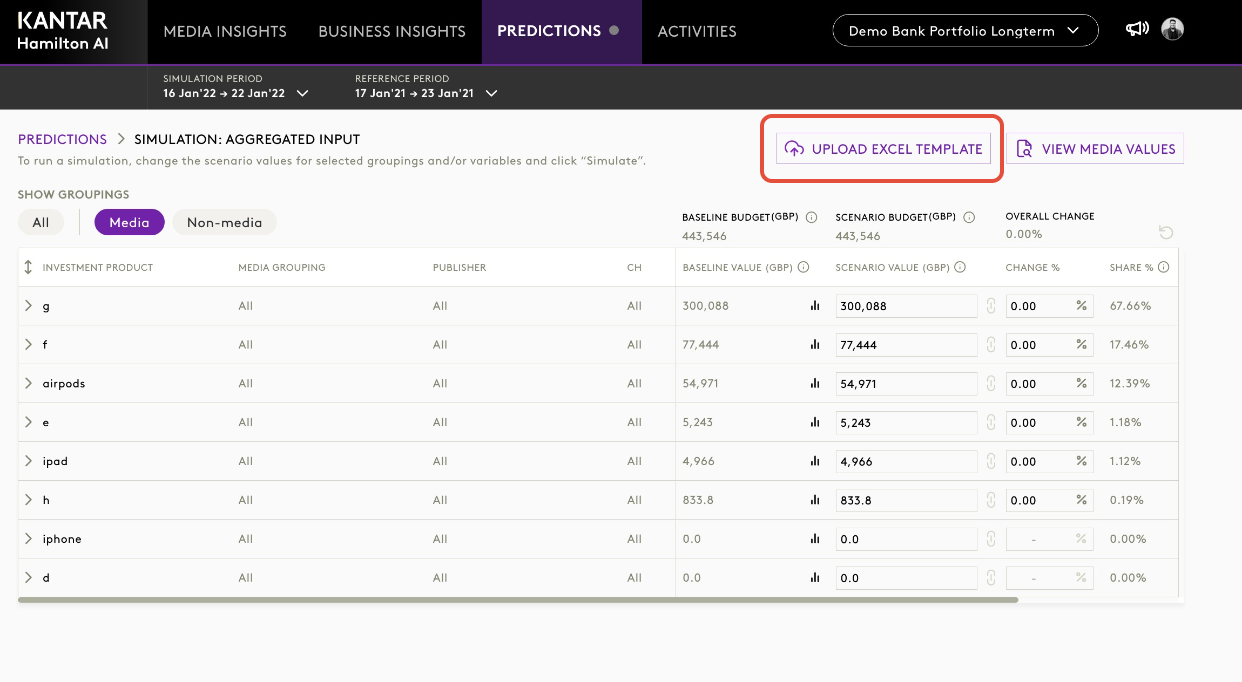
- Or directly on the first screen of the simulator (as seen in Step 1).
- Supported formats are XLS and XLSX.
- Click Browse Files or Drag and drop to upload your filled template.
Key Pointers for Uploading Simulator Excel Templates
- Upload Flexibility
- You can upload input files using templates you’ve downloaded earlier, even before reaching the weekly values page.
- Template Structure Matters
- Make sure your Excel file matches the expected columns and format.
- If columns are missing or extra, the system will show a validation error and warn you in the interface.
- Collaborative & Formula-Friendly
- The template now has separate sheets for Baseline and Scenario.
- You can use Excel formulas (like lookups or calculations) in editable cells to prepare your data.
- Bulk Data Handling
- You can bulk upload large datasets or copy-paste big ranges directly into the template, saving time for complex projects.
- Reuse Old Templates
- Templates from previous sessions can be reused. The system will read your inputs and apply your latest selections, so you don’t have to set up everything again.
- Automatic Validation
- The platform checks your file’s structure when you upload.
- If there are any mismatches (extra/missing columns), you’ll get a clear error message so you can fix and retry quickly.
Was this article helpful?
That’s Great!
Thank you for your feedback
Sorry! We couldn't be helpful
Thank you for your feedback
Feedback sent
We appreciate your effort and will try to fix the article