This latest release for the Insights platform introduces significant improvements to simulation flexibility, saved plan management, and reporting. This update is designed to enhance user experience, streamline workflows, and provide deeper strategic insights for modellers, analysts, and campaign managers.
Also this release introduces a unified, clearer Global Bar & Menu and a Unified Date Picker that standardises how you select and compare time periods across modules. The redesign improves clarity, reduces configuration errors and streamlines navigation.
TABLE OF CONTENTS
- Unified Global Bar and Menu Design
- Editable Titles and Descriptions for Saved Plans
- Custom Simulation Window
- Detailed Product-Level Data in Excel
- Support for Uploading Previously Downloaded Excel Templates in Simulator
Unified Global Bar and Menu Design
What's changed?

- Explicit filter labels: All filters are now clearly labelled, reducing ambiguity between filters and view controls.
- Non-filter selectors: Controls that do not filter data (e.g., calculation toggles) have been relocated to the Data View area for consistency.
- Observed / Consolidated label: Where multiple attribution calculation types exist, a static label appears. Hover to reveal an info icon; click for a concise explanation. Changes to effect display type should be made in Data View configuration only.
- Distinct colour highlighting: Any control where the default value has been changed is now highlighted using a distinct colour. This visual cue helps users quickly identify custom configurations and reduces the risk of configuration errors.
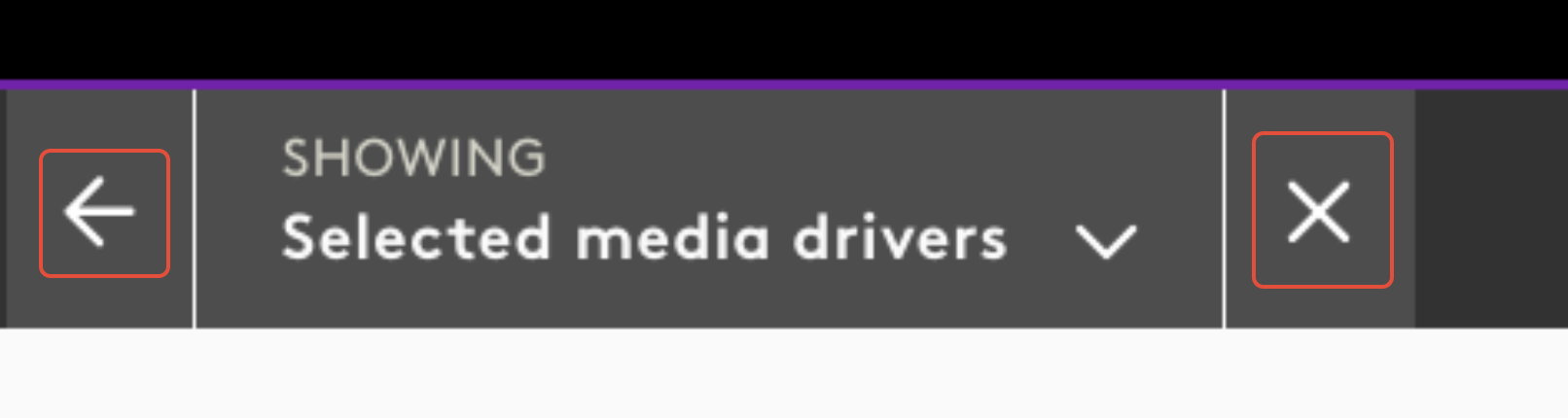
- Animated Back and Cross buttons: Animations have been added to these navigation buttons across all modules, providing a more engaging and responsive user experience.
- Breadcrumb navigation: Breadcrumbs are now consistently displayed, allowing users to easily see their current location and navigate back to previous sections.
Visualise the changes:
Figure 1. Global navigation (before)
Old header showing legacy navigation and filter placement.

Figure 2. Global navigation (after)
New header with clearly separated MEDIA INSIGHTS / BUSINESS INSIGHTS / PREDICTIONS / ACTIVITIES, visible Selected Period / Comparison Period pickers, and the Consolidated indicator in the bar.

Figure 3. Observed vs Consolidated labels
Static “Observed” and “Consolidated” labels (with hover info) to signal effect type
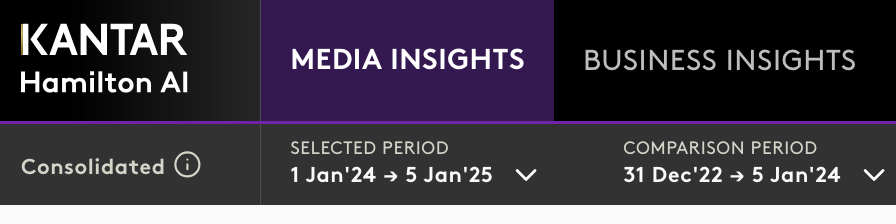
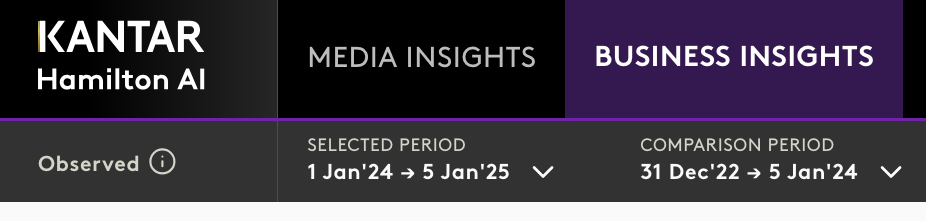
Figure 4. Hover info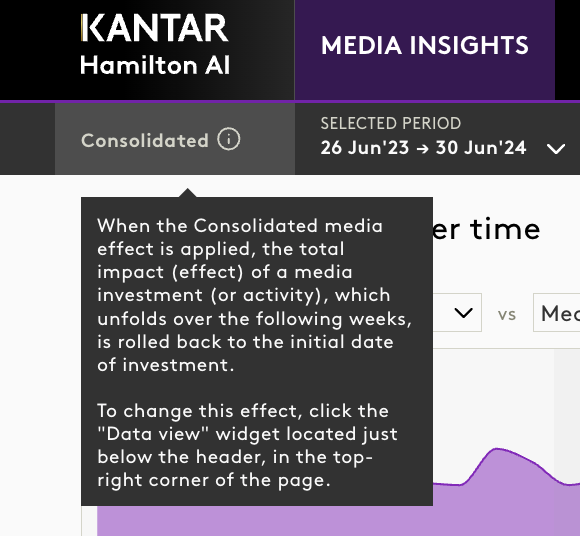
Figure 5. Breadcrumb Navigation
Consistent breadcrumb trail at the top of the module, showing navigation path
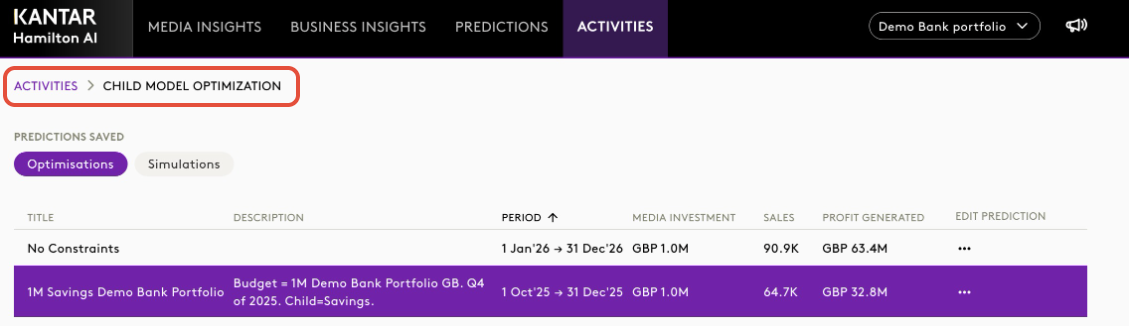
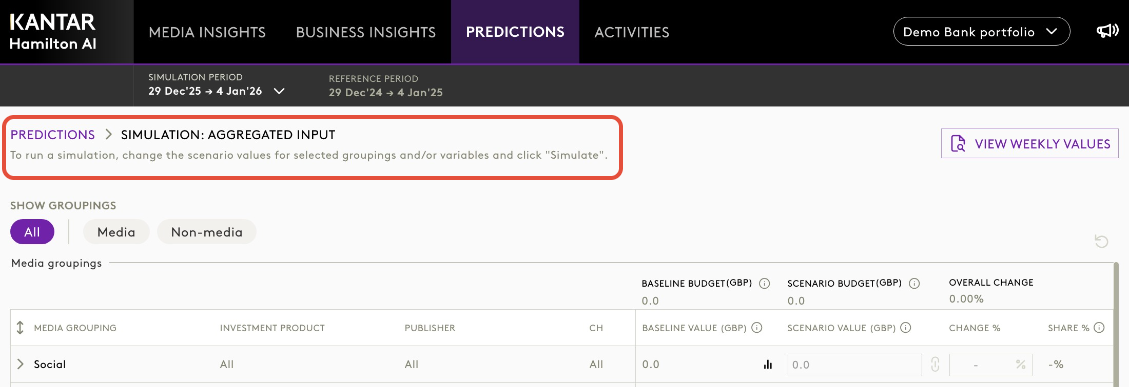
Figure 6. Animated Navigation
 Editable Titles and Descriptions for Saved Plans
- Users can now update the title and description of saved simulation or optimisation plans after creation.
- This feature improves clarity and tracking, especially when managing multiple saved activities.
- Accessible via the Saved Plans section in the Activity module.
- Save and Cancel controls are available during editing.
- Changes are automatically synced across all users with access.
How to:
Step 1: Navigate to the Activity module in the Insights Platform.
Step 2: Go to the Saved Plans section. Here, you’ll see a list of your saved activities.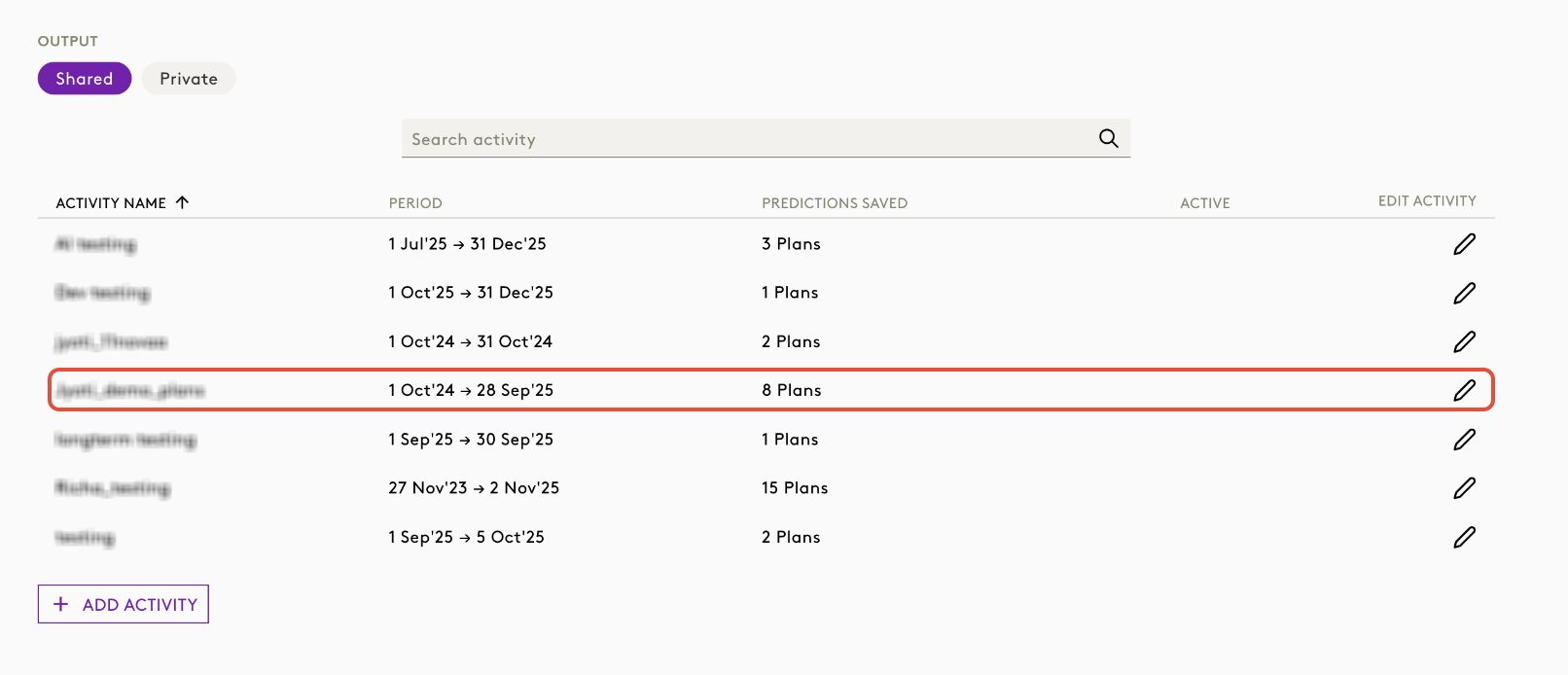
Step 3: Locate the activity which hosts the plan you want to update. Click on the activity and open the saved plan.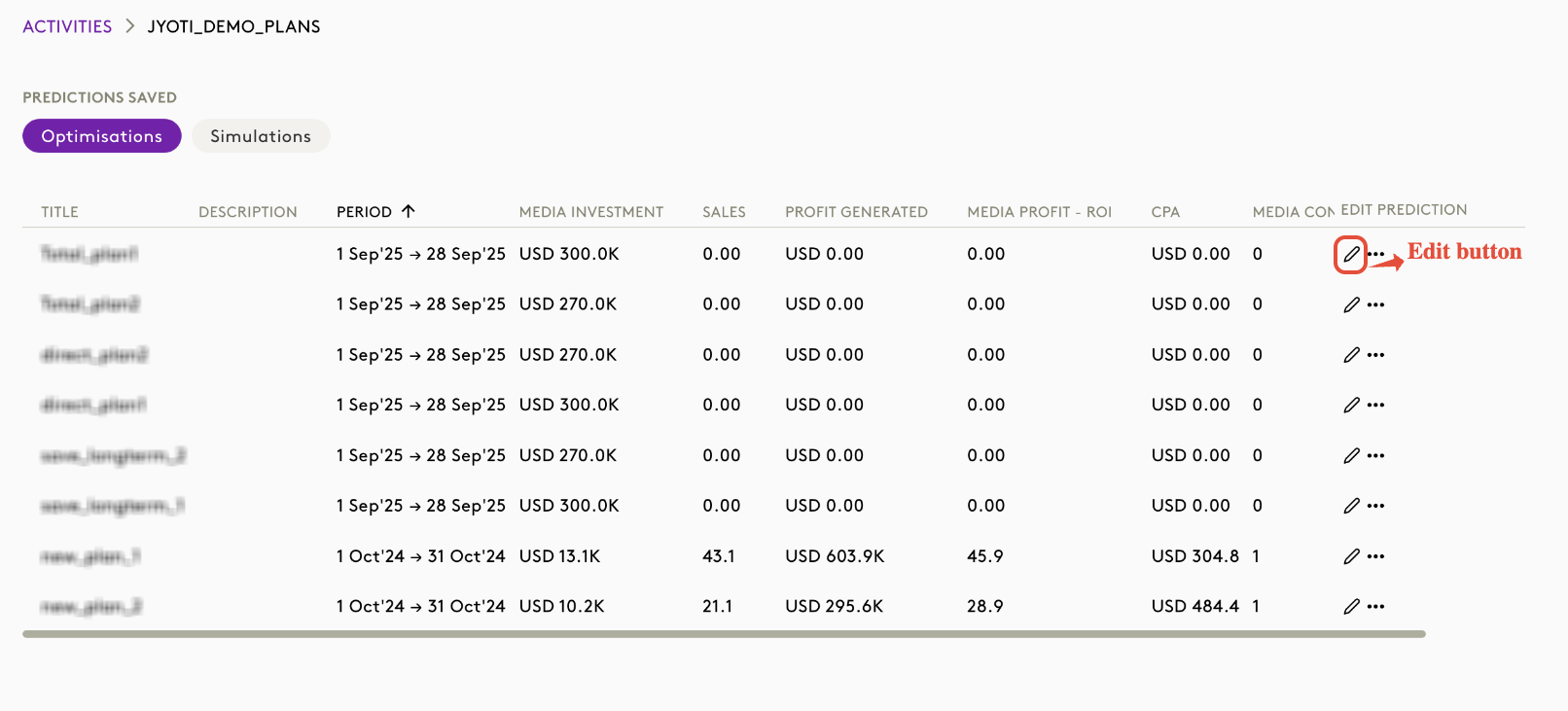
Step 4: Click the Edit icon or button next to the plan’s title or description.
Step 5: Enter your new title and/or description in the provided fields.
Step 6: Use the Update button to confirm your changes. If you change your mind, click Cancel (X) to discard edits.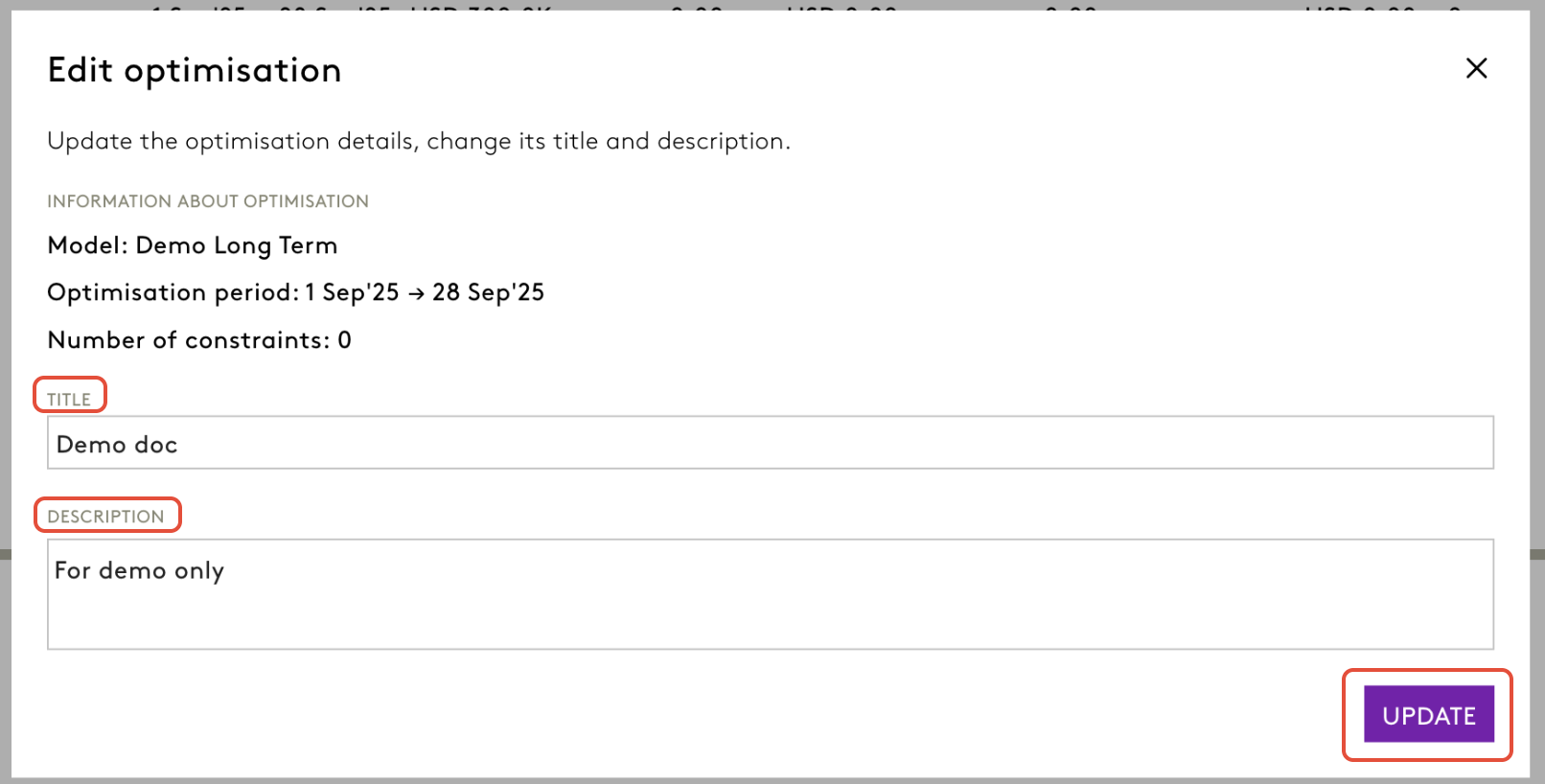
Step 7: Once saved, your updates are automatically synced and visible to all users who have access to the plan.
Custom Simulation Window
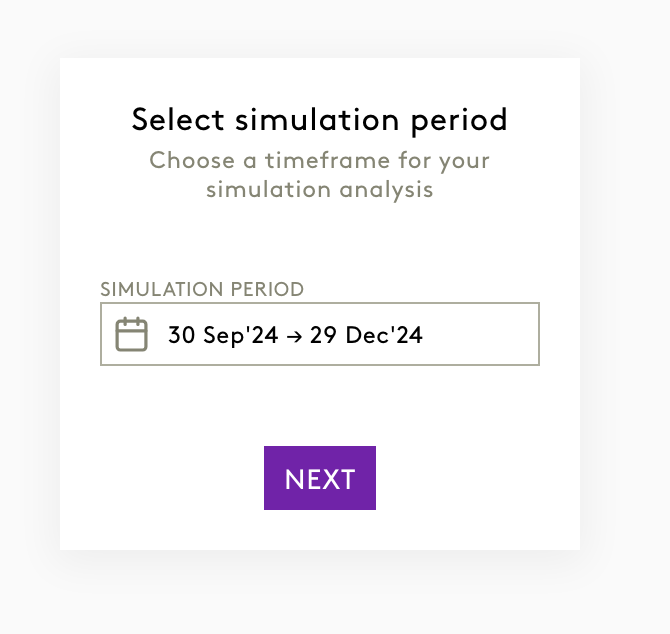
The simulator now allows users to run scenarios over custom periods within the model’s trained date range, starting from the second year onwards. This means you’re no longer restricted to fixed timeframes giving you the flexibility to analyze performance for any historical window that fits your strategic needs.
What's new?
- Custom Period Selection: You can select any period after the first year of the model’s timeline. This ensures the model has sufficient historical data for accurate simulation.
- For example, if your model covers 2022–2025, you can simulate scenarios for any window starting from 2023 onwards.
Detailed Product-Level Data in Excel
With this release, Excel sheets generated after running optimization in the Portfolio Long Term model now include a comprehensive breakdown of sales for each individual product, for example: AirPods, iPhone, and iPad. This enhancement provides users with unprecedented visibility into how investments are driving sales at the product level.
What’s New?
The attached images illustrate the changes:
Sales – Combined

- The “Sales – Combined” section now breaks out sales for each product (e.g., AirPods, iPhone, iPad) in separate columns.
- You can see, for each week, exactly how much sales each product generated as a result of media investments.
Sales – Split

- The “Sales – Split” section goes further, showing product-level sales for each attribution type (short-term direct, short-term indirect, long-term indirect).
- Each product (AirPods, iPhone, iPad) has its own column under each attribution type, making it easy to analyze performance at a granular level.
This enhancement is available only in the Excel output after optimization and is exclusive to the Portfolio Long Term model.
There is no change to the UI, these details are visible only in the downloaded Excel file.
Support for Uploading Previously Downloaded Excel Templates in Simulator
Users may now upload simulator input files using previously downloaded templates, even before entering the weekly values page.
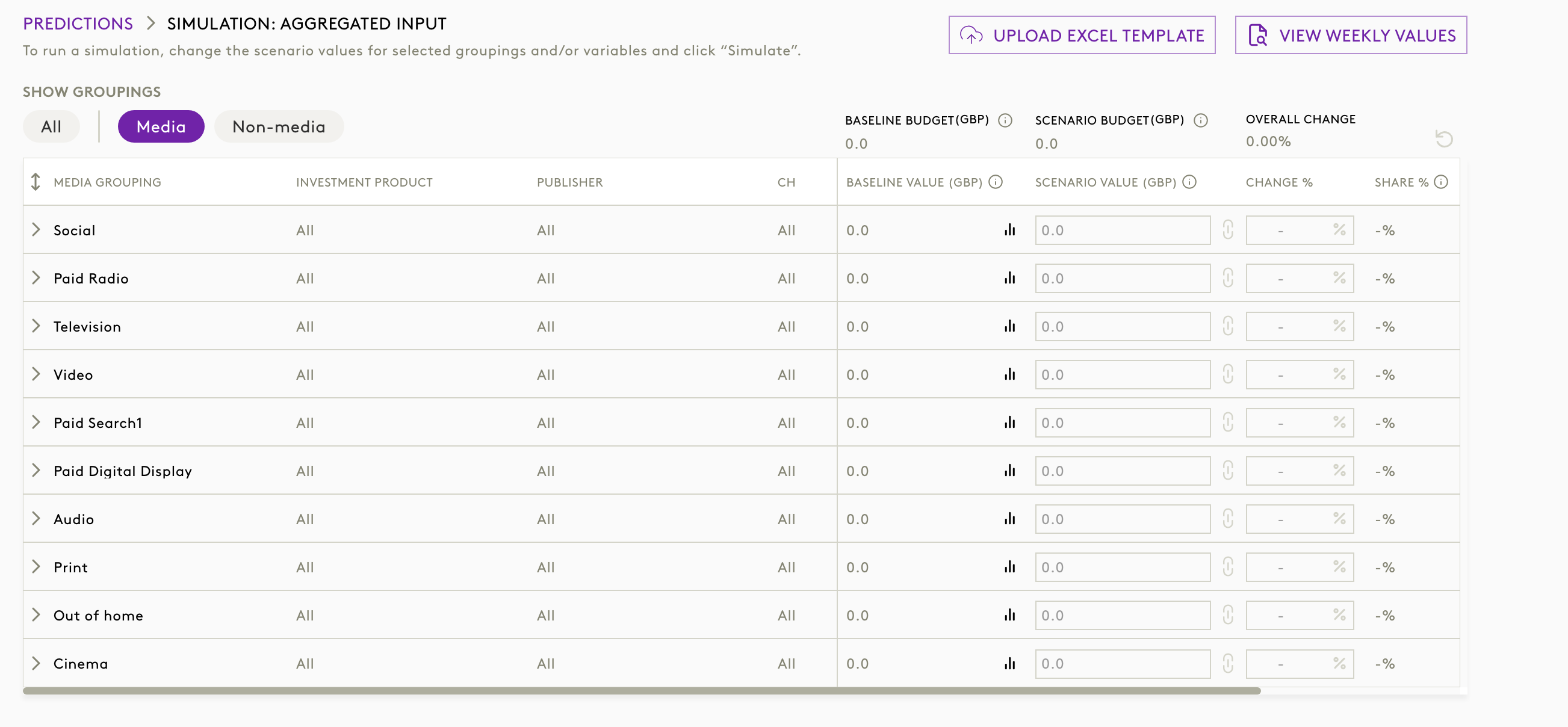
- Navigate to the Simulator Input pages after selecting the dates.
- Click on the UPLOAD EXCEL TEMPLATE button on the top right corner.
- A pop-up appears, use it to upload the excel files.
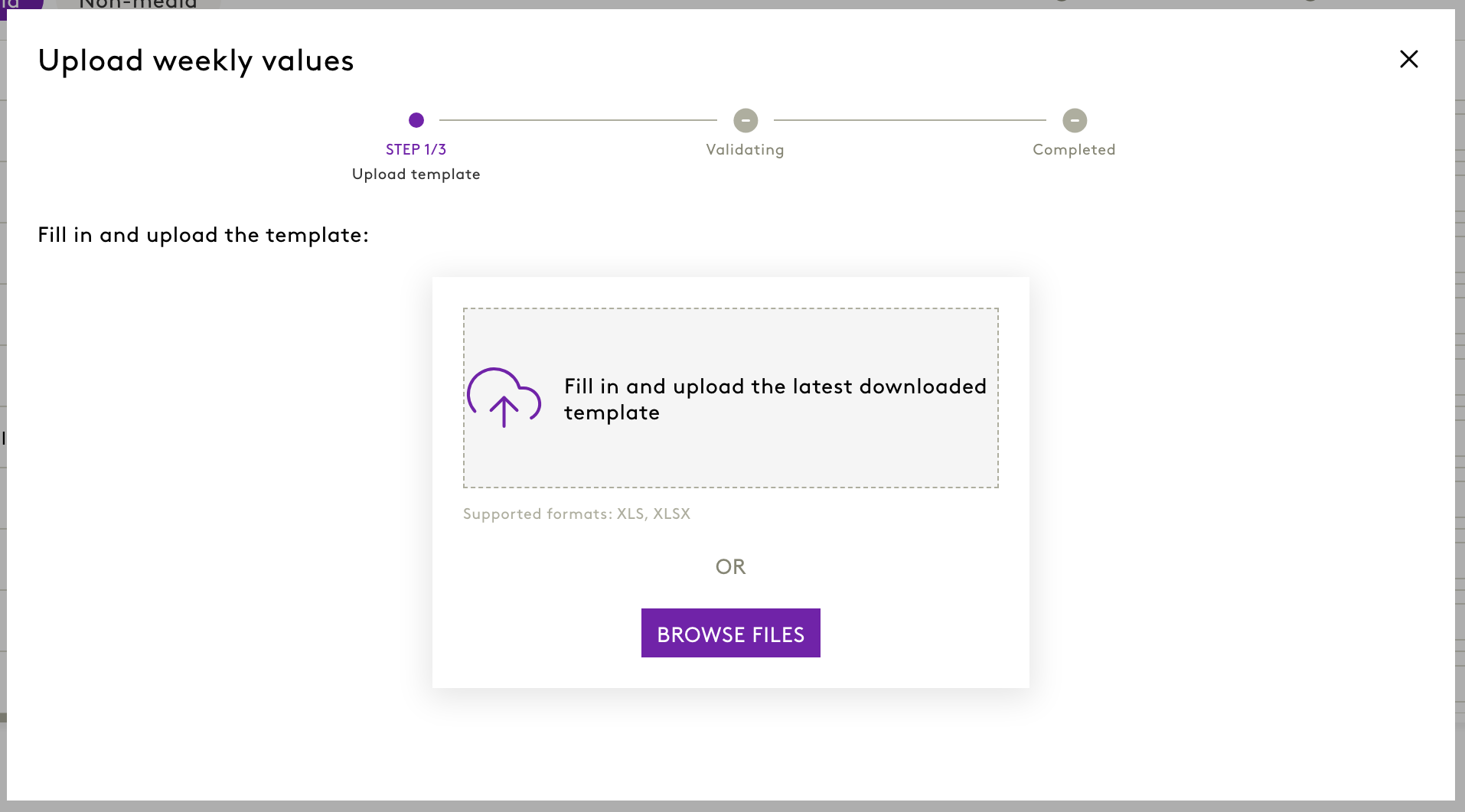
- Fill in the required data and upload, regardless of session origin
- Templates downloaded via the “Modify Weekly Values” popup remain supported
Limitations:
- Uploads with missing or additional columns will be flagged with a validation error.
- UI will display warnings if the uploaded format does not match the expected structure.
Note:
- This update applies to all model types using the Simulator module.
- Old flow is still supported.
- Backend validation ensures only structurally correct templates are accepted.
- Users are encouraged to verify column headers before upload to avoid errors.
Was this article helpful?
That’s Great!
Thank you for your feedback
Sorry! We couldn't be helpful
Thank you for your feedback
Feedback sent
We appreciate your effort and will try to fix the article