Overview
We are pleased to introduce a new feature designed to streamline the configuration process for optimisation models: Optimisation Constraint Templates.
This enhancement significantly reduces manual effort and minimises errors by enabling the users to download and upload constraint templates in Excel format. With this capability, the users can reuse and share templates across scenarios, saving time and ensuring consistency in optimisation workflows.
TABLE OF CONTENTS
- What Does This Feature Do?
- How to Use This Feature
- Backward Compatibility
- Important Notes
What Does This Feature Do?
Previously, adding constraints for each optimisation run required manual entry, which was time-consuming and prone to errors. The new feature allows users to:
- Download all configured constraints for a model into an Excel template.
- Edit specific fields (Type and Amount) within the template.
- Upload the template during optimisation to apply all constraints in one step.
This approach simplifies repetitive tasks and improves accuracy.
How to Use This Feature
Follow these steps to make the most of the Optimisation Constraint Template:
1. Setting Up Constraint Templates
1.1 Navigate to the Optimisation Section
From the top navigation bar, go to the Prediction module.
Click on the Optimise tab.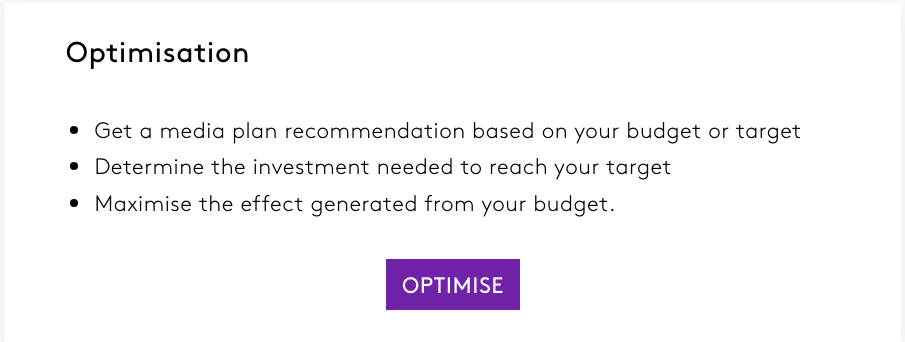
1.2 Set up the Optimisation
Select Optimisation type, Choose the optimisation period and enter the budget.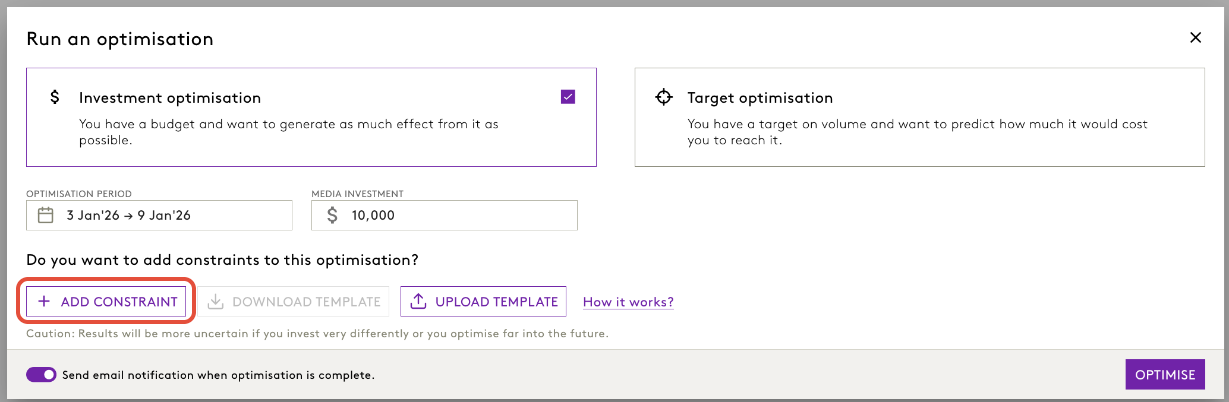
2. Downloading Constraints
2.1 Configure Constraints in the UI
Add all required constraints for your optimisation run.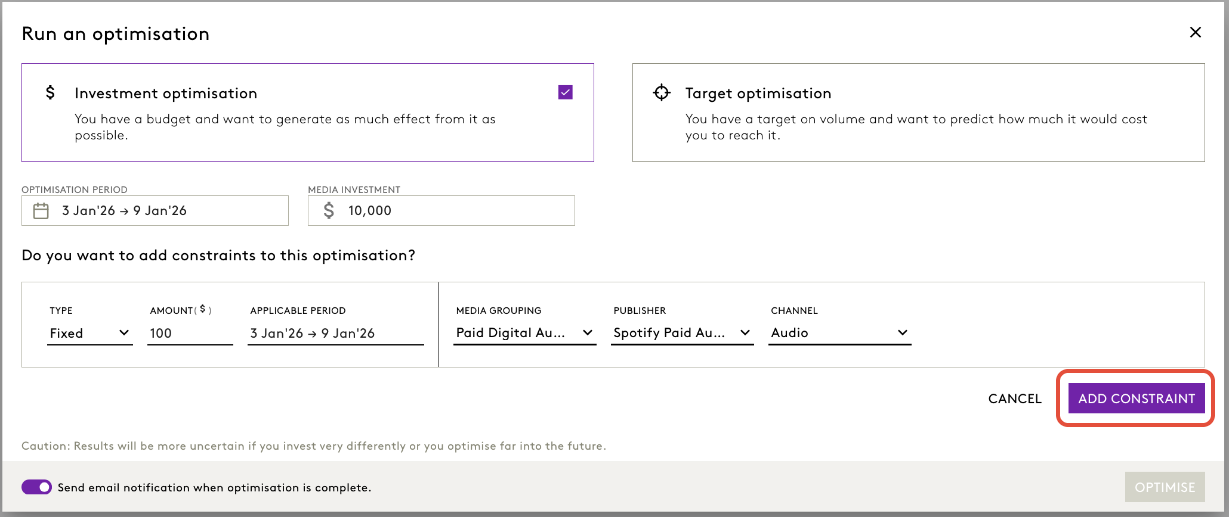
To add a constraint:
- Click Add Constraint.
- Choose the constraint type.
- Enter the amount.
- Choose the time period for which the constraint should apply.
- Select the investment product where applicable (e.g., Cards, Loans, Savings or Halo products).
- Choose the media grouping, campaign type, channel, format, and publisher.
- Click Add Constraint – the system will check compatibility.
- Repeat for additional constraints.
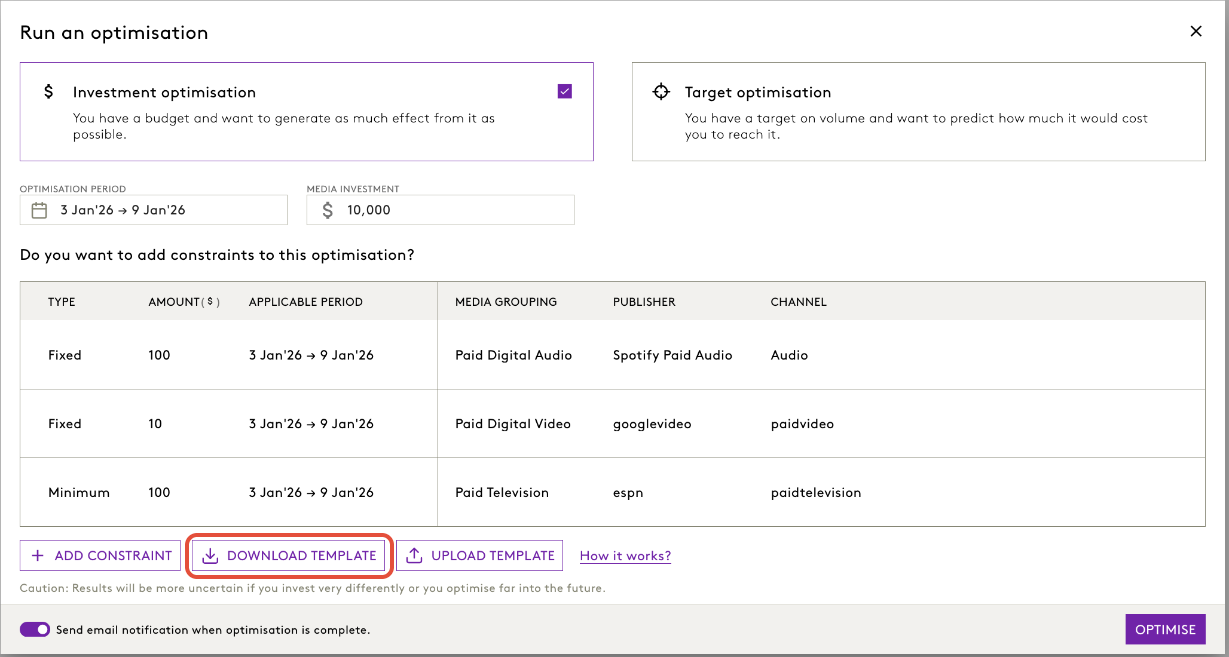
2.2 Download the Template
At the bottom of the page, click Download Template.
A pop-up warning appears, click on DOWNLOAD.
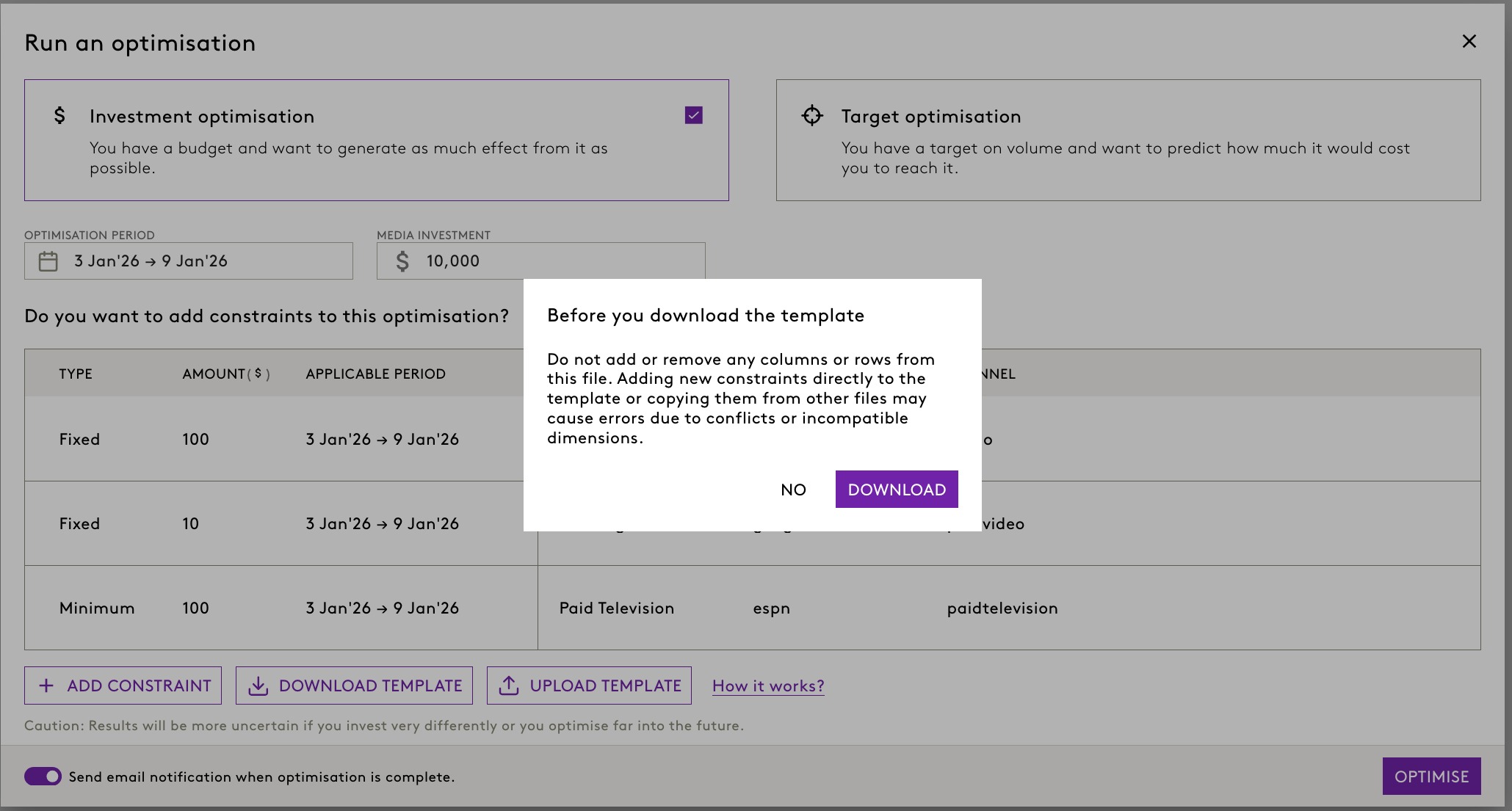
- All constraints configured in the UI
- Amount and Type fields for each constraint

3. Editing the Template
3.1 What Can Be Edited
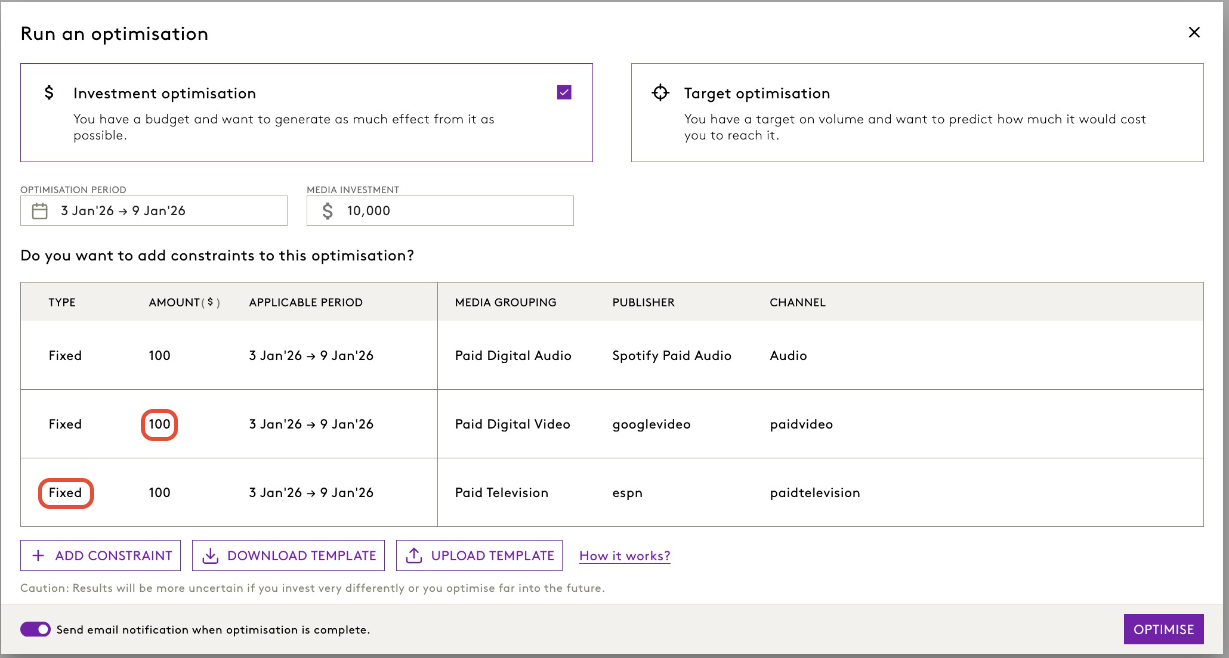
- Type: Change between Fixed, Minimum, and Maximum.
- Amount: Adjust the numeric value.
Example:

3.2 What Cannot Be Edited
- Dimensions (e.g., product, channel, campaign type)
- Adding or removing constraints
- Dates (currently not editable in Excel; adjust in UI after upload)
4. Uploading the Template
4.1 Apply Constraints
In the Optimisation UI, you can also find the option to upload the template:
- Click Upload Template button.
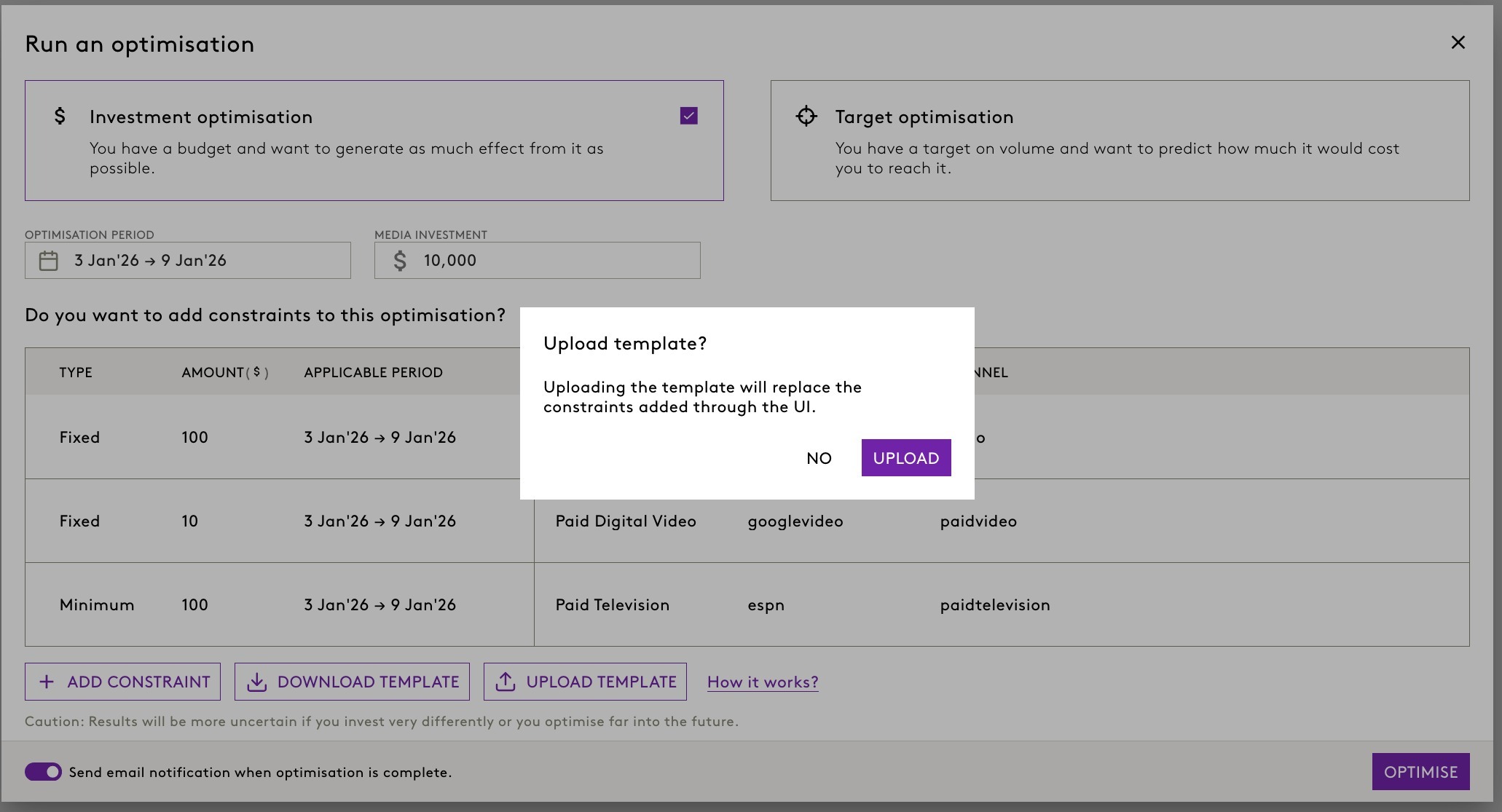
- A popup warning appears, click on UPLOAD.
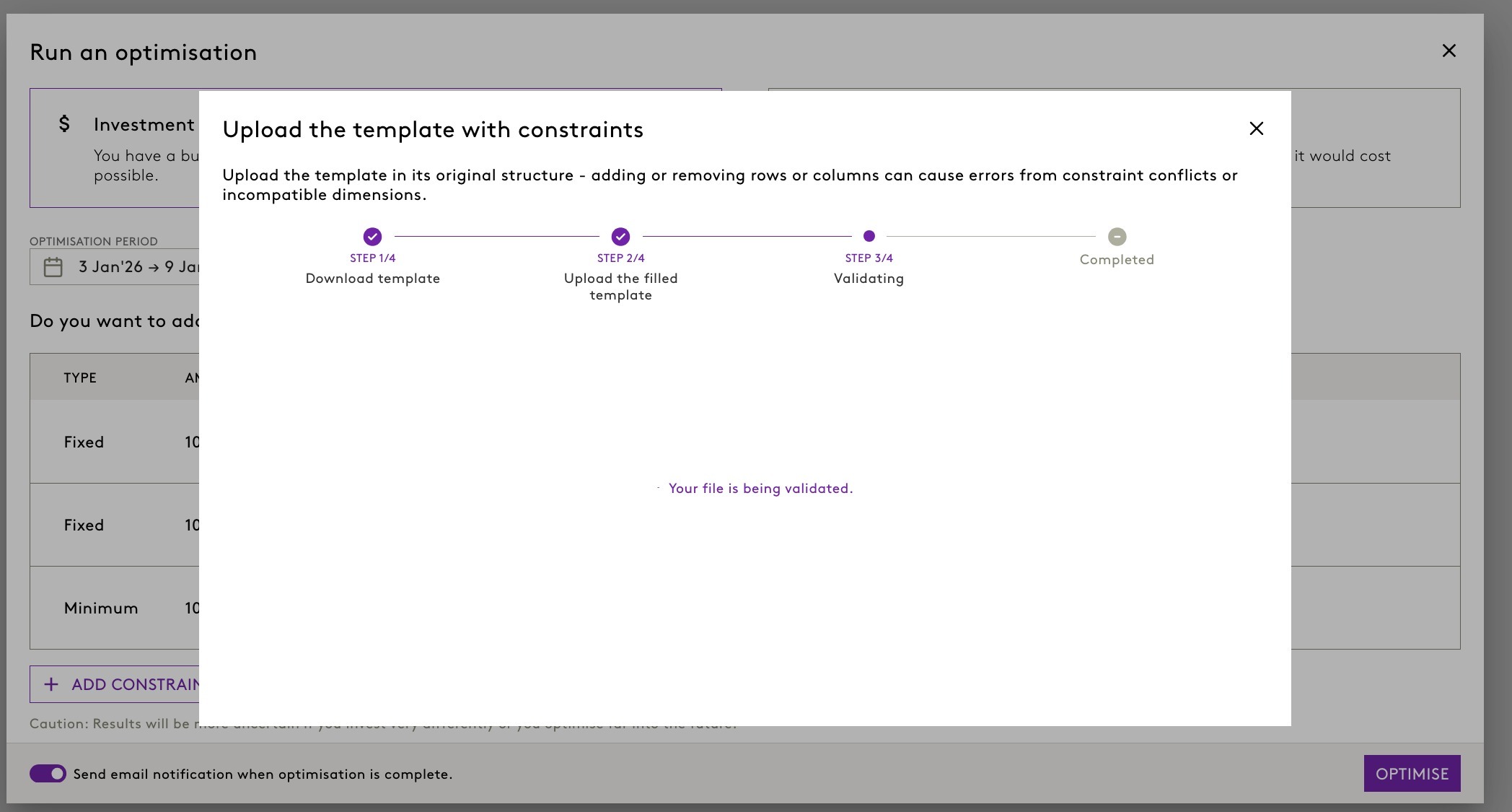
- Follow the steps on the screen.
- You can browse for the file or drag and drop.
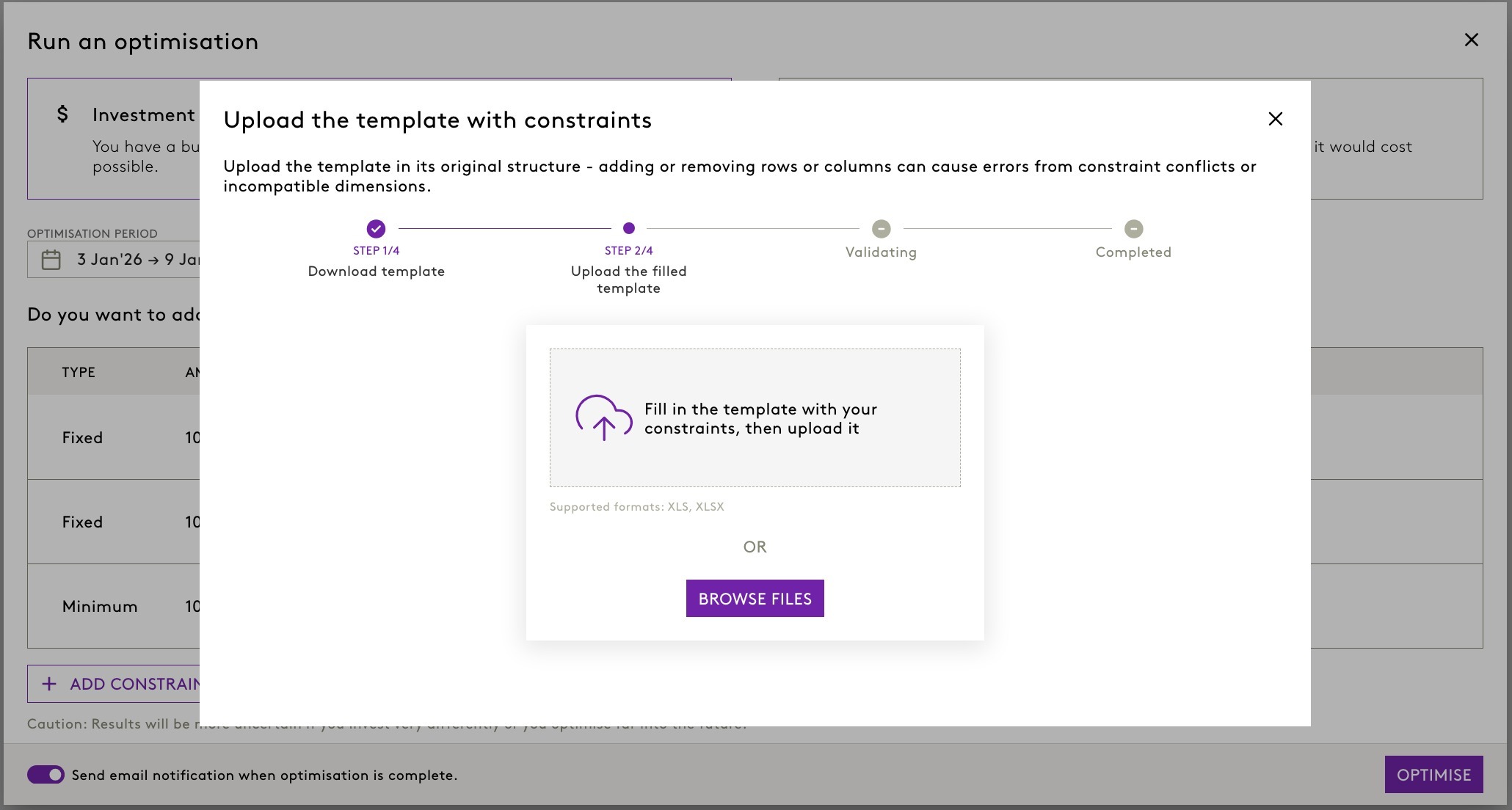
- Click UPLOAD.
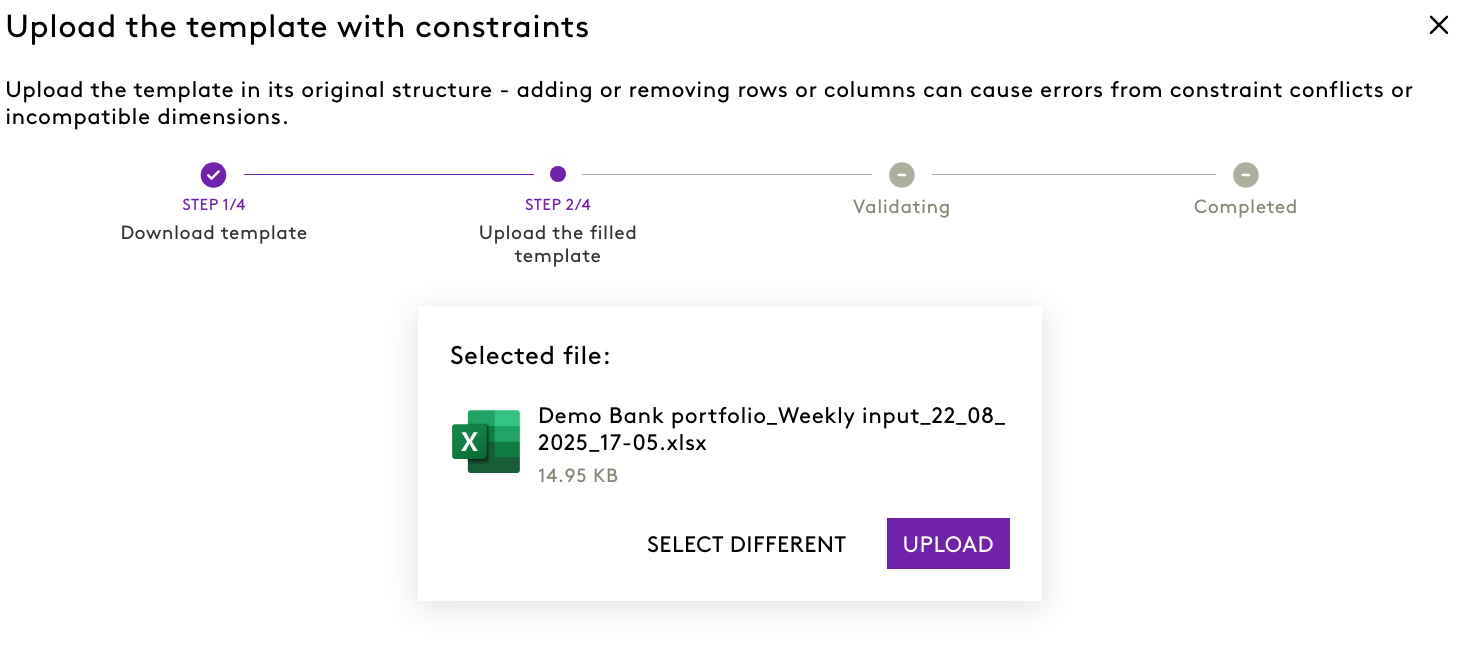
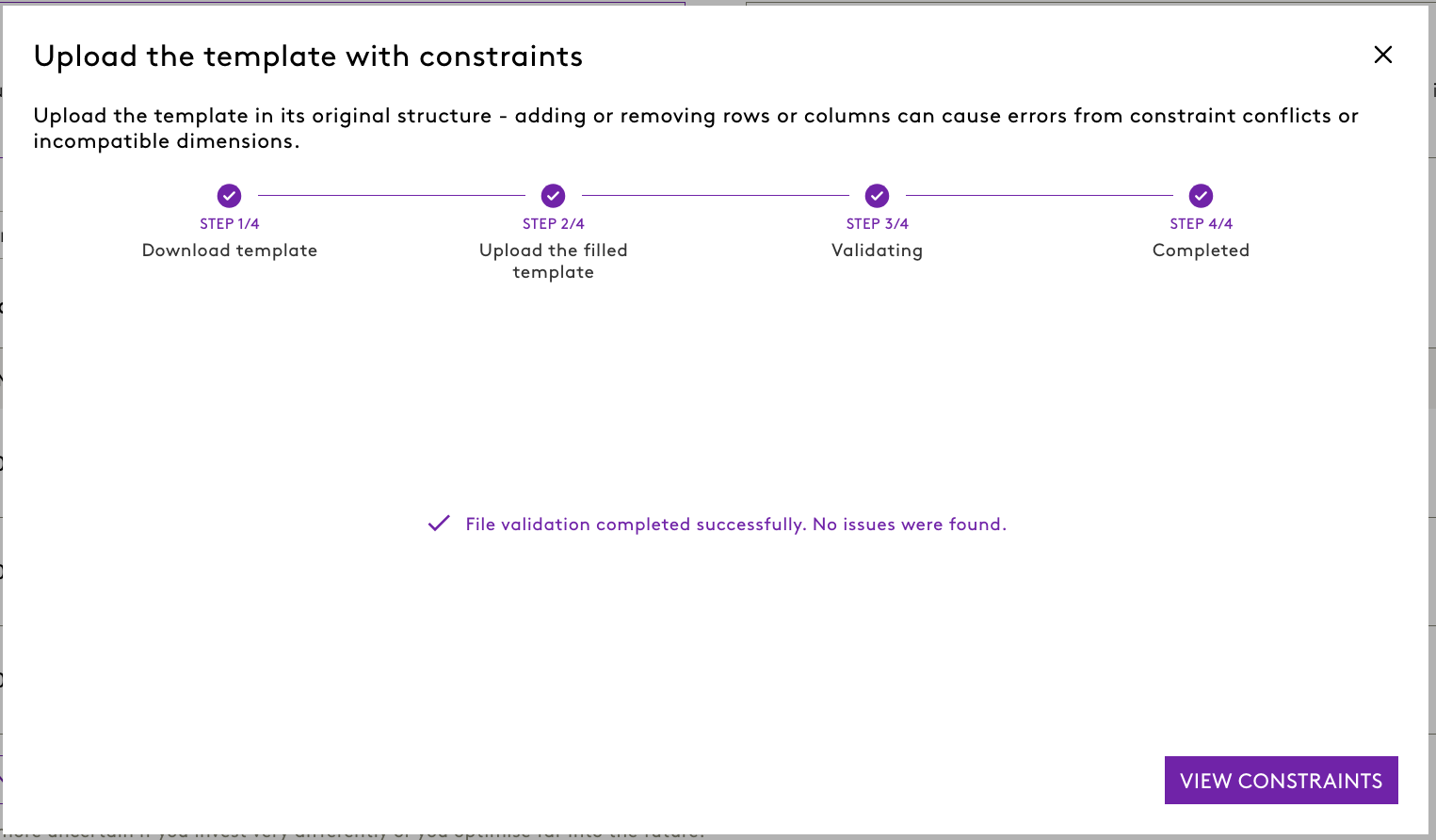
- Wait till the system Validates the data.
- Click on View Constraints.
- You can now notice the changes. As per the above example.
- You can browse for the file or drag and drop.
Important Notes:
- The optimisation period applies to all constraints by default.
- If validation fails, a warning will appear. Constraints will still display in the UI, and you must confirm each individually.
5. Running the Optimisation
Once constraints are uploaded:
- Review all inputs (period, constraints, budget).
- Click Optimise to start the run.
Backward Compatibility
You can also use this feature with saved activities:
- Open any saved activity.
- Click Modify Activity.
- If constraints exist, Download Template will be enabled.
- Download, edit, and reuse as needed.
Important Notes
- Editing dates in Excel is not supported in the current release due to validation complexities. Dates can be adjusted in the UI after upload.
- We are exploring options to include date editing in future updates.
Was this article helpful?
That’s Great!
Thank you for your feedback
Sorry! We couldn't be helpful
Thank you for your feedback
Feedback sent
We appreciate your effort and will try to fix the article