TABLE OF CONTENTS
- 1. Overview
- 2. Multi‑select Media Effect View for Portfolio Long‑Term Models
- 3. Multi‑select Effect Selection in Long‑Term Models
- 4. View Long‑Term Effects Beyond the Simulation Window on the Activities Page
- 5. Range‑Based Constraint Input in the Optimiser
- 6. Enhanced Time‑Series Data Download in Media Insights
1. Overview
This release introduces new capabilities across Media Insights, Long‑Term analysis, Activities, and the Optimiser to help users analyse media impact more holistically and configure plans more efficiently. The updates focus on improving flexibility in effect selection, extending visibility of long‑term impact, simplifying optimiser configuration, and enabling richer data exports for offline analysis.
2. Multi‑select Media Effect View for Portfolio Long‑Term Models
Users can now view multiple media effect pathways together in Portfolio Long‑Term models instead of switching between them individually.
This enables analysis of combined Direct, Cross, and Global effects in a single view, while ensuring results remain accurate.
How to:
- Navigate to Media Insights for a Portfolio model.
- Open the Media Effect dropdown at the top of the page.
- You will see a list of effect types with checkboxes:
- Total
- Direct / Cross
- Global
- Halo
- Select effects as needed:
- Selecting “Total” automatically selects all effect types.
- You can also manually select any combination of Direct/Cross, Global, and Halo using the checkboxes.
- Close the dropdown to apply your selection.

What this means for you:
- View multiple effect types at the same time
- Total impact is calculated correctly without double‑counting
- Faster, more complete understanding of overall media contribution
- Available for Portfolio models with or without long‑term effects
3. Multi‑select Effect Selection in Long‑Term Models
The Impact selector in Long‑Term models has been upgraded from a single‑select dropdown to a multi‑select control.
Users can now select any combination of:
- Short‑term direct
- Short/medium‑term indirect
- Long‑term indirect
How to:
1. Go to Media Insights for a Long‑Term or Portfolio with Long‑Term model.
2. Open the Data widget and set Data grouping to Impact.
3. Once Impact grouping is selected, the Impact dropdown becomes visible in the header.
Note:
If Total Product is selected, the Impact dropdown will not be available.
Select any individual product to enable the Impact dropdown.
- Short‑term direct
- Short‑term indirect
- Long‑term indirect
- Combined
- You may select multiple impacts together (for example, Short‑term indirect + Long‑term indirect).
- You can combine Short‑term direct with Short‑term indirect, or any other valid combination.
- If Combined is selected, no other impact options can be selected at the same time.
6. Close the dropdown to apply your selection.

What this means for you:
- Greater flexibility in analysing different effect combinations
- Charts and KPIs update instantly based on selected effects
- Selecting all three effects matches the existing “Combined” view
- Exported data reflects the selected effect combination
4. View Long‑Term Effects Beyond the Simulation Window on the Activities Page
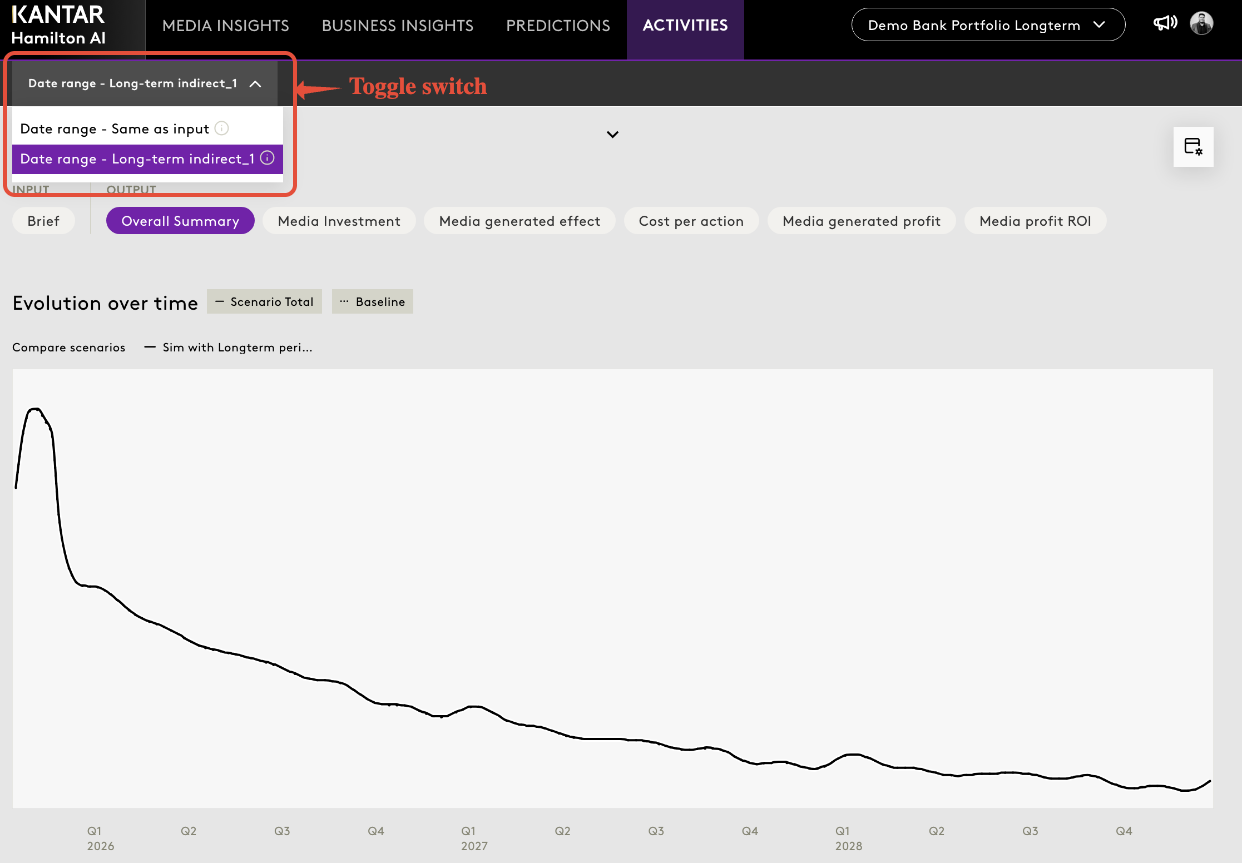
Support for viewing long‑term effects beyond the simulation window has now been extended to the Activities page, where it was previously not available.
Users can review the full long‑term impact of activities even when effects continue after the selected simulation window.
What this means for you:
- Toggle between Simulation Window Only and Full Long‑Term Effects
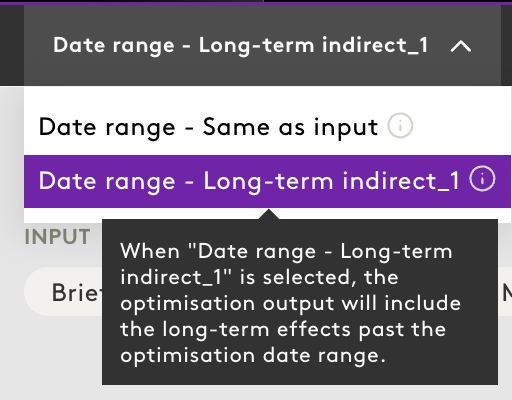
- See long‑term effects up to the model’s full horizon
- Tooltips clearly indicate which effects occur after the simulation window
Applies to:
- Long‑Term models
- Portfolio with Long‑Term models
5. Range‑Based Constraint Input in the Optimiser
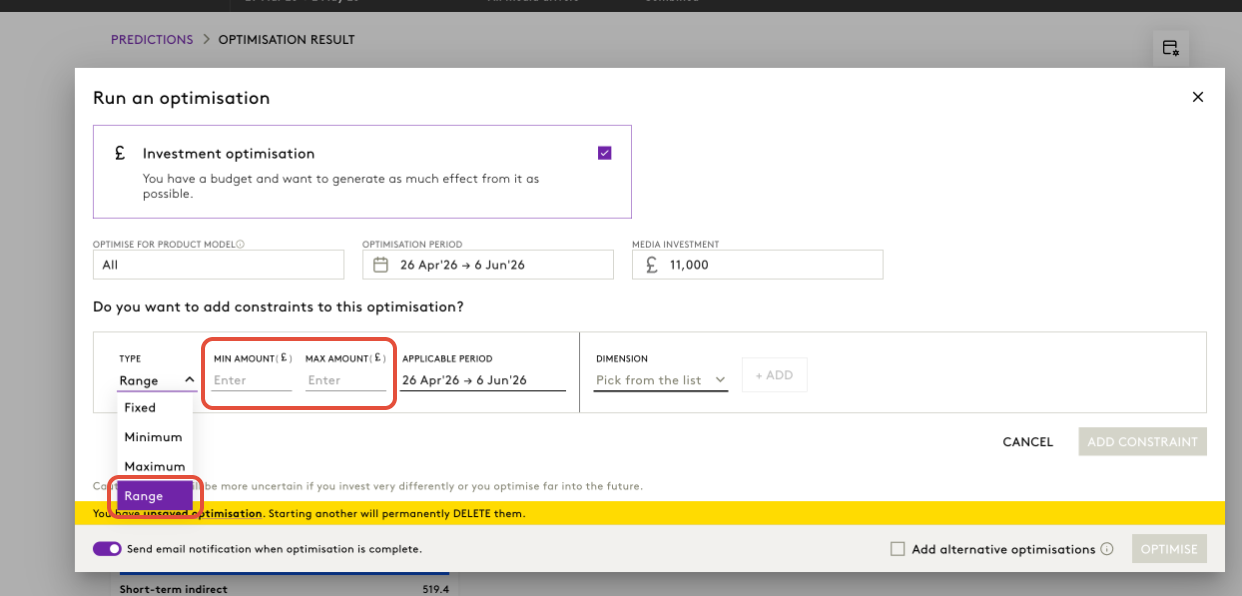
The Optimiser now allows users to define a minimum and maximum value for the same constraint within a single input row.
How to:
- Go to Optimiser and start creating or editing an optimisation plan.
- In the Constraints section, click Add constraint (same as existing flow).
- Open the Type dropdown.
- Select the new option Range.
- Once Range is selected, two input fields will appear:
- Min amount
- Max amount
- Enter both the minimum and maximum values for the selected UID.
- Select the required dimension and applicable period, as you would for other constraint types.
- Click Add Constraint to save.
Things to Know:
- The system validates that Min ≤ Max before allowing you to save or run the optimisation.
- Although shown as a single range in the UI, the platform internally treats this as:
- one minimum constraint, and
- one maximum constraint.
- Optimisation behaviour and results remain unchanged compared to defining separate min and max constraints.
- Existing Fixed, Minimum, and Maximum constraint types continue to work as before.
What this means for you:
- Set constraint ranges more easily and clearly
- Reduced configuration effort for complex plans
- Optimisation behaviour and results remain unchanged
6. Enhanced Time‑Series Data Download in Media Insights
Time‑series exports from Media Insights now include additional dimensions that were previously unavailable.
New fields included in Excel downloads:
- Media Grouping
- Channel
- Publisher
What this means for you:
- More detailed offline analysis
- Better alignment between exported data and on‑screen views
- Improved reporting and data validation
Was this article helpful?
That’s Great!
Thank you for your feedback
Sorry! We couldn't be helpful
Thank you for your feedback
Feedback sent
We appreciate your effort and will try to fix the article