Constraint Management is a new feature that is added newly to the Insights Platform. It is designed to improve how constraints are applied to models, specifically for optimisation and in future, for simulation. It replaces the older NEO-based Inventory Service and addresses several limitations around visibility, flexibility and control.
TABLE OF CONTENTS
- How to use Constraint Management in the Insights Platform?
- Constraint Units and Structure
- Optimisation Usage
How to use Constraint Management in the Insights Platform?
How to enable constraint management for specific organisations
Constraint Management is now available as a feature. To access this functionality, it must first be enabled at the organisation and model level through the admin panel. This approach ensures tighter control and prevents unintended access.
Steps to Enable Constraint Management:
1. Navigate to the Admin Panel.
2. Under the relevant organisation and model, locate the Features List.
3. Enable the Constraint Management feature.
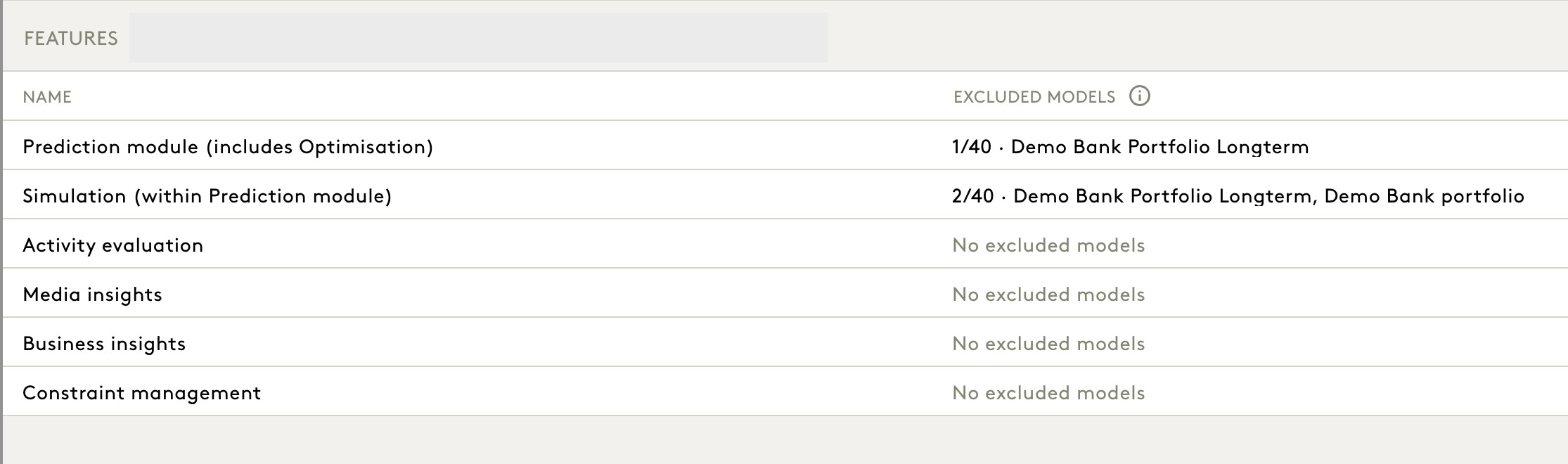
4.Once enabled at the organisation level, proceed to assign access to specific users:
- Go to the Users section in the admin panel.
- Select the relevant user.
- Click Add and under the Feature column, enable Constraint Management for that user.
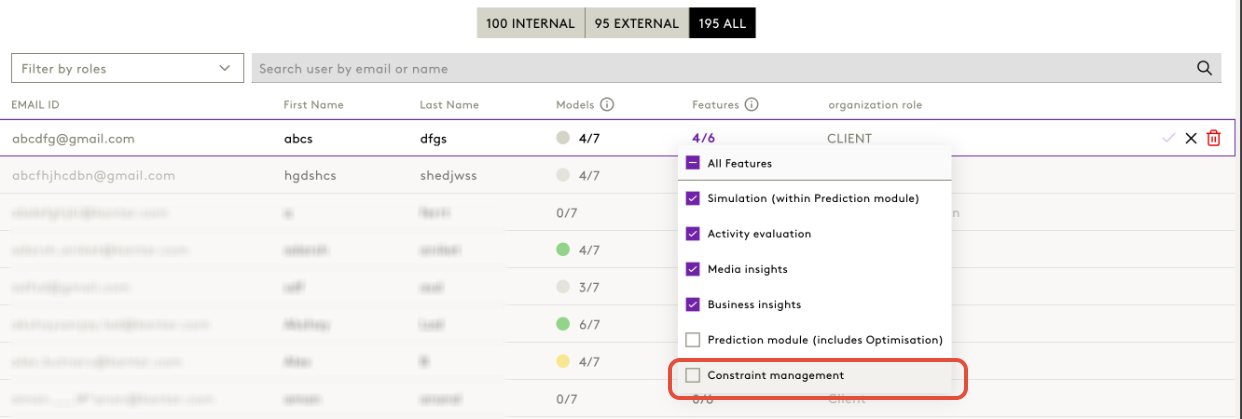
Only after completing the above steps will the feature be enabled and visible to the assigned users in the front-end interface.
Once enabled, users will have access to Constraint Management based on their roles and corresponding permissions, as outlined below:
User Roles and Permissions
Role | Access Level |
Admin (Super Admin, Delivery Lead at Org Level) | Can view user management and add, edit, enable, or disable constraints |
Client Service Admin | Can view user management and add, edit, enable, or disable constraints |
Developer / Delivery Team | Can view user management but cannot edit anything on the Constraint screen |
Clients / Other Users | No access to Constraint Management, but constraints will still apply in backend |
Working with Constraint Management
Constraints can be added via a dropdown in the front-end, allowing users to define constraints across any required UID combinations. For Direct/Indirect models, this includes all dimensions available within the model. Admins have full flexibility to apply constraints at any dimension level supported by the model configuration.

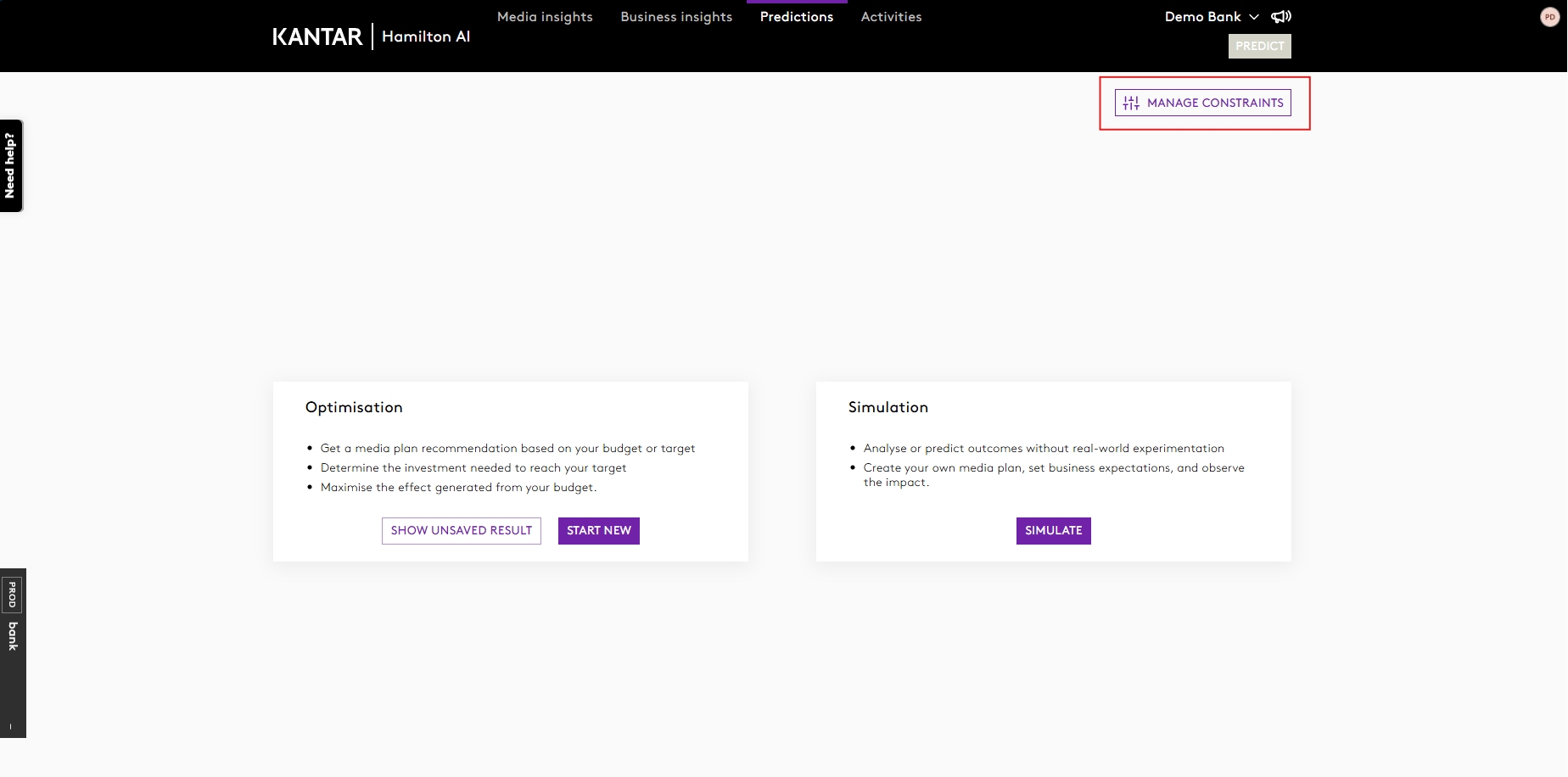
1. Accessing Constraint Management
Users with eligible roles will see a “Constraint Management” button in the top-right corner of the Predictions tab.
- If constraints were previously defined in NEO and migrated, they will appear by default.
- If no constraints exist, the button will be visible but disabled.
2. Enabling Constraint management
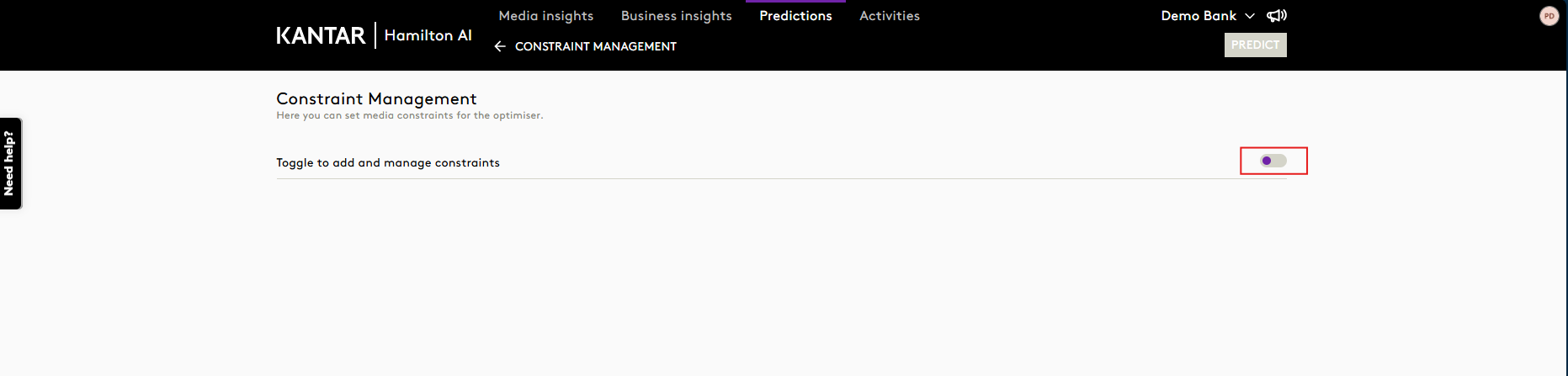
For Admins and CS Admins:
- Enable the toggle to activate Constraint Management.
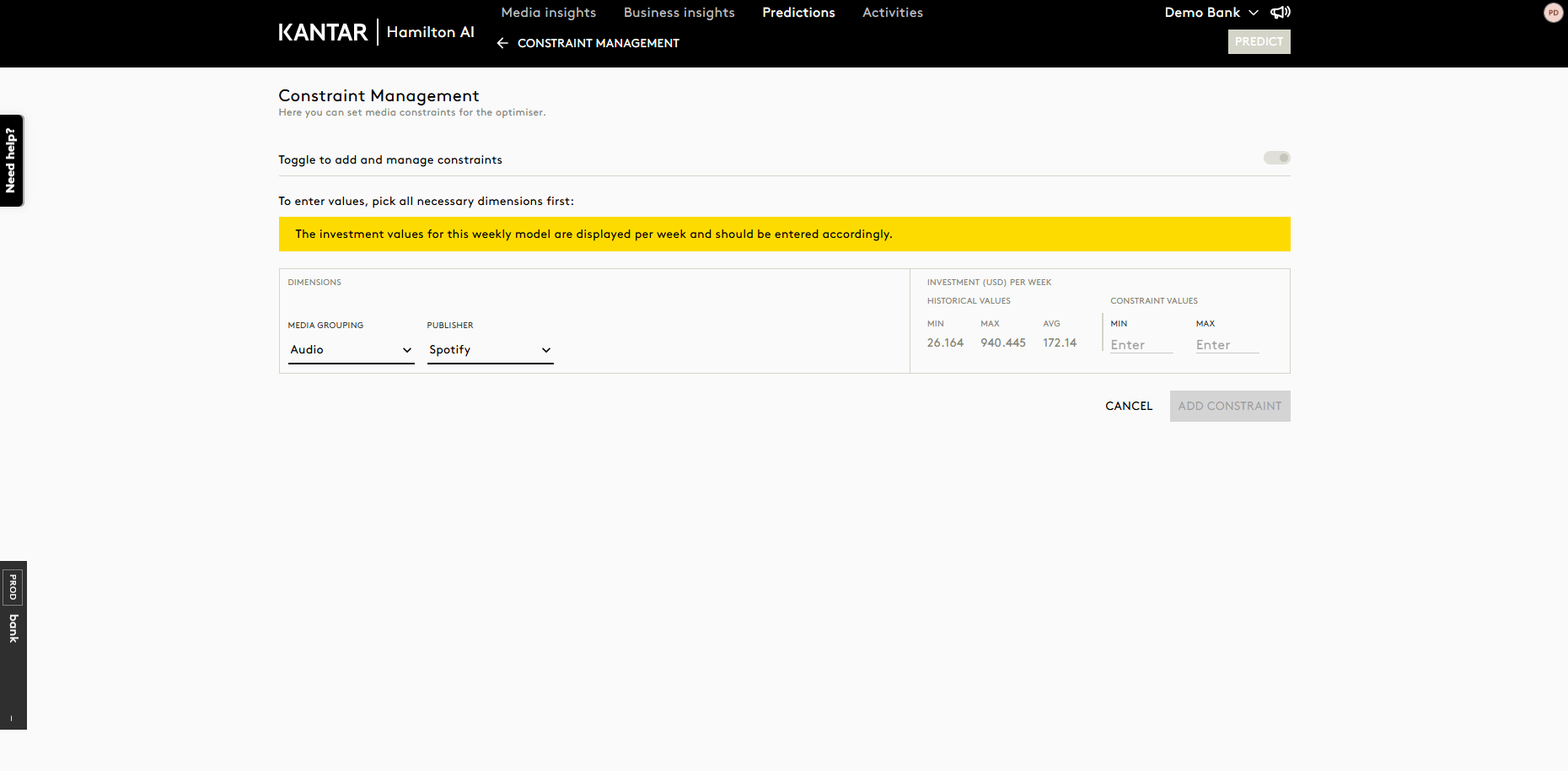
- Once active, the “Add Constraint” button will appear.
Constraints added here are not the same as those defined when starting an optimisation run.
3. Creating Constraints
- Constraints can be added in a similar way to the Optimiser interface.
- Users may select dimension combinations via a dropdown menu.
- For Direct/Indirect models, the dropdown includes a union of dimensions marked as Visible impact per dimension in the Admin panel.
4. Editing and Managing Constraints
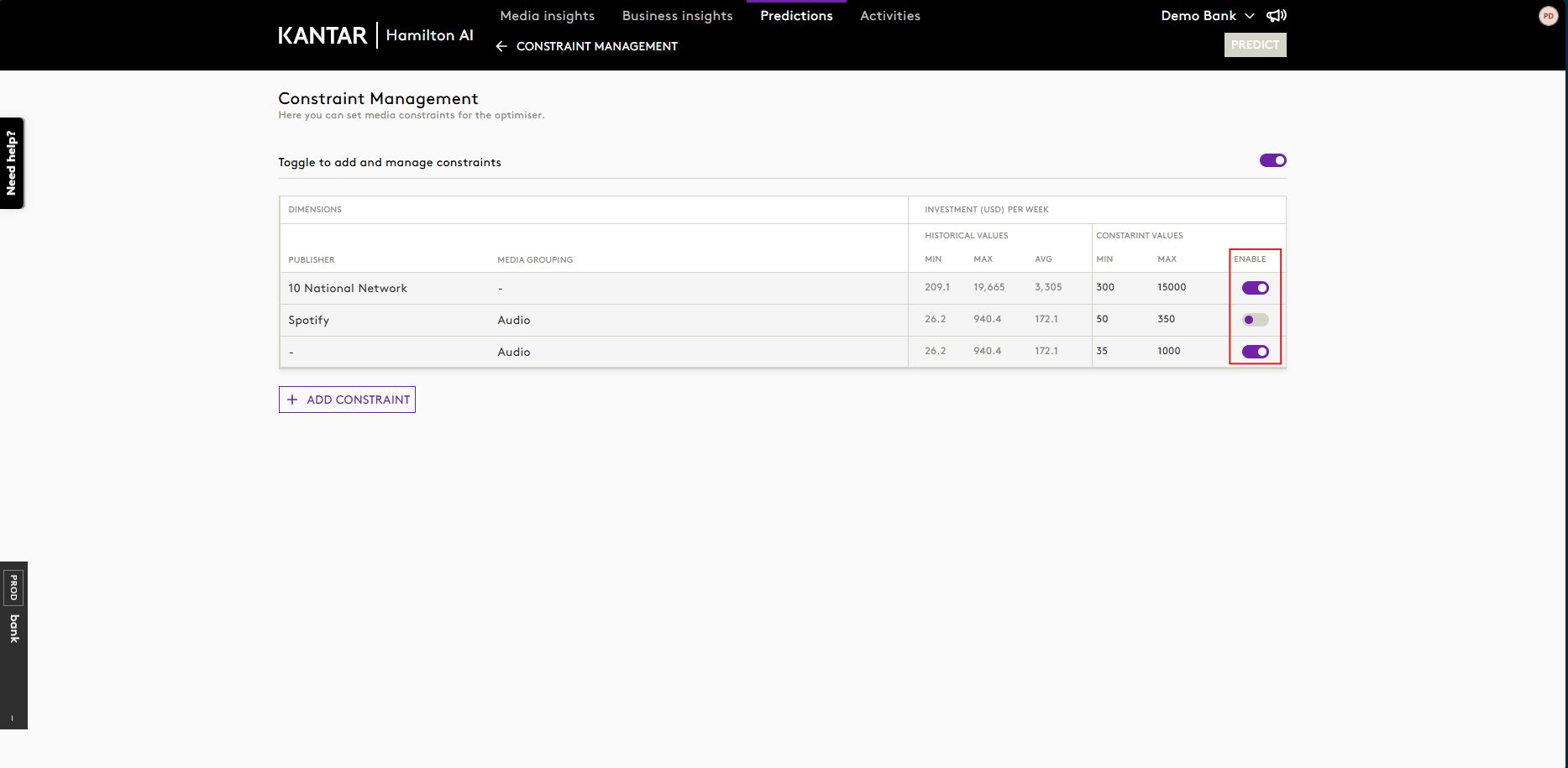
- Constraints may be enabled/disabled per UID using individual toggles.
- A global toggle is available to deactivate all constraints at once.
- Constraints can also be deleted or modified via the user interface.
Constraint Units and Structure
- Constraints are defined in Investment (e.g., £) and Value units.
- Future enhancements may support additional calculated fields such as CPM, CPC and discount percentages.
Optimisation Usage
Once constraints are defined:
- The optimiser will consider only the active constraints in generating output.
- Deactivating all constraints will result in unconstrained optimisation runs.
- This ensures that optimisation results are both practical and aligned with business objectives.
Was this article helpful?
That’s Great!
Thank you for your feedback
Sorry! We couldn't be helpful
Thank you for your feedback
Feedback sent
We appreciate your effort and will try to fix the article