This release focuses on making optimisation and simulation faster, simpler, and more reliable. It introduces admin‑level profit margin control for long‑term periods, lets you load optimiser results directly into the Simulator, adds monthly media inputs with automatic weekly distribution, and gives users a new choice between single or package (multi‑scenario) optimisation. We’ve also refined chart tooltips and constraint layouts, improved the constraint upload template, and fixed several issues that interrupted workflows.
TABLE OF CONTENTS
- Choose Between Single or Package Optimisation
- Monthly Media Input with Weekly Distribution
- Enhancements
Choose Between Single or Package Optimisation
Previously, users had limited control over how optimisation runs were executed.
Now, users have a chocie to select between two options to make the process faster and more flexible:
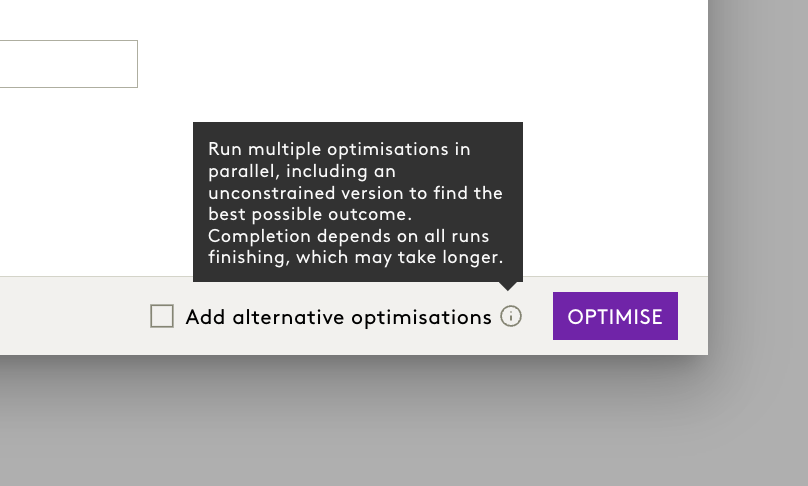
- Add Alternative Optimisations – When selected, the system runs multiple scenarios in parallel, including an unconstrained version, to help you find the best possible outcome.
- When not selected, the system runs a single optimisation based on your input plan for quicker results.
How to Use This Feature
Follow these steps to make the most of this new feature:
1. Navigate to the Optimisation Section
From the top navigation bar, go to the Prediction module.
Click on the Optimise tab.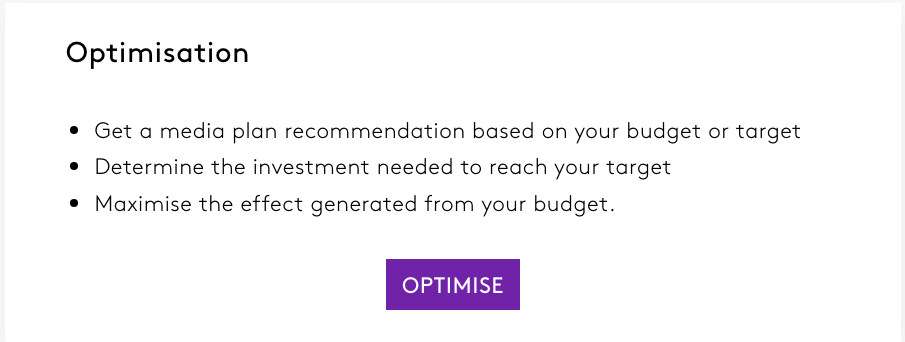
2. Set up the Optimisation
Select Optimisation type, Choose the optimisation period and enter the budget. Add suitable constraints if needed. 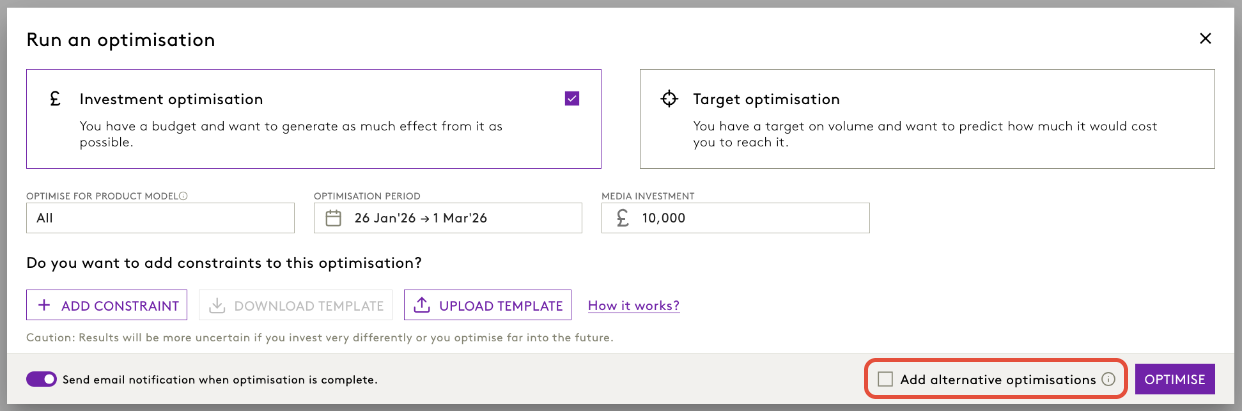
3. Choose the Optimisation package
At the botton right, you will find a checkbox:
- Leave the checkbox unchecked to run a single optimisation.
- Tick the checkbox “Add Alternative Optimisations” to run multiple scenarios in parallel.
When to Choose Which Option?
Single Optimisation:
- Runs one scenario based on your input plan.
- Best for quick decisions when time is critical.
- Faster completion compared to multi-scenario runs.
Alternative Optimisations:
When selected, the system runs multiple optimisation scenarios in parallel, including an unconstrained version, to help identify the best possible outcome.
- Your input plan
- A plan with the same investment but without constraints
- A plan with ~10% lower investment
- Your input plan
- A plan with ~10% lower investment
For Target Optimisation:
- One with constraints
- One without constraints
Benefits:
- Provides more options without extra steps.
- Helps identify the best scenario by comparing different outcomes.
- Improves decision-making by offering flexibility and deeper insights.
Impact:
- Users can make more informed choices by reviewing multiple plans in one go.
- No changes to saved plans or existing workflows.
Monthly Media Input with Weekly Distribution
What it is
The Simulator now supports monthly media inputs. When you enter a monthly total, the platform evenly distributes it across all weeks in that month. You can still edit individual weeks afterward.
Why it matters
Makes monthly budget planning simpler while preserving week‑level control for fine‑tuning.
How to Use
- Open your Simulation scenario
Go to the Simulation module and select the required date range. - View media values
In the Simulation UI, click View media values.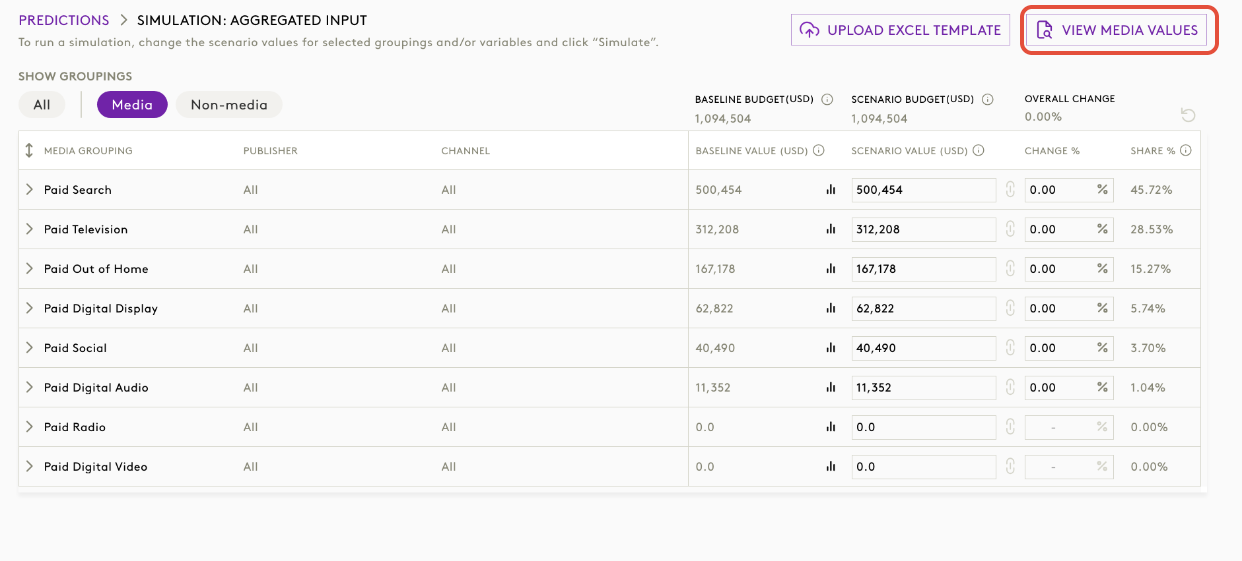
- Select media groupings
Choose the media grouping(s) you want to adjust and click View media values again (if prompted).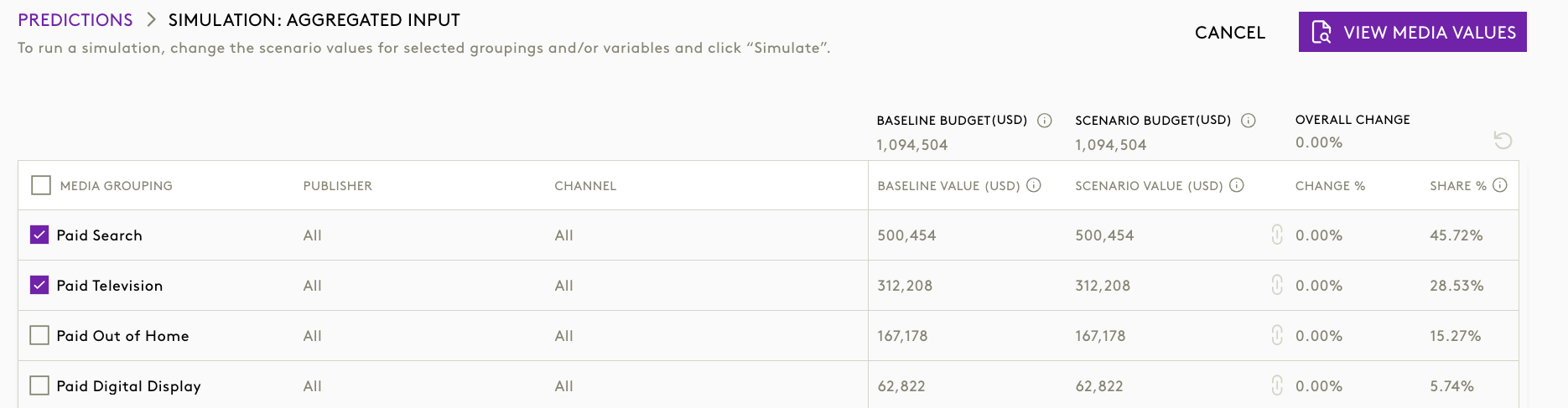
- Enter edit mode
Click Modify media values.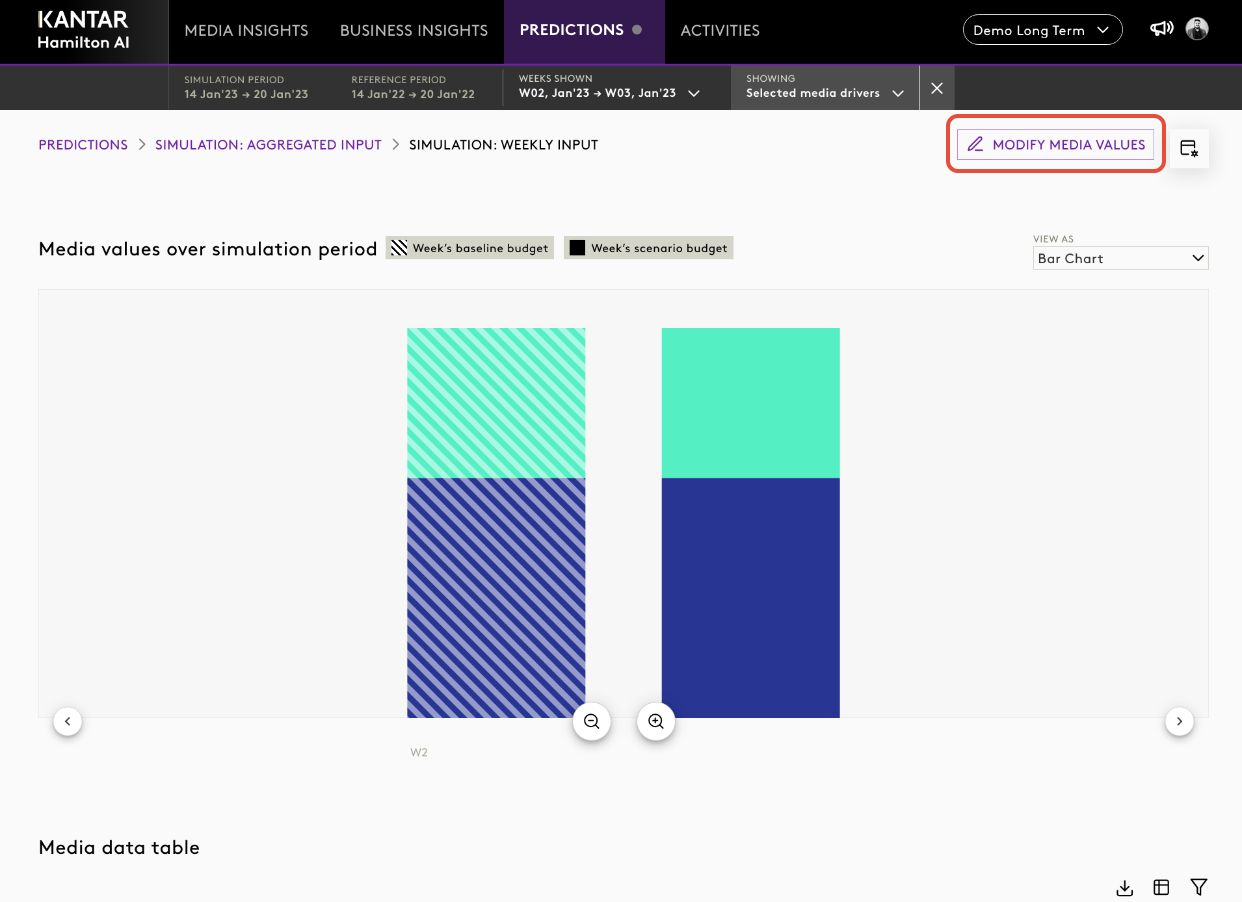
- Choose input granularity
In the input controls, choose between Weekly or Monthly: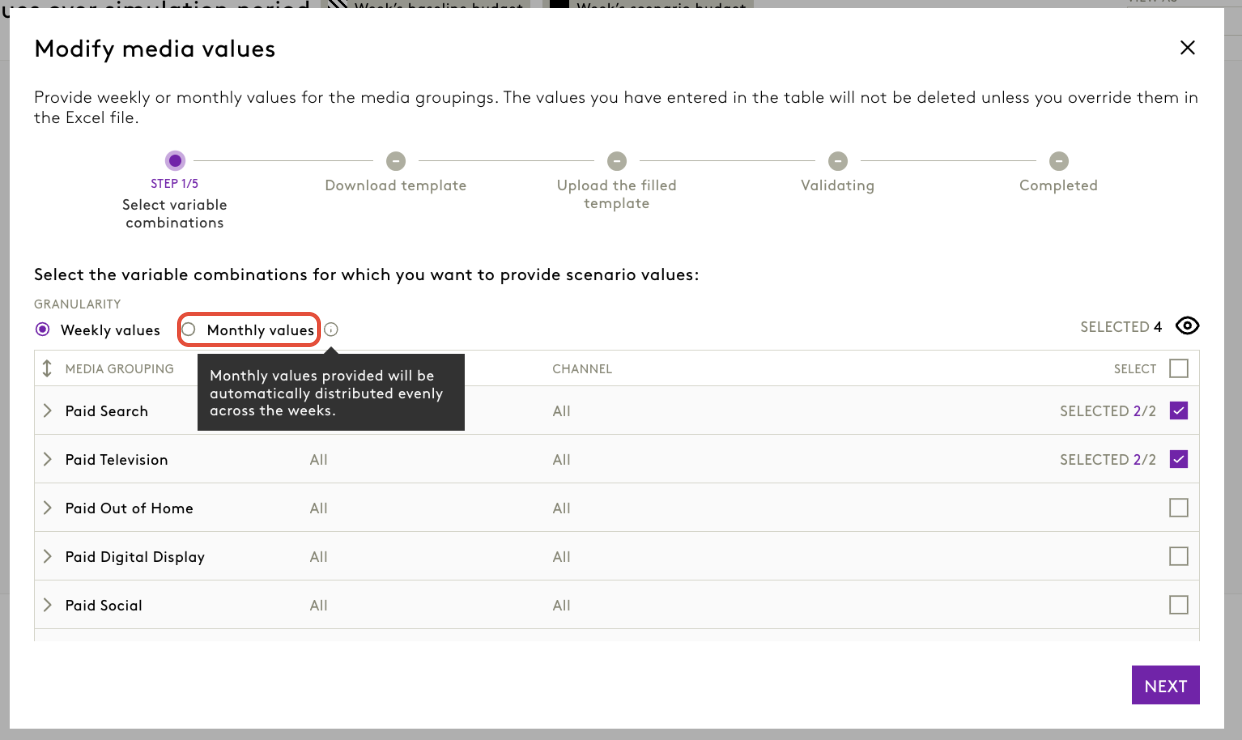
- Select Monthly and enter the monthly amount for the chosen media line(s).
- The platform automatically distributes the amount evenly across all weeks in that month.
- (Optional) Switch to Weekly or stay on the same view to adjust individual weeks after distribution.
- Review and save
Confirm the values look correct and Save your changes.
Enhancements
Consistent & Intuitive Tooltip Design Across Charts
Tooltips are now standardised platform‑wide for clarity and consistency.
Benefits
- Improves readability and analyst confidence
- Reduces interpretation errors caused by inconsistent tooltip formats
Improved Layout for Constraint Management
Historical values (MAX, AVG) no longer overlap. Columns auto‑adjust to ensure all values are visible.
Was this article helpful?
That’s Great!
Thank you for your feedback
Sorry! We couldn't be helpful
Thank you for your feedback
Feedback sent
We appreciate your effort and will try to fix the article