TABLE OF CONTENTS
- 1.1 Overview
- 1.2 What it is
- 1.3 What it does
- 1.4 What has changed in this release
- 1.5 How to use it — step-by-step
- 1.6 When an optimisation is infeasible
- 1.7 Understanding the action buttons
- 1.8 Minimum and maximum amount breaches
- 1.9 Key messages users may see
- 1.10 Scope and limitations
1. Optimisation Infeasibility Handling
1.1 Overview
Optimisation Infeasibility Handling is a validation and recovery experience within HamiltonAI. It helps users understand when the optimisation-specific constraints they enter cannot be satisfied — either while constraints are being added on the optimisation input page, or after a budget optimisation has been run.
The feature covers two moments in the journey:
- Pre-run validation — as each optimisation-specific constraint is added on the input page, HamiltonAI validates it and warns in-line if it conflicts with a constraint already added.
- Post-run infeasibility handling — if the optimiser cannot find a feasible solution, HamiltonAI explains why, highlights the breached amounts, and offers the recovery actions.
1.2 What it is
- A user-facing validation experience for optimisation-specific (in-line) constraints on the optimisation input page.
- A post-run infeasibility screen that explains why a budget optimisation could not produce a feasible solution.
- A guided recovery flow offering Start New, Continue and Modify.
- A troubleshooting aid for users, Customer Success and Support teams.
1.3 What it does
- Validates each optimisation-specific constraint as it is added on the input page.
- Shows a validation state while it checks a new constraint — “Validating the constraint. Please wait.”
- Displays an inline conflict message when a new constraint conflicts with one already added — “This constraint conflicts with previously added constraint(s).”
- Detects a conflict only when the new constraint matches an existing one exactly on Type, Applicable Period and Dimensions. If any of these differ, the constraints are treated as independent.
- Displays an infeasibility screen when a budget optimisation cannot find a feasible solution with the constraints provided.
- Highlights the breached amounts (Amount Used, and Min Used / Max Used for min/max constraints) so users can see exactly what failed.
- Presents the same recovery actions to all users, regardless of role.
1.4 What has changed in this release
Previously, a budget optimisation that could not satisfy the selected constraints ended in an unclear failure state, with little guidance on the cause or the way forward. This release introduces a clear, guided experience across both constraint entry and optimisation results.
| Before this release | Now |
| Conflicting optimisation-specific constraints could be added with no immediate feedback. | Each optimisation-specific constraint is validated as it is added, with an inline conflict warning before it is saved. |
| An infeasible run ended in an unclear failure state. | A dedicated infeasibility screen explains that no feasible solution could be found and why. |
| Users could not see which constraint caused the problem. | Breached amounts (Amount Used, Min Used, Max Used) are highlighted in red on the exact rows that failed. |
| No guided way to recover. | Clear next actions are shown — Start New, Continue and Modify. |
| At a glance: unclear failures are replaced with in-line validation, clear infeasibility messages, highlighted breached amounts, and practical recovery options. |
1.5 How to use it — step-by-step
The steps below follow the budget optimisation journey and can be used directly in the HAI platform. Screenshots are ordered to match the user flow.
1.5.1. Open a budget optimisation
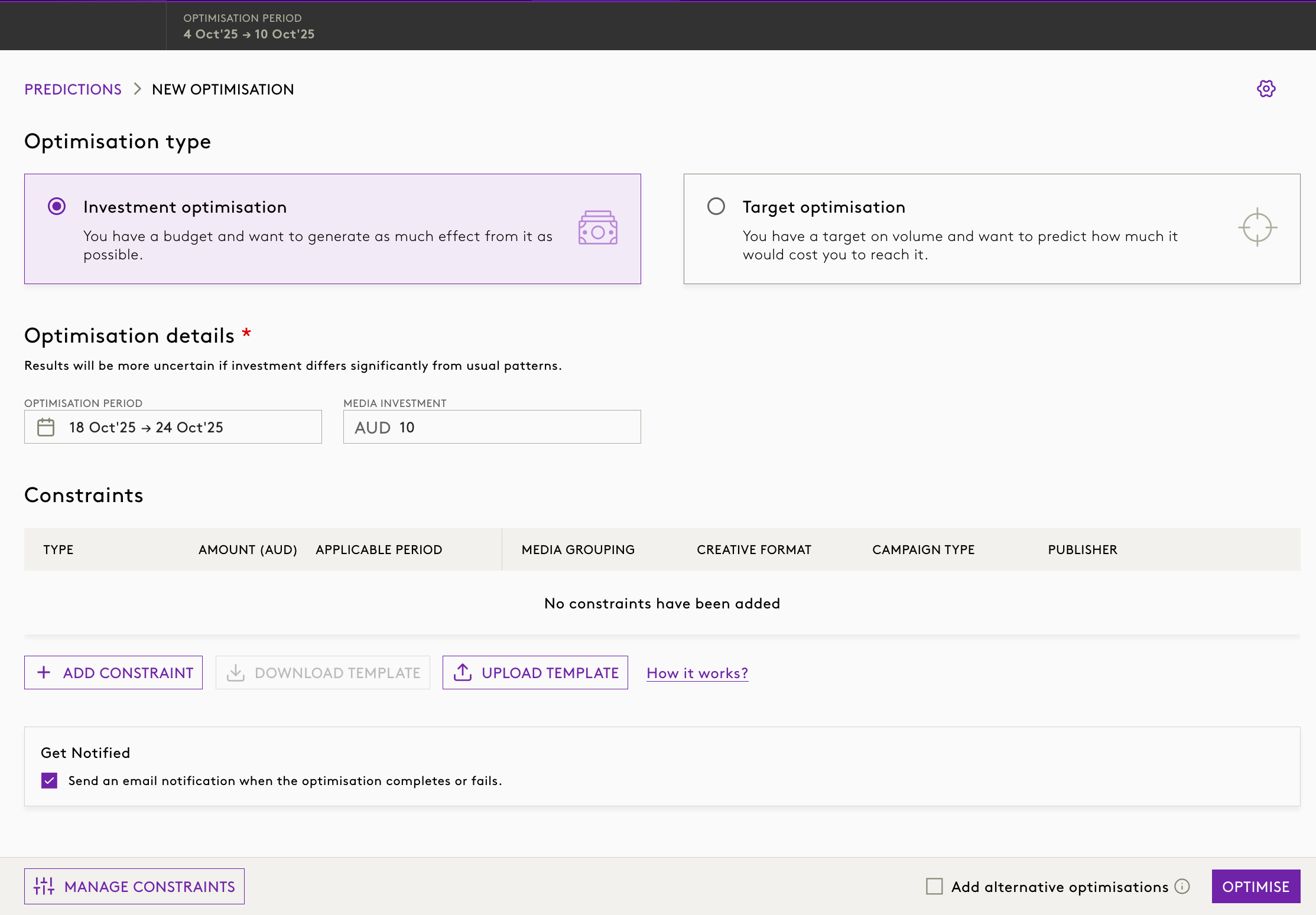
Navigate to Predictions and start a new optimisation. Select Investment (budget) optimisation, enter the optimisation period and media investment, then add the constraints you need.
Key detail: Infeasibility handling applies to budget optimisation. It is not available for target optimisation (run scenario).
1.5.2. Add a constraint and wait for validation
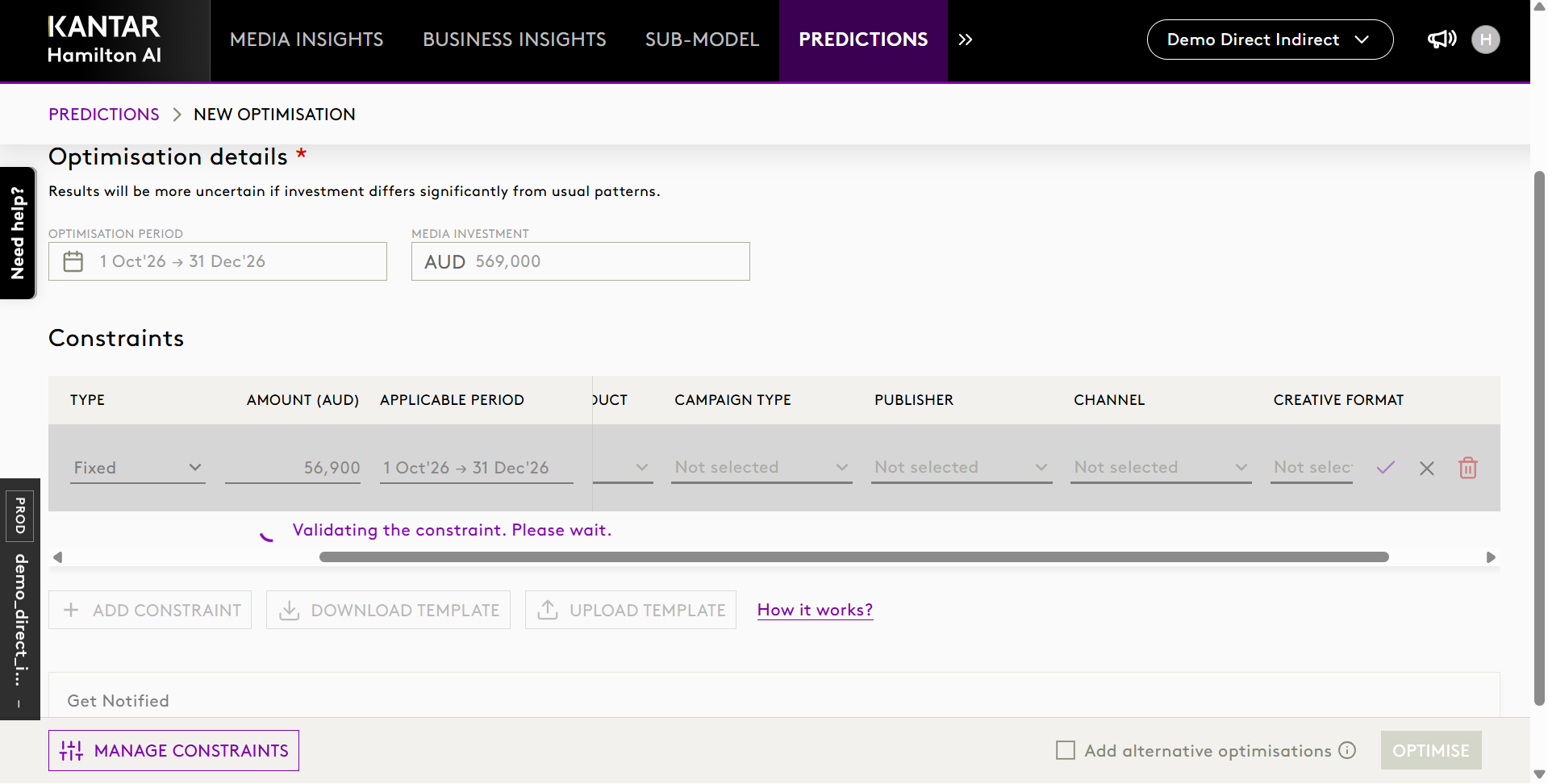
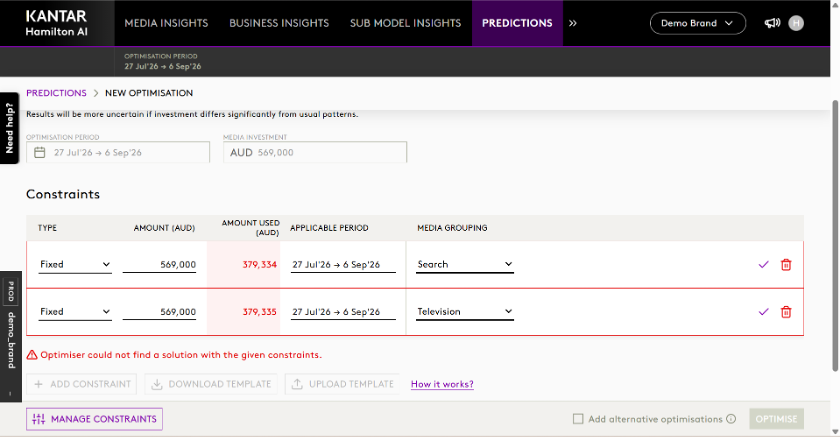
After adding an optimisation-specific constraint, HamiltonAI validates the new row before you can proceed. The visible message is “Validating the constraint. Please wait.”
Key detail: Validation happens in-line on the optimisation input page as the row is added.
1.5.3. Review inline conflicts before adding the constraint
If the new constraint conflicts with one already added, the row is highlighted and the message “This constraint conflicts with previously added constraint(s)” is shown. Update the row or cancel the entry.
Key detail: The conflict is shown before the constraint is added.
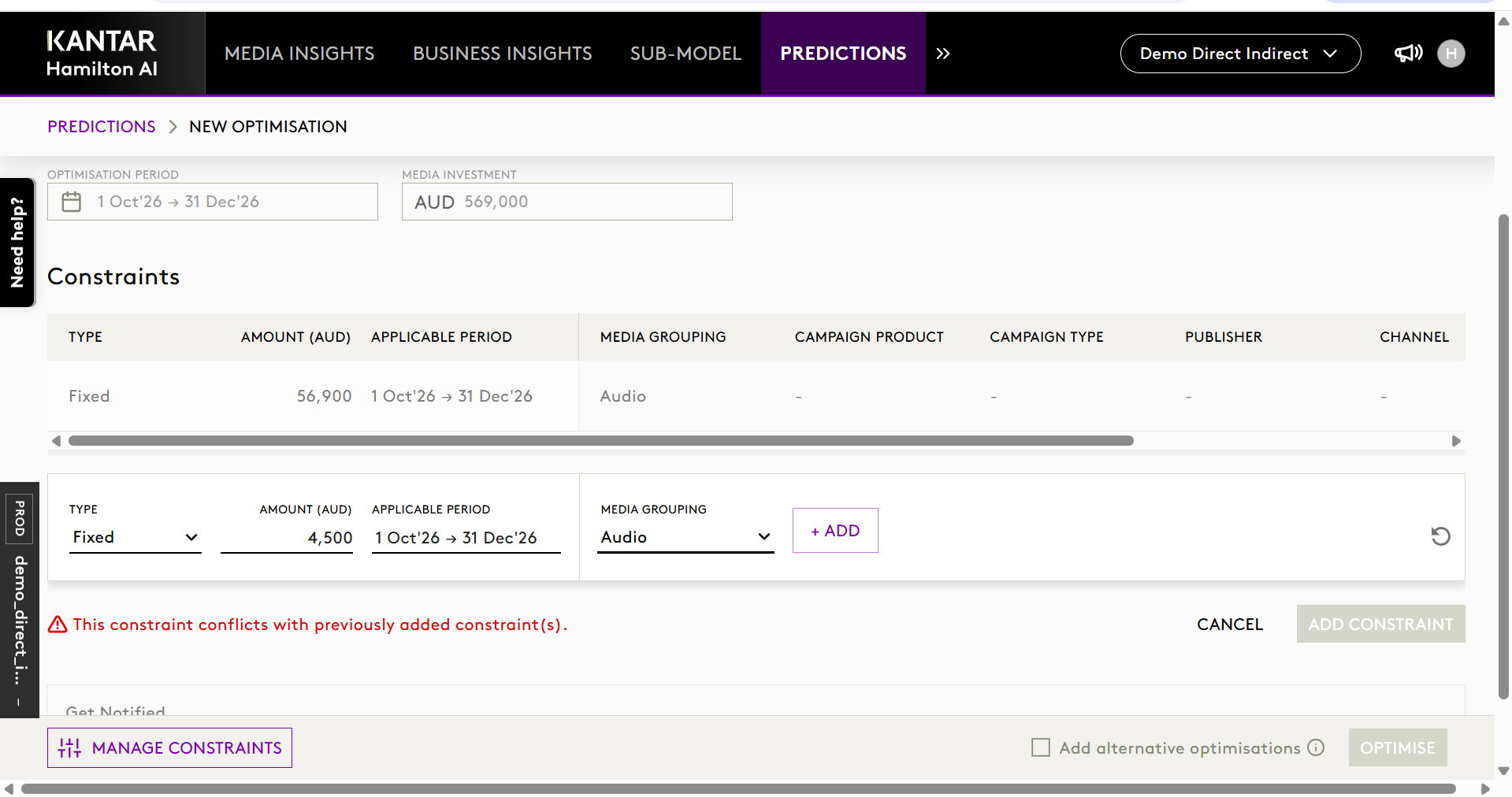
| When is a conflict detected? A conflict — and the resulting infeasibility — is only raised when the new constraint matches an existing one exactly on Type, Applicable Period and Dimensions. If any of these differ, the constraints are treated as independent and no conflict is flagged. |
1.5.4. Run the optimisation
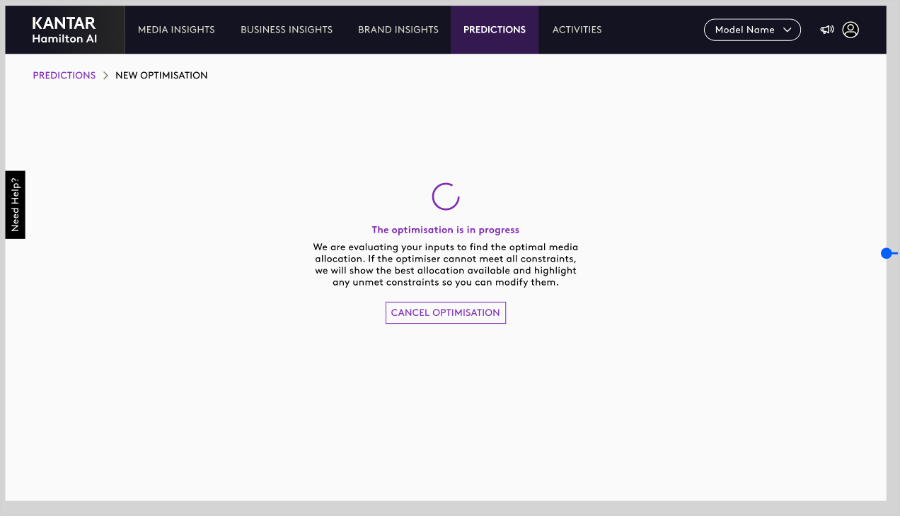
When you select Optimise, HamiltonAI evaluates the optimal media allocation while checking that all constraints can be satisfied. If no feasible solution is found, you are taken to the infeasibility screen.
Key detail: Applies to budget optimisation only.
1.6 When an optimisation is infeasible
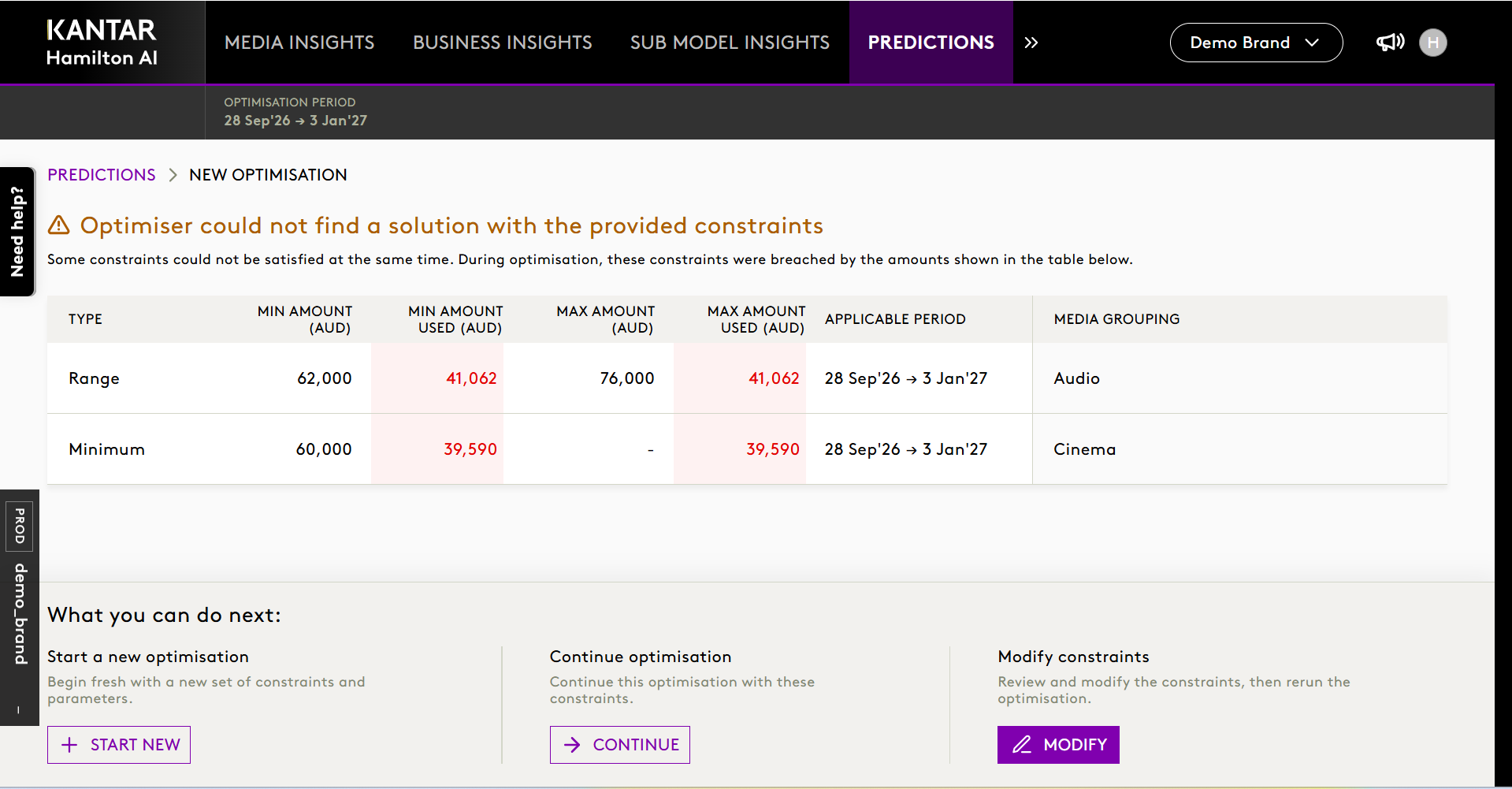
When optimisation-specific constraints cannot be met together, the screen states that the optimiser could not find a solution and lists the breached constraints, with the Amount Used shown in red. Next actions are Start New, Continue and Modify.
1.7 Understanding the action buttons
When an optimisation is infeasible, the same three recovery actions are shown to every user (see the “What you can do next” area in the above figure.
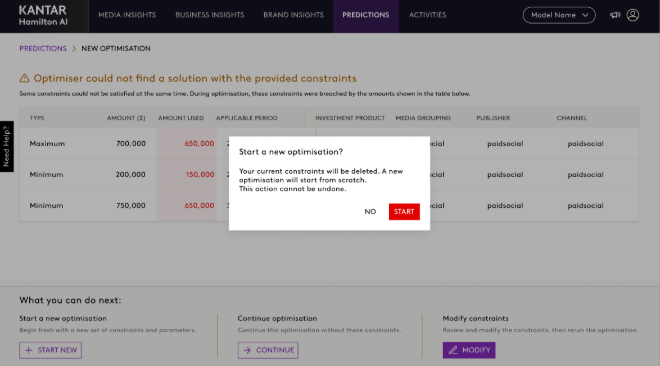
Selecting Start New asks you to confirm, because the current constraints will be discarded.
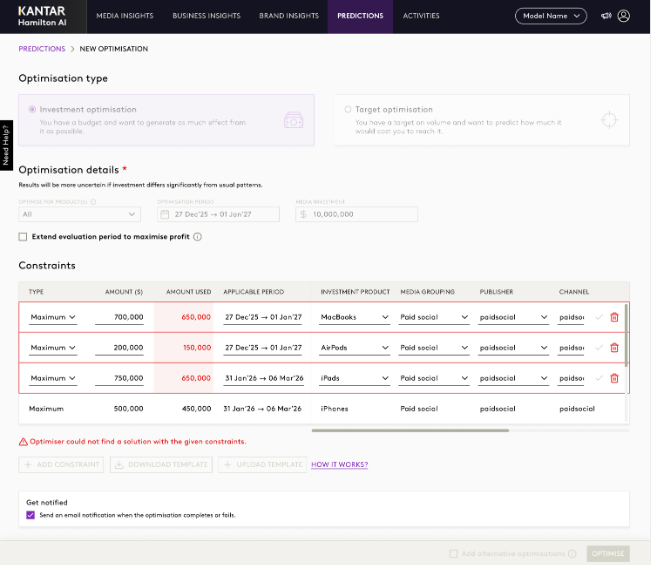
When you choose Modify, HamiltonAI returns to the input page and highlights the breached rows and Amount Used values in red so the setup can be corrected before rerunning.
When you click Continue, it proceeds to run the optimisation with infeasible constraints.
Summary table
| Action | What it does | When to use it |
| Start New | Starts a new optimisation with a fresh set of constraints and parameters. | When the current setup should be discarded and rebuilt. |
| Continue | Proceeds with the optimisation, keeping the constraints that could not be satisfied. | Only when it is acceptable to proceed even though those constraints are breached. |
| Modify | Returns you to the optimisation input page so constraints can be reviewed and corrected. | When you want to fix the current setup and rerun the optimisation. |
1.8 Minimum and maximum amount breaches
Minimum, maximum and range-based optimisation constraints are also supported. When one is breached, HamiltonAI highlights the breached Min Used or Max Used value so you can see whether the lower or upper bound caused the infeasibility, and adjust the correct side of the range before rerunning.
1.9 Key messages users may see
| Message | Meaning |
| Validating the constraint. Please wait. | Shown while HamiltonAI checks a newly entered constraint on the input page. |
| This constraint conflicts with previously added constraint(s). | Shown when the entered constraint matches an existing one exactly and cannot be combined with it. |
| Optimiser could not find a solution with the provided constraints. | Shown when the budget optimisation cannot find a feasible solution. |
| Some constraints could not be satisfied at the same time. | Explains that infeasibility was caused by conflicting constraints. |
| During optimisation, these constraints were breached by the amounts shown in the table below. | Explains why the breached-amounts table is displayed. |
1.10 Scope and limitations
The feature guides and validates, but it does not make commercial decisions on the user's behalf. Please note the following scope and limitations:
- Available for budget (investment) optimisation only.
- Not availlable for target optimisation (run scenario).
- Only optimisation-specific (in-line) constraints are validated; a conflict is raised only when Type, Applicable Period and Dimensions match exactly.
- Model-level (global) constraint infeasibility is not supported yet.
- The infeasibility screen and its actions are the same for all user roles.
- It does not silently change constraint values without a user action.
- It does not decide the commercially correct constraints for the user.
- It does not guarantee that every optimisation setup will produce a feasible result.
- It does not replace review of business rules, period choices and investment assumptions.
Was this article helpful?
That’s Great!
Thank you for your feedback
Sorry! We couldn't be helpful
Thank you for your feedback
Feedback sent
We appreciate your effort and will try to fix the article