This release introduces enhancements to the Simulator and Long-Term Optimiser focused on improving interpretability, control, and flexibility for planning workflows. Key updates enable users to better understand KPI trade-offs, evaluate long-term media impact beyond optimisation periods, and customise platform terminology for improved clarity.
TABLE OF CONTENTS
- 1. Extended Evaluation Window in Long-Term Optimiser
- 2. Reference Period Control in Simulator
- 3. Updated Help Centre Documentation Link
- 4. Updated Help Centre Documentation Link
1. Extended Evaluation Window in Long-Term Optimiser
Overview
The Extended Evaluation Window allows users to optimise media investment for a selected period while evaluating profitability over a longer time horizon. This helps capture delayed media effects and provides a more realistic view of long-term ROI.
Why this feature matters
In many scenarios, media investments continue to drive impact beyond the selected optimisation period. Limiting evaluation to only the optimisation window can underestimate true performance.
This feature enables users to:
- Optimise short-term decisions
- Evaluate performance over a longer horizon
- Understand delayed and long-term media impact
How it works
Step 1: Select optimisation setup
On the Run an optimisation screen:
- Choose Investment optimisation or Target optimisation
- Define:
- Optimisation period (e.g. 18 May 2026 → 24 May 2026)
- Media investment
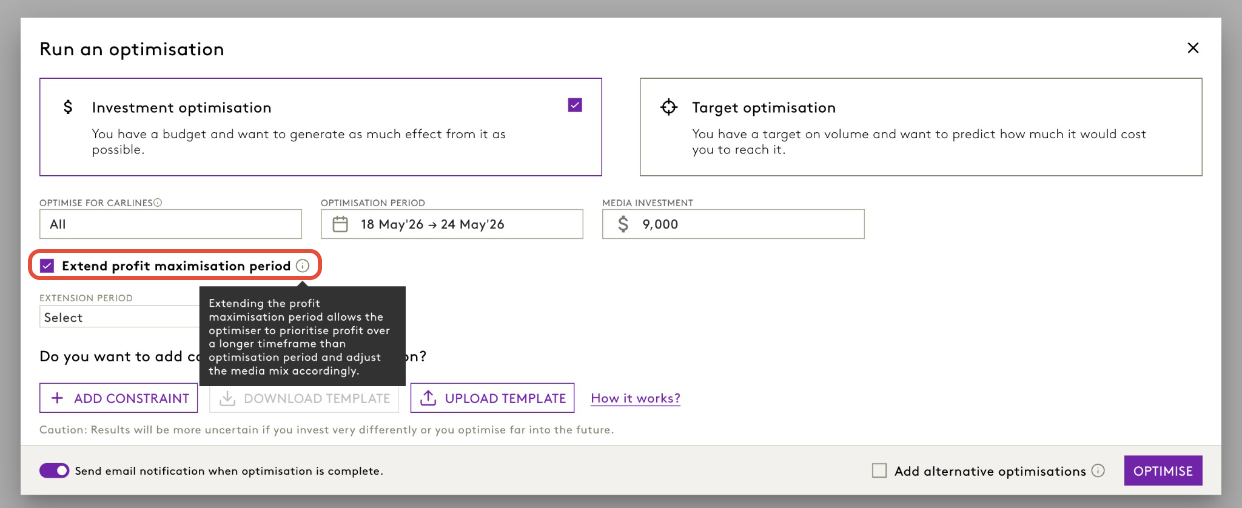
Step 2: Enable extended evaluation window
- Select the checkbox: “Extend profit maximisation period”
- This activates the Extension period dropdown
Step 3: Choose extension period
You can extend the evaluation window by selecting one of the predefined options:
- +6 weeks
- +3 months
- +6 months
- +9 months
- +12 months
Once selected, the optimiser will evaluate profit across the extended time horizon.
Step 4: Review period breakdown
After selecting an extension:
- Click “Show breakdown”
You will see a clear summary:
- Optimisation period (e.g. 18 May 2026 – 24 May 2026)
- Extended profit maximisation period (e.g. 25 May 2026 – 5 July 2026)
- Combined timeframe used for profit evaluation
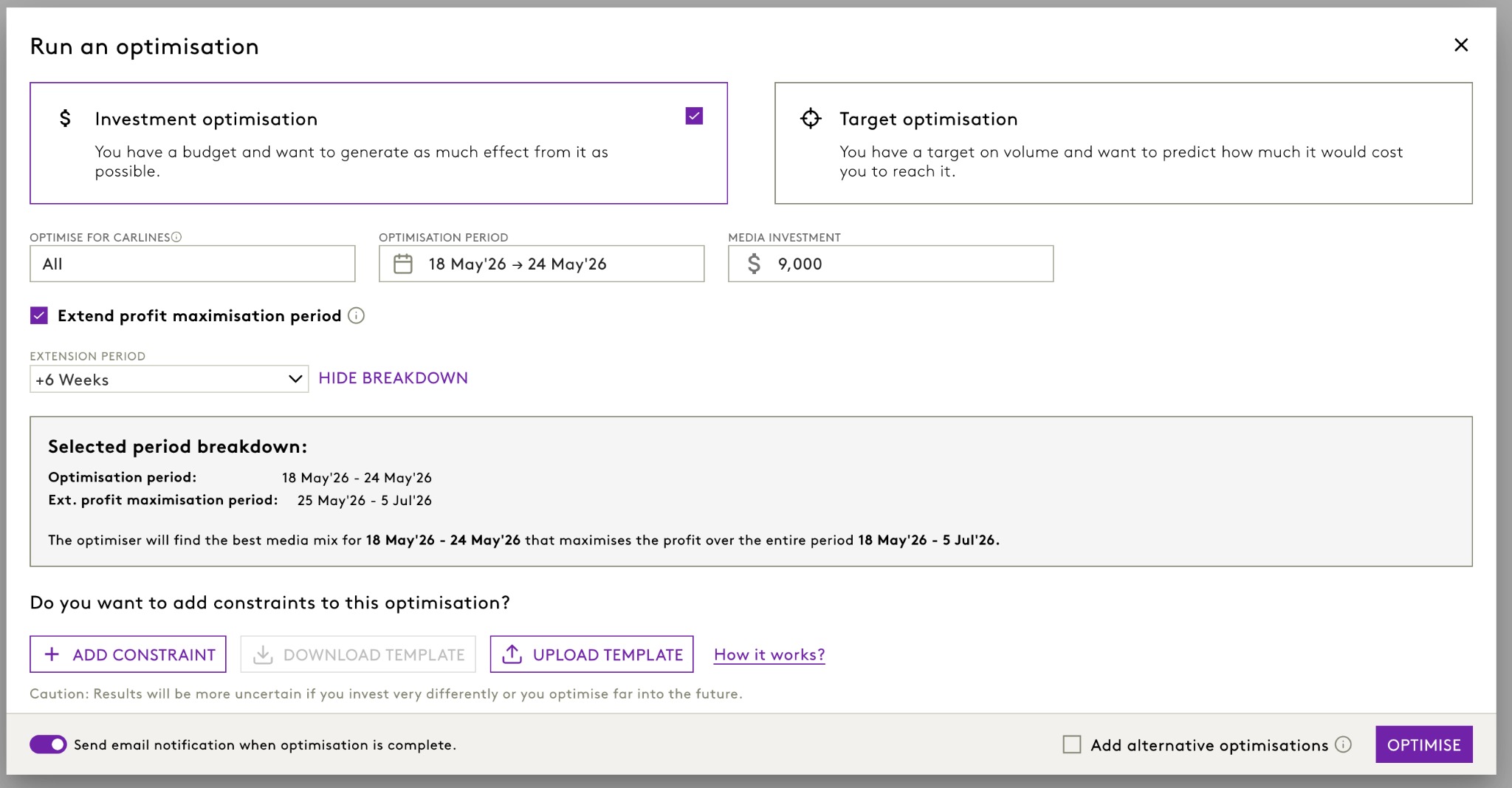
The optimiser identifies the best media mix for the selected optimisation period, but maximises profit across the entire extended period.
What changes in the results
With the extended evaluation enabled:
- Profit and ROI are calculated over the extended evaluation window
- Outputs clearly reflect:
- Optimisation period
- Evaluation period
- Long-term effects beyond the evaluation window
This ensures users can distinguish between short-term optimisation and long-term value creation.
Understanding the output
Period selection (key update)
At the top of the Optimiser Output page, users can now switch between different period views:
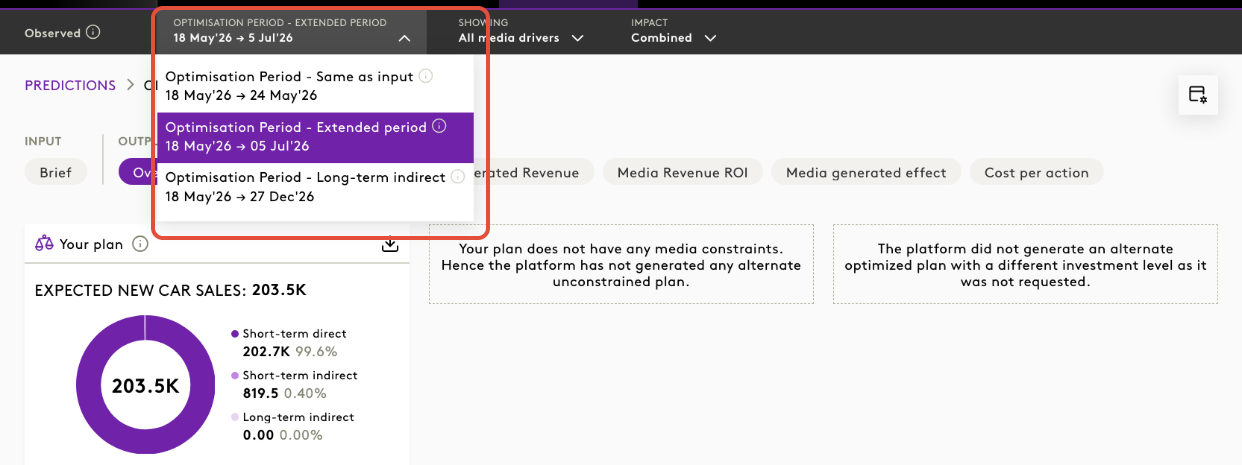
1. Optimisation Period – Same as input
- Results reflect optimisation performance for the selected period only.
- Example: 18 May 2026 → 24 May 2026
- Shows results strictly within the optimisation window
- Excludes long-term effects
2. Optimisation Period – Extended period
- Optimiser prioritises profit over a longer timeframe and adjusts the media mix accordingly.
- Example: 18 May 2026 → 05 July 2026
- Includes both:
- Optimisation period
- Extended evaluation period
- Shows performance used by the optimiser to maximise profit
3. Optimisation Period – Long-term indirect
- Includes long-term effects beyond the optimisation date range.
- Example: 18 May 2026 → 27 Dec 2026
- Includes long-term effects beyond the evaluation window
- Captures delayed media impact over the full effect horizon
Impact breakdown in results
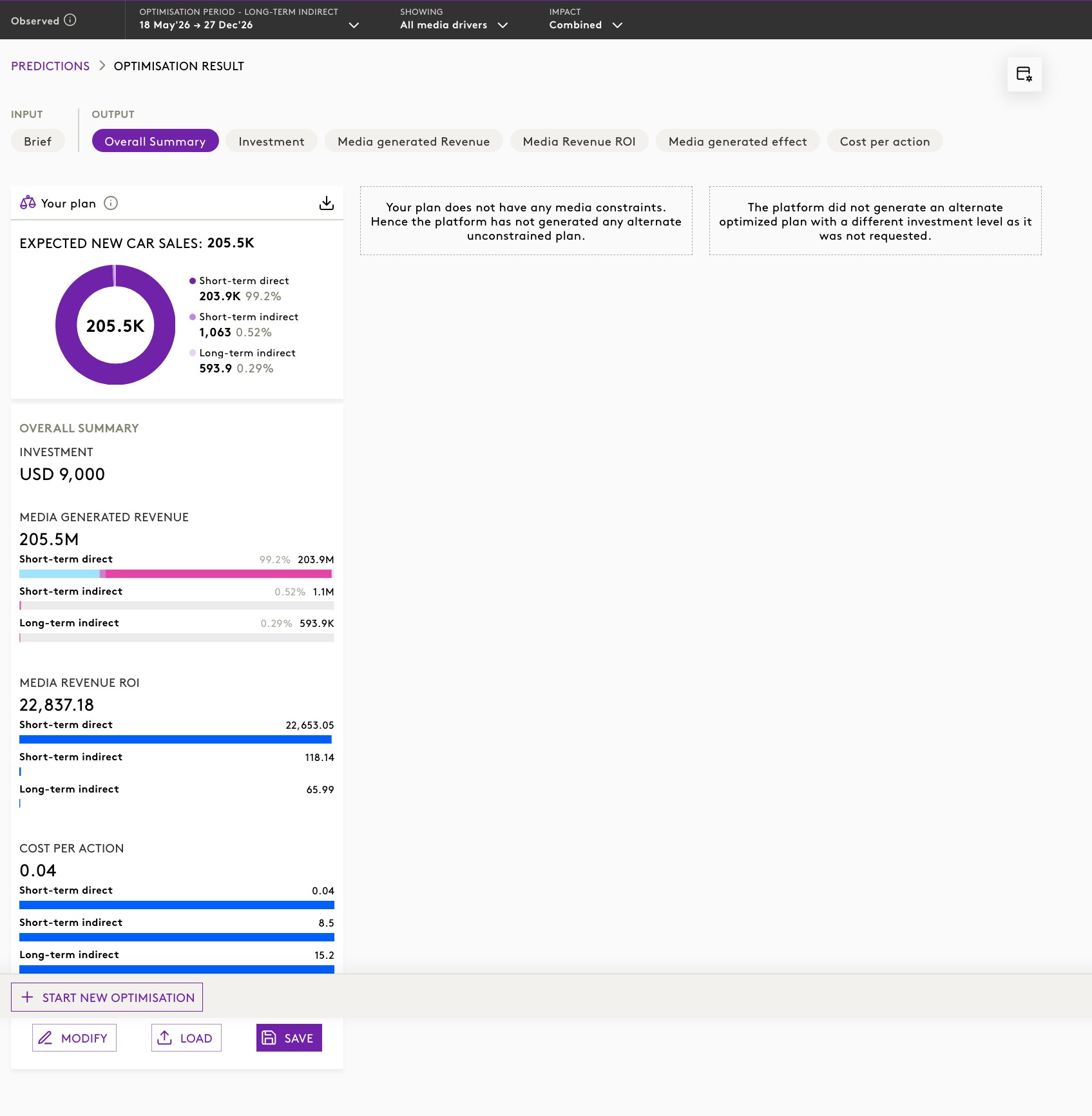
In the Overall Summary section:
Example metrics displayed:
- Expected outcome (e.g. Expected New Car Sales: ~203K–205K)
- Breakdown of impact:
- Short-term direct (major contribution, ~99%)
- Short-term indirect (smaller contribution)
- Long-term indirect (delayed contribution)
KPI breakdown sections include:
- Media Generated Revenue
- Split across short-term and long-term impact
- Media Revenue ROI
- Cost per Action
Each metric shows:
- Contribution by:
- Short-term direct
- Short-term indirect
- Long-term indirect
Important behaviour
- The optimiser still optimises within the selected optimisation period
- However, it selects the media mix that maximises profit over the extended period
- Results may favour channels with delayed impact (e.g. brand-building channels)
Things to keep in mind
- Results may be more uncertain when:
- Extending too far into the future
- Applying large changes to investment patterns
- A caution message is shown in the UI:
“Results will be more uncertain if you invest very differently or optimise far into the future.”
Availability
- This feature is available only for Long-Term Optimiser models
- It may require enabling the feature toggle:
2. Reference Period Control in Simulator
Overview
The Reference Period Control enhancement allows users to view and modify the reference period directly within the Simulator setup. This provides greater transparency and flexibility when configuring simulations.
Why this feature matters
The reference period is used to establish the baseline against which simulation changes are measured. Earlier, this period was system-driven, limiting user control.
With this enhancement, users can:
- Clearly understand the baseline used in simulations
- Adjust the reference period when required
- Improve the relevance and accuracy of simulation results for specific scenarios
What is a reference period?
The reference period is a historical time range whose data is used to build the simulation baseline.
As shown in the UI:
“Reference period is the past time range whose data is used to build a simulation baseline.”
How it works
Step 1: Open Simulator setup
On the Run a simulation screen:
- Select the Simulation period (e.g. 2 Jan 2023 → 8 Jan 2023)
- The Reference period is displayed directly below
Step 2: View default reference period
The system automatically selects a reference period based on:
- Same period last year, if available
- Otherwise, the latest valid reference period
This ensures consistency and reliability in baseline calculations.
Step 3: Modify reference period
Users can manually adjust the reference period by selecting a different date range.
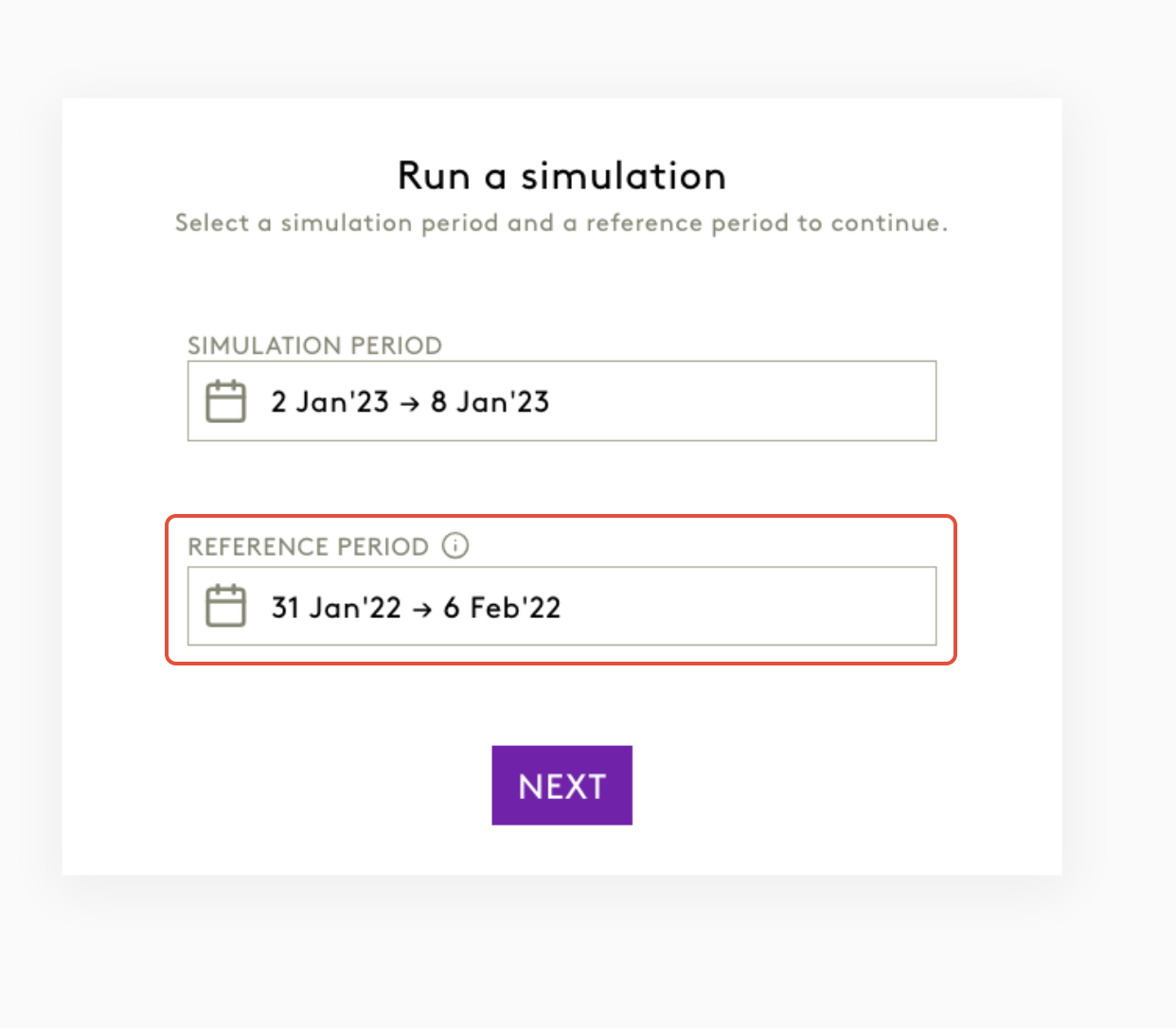
This is particularly useful when:
- Comparing against a specific historical event
- Avoiding seasonal anomalies
- Aligning simulations with business context
Step 4: Validation and guidance
- The system validates that the selected reference period is compatible with the simulation period
- Invalid combinations are prevented
- If the reference period is changed from the default, a warning message is displayed:
“Changing the reference period from default may affect the accuracy of results. Please choose a suitable period before proceeding.”
- Improved clarity on how simulation results are derived
Things to keep in mind
- Changing the reference period may impact result accuracy
- Default selections are recommended for most use cases
- Ensure the selected period is representative of typical performance
3. Updated Help Centre Documentation Link
Overview
The Help & Support section in the Insights Platform has been updated to direct users to the latest LIFT ROI Help Centre. This ensures that users always access the most up-to-date and relevant documentation.
Why this feature matters
Previously, the Help section linked to legacy documentation (Blackwood Seven), which could cause confusion and inconsistency with current product branding and features.
With this update, users can:
- Access the latest LIFT ROI documentation
- Experience consistent branding across the platform
- Find accurate and up-to-date guidance more easily
What has changed
Before
- “Browse articles” redirected to legacy documentation
- Content may not fully align with current platform features
Now
- “Browse articles” opens the LIFT ROI Help Centre
- Updated link: https://liftroi.freshdesk.com/en/support/solutions
How it works
Step 1: Open Help & Support
- Click on the Help / Support option in the platform at the top left corner.
You will see:
- A feedback form on the left
- A knowledge base search panel on the right
- A link: “Browse articles”
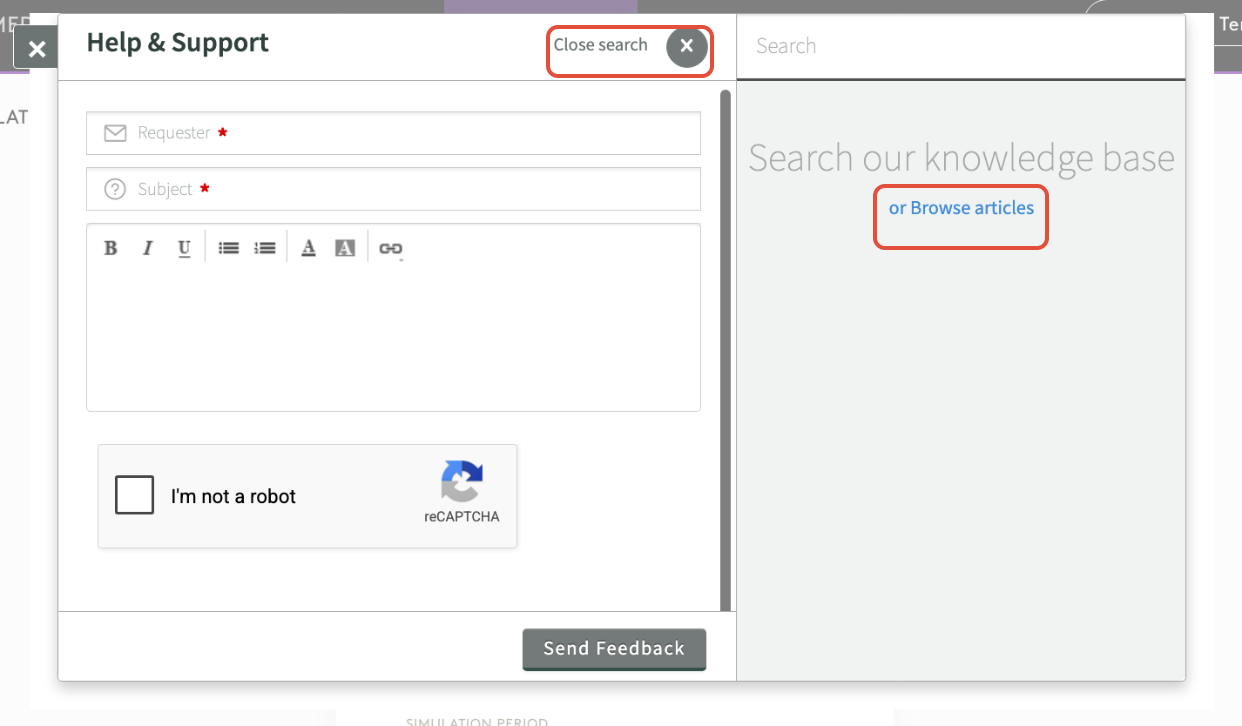
Step 2: Click “Browse articles”
- Selecting “Browse articles” redirects you to the updated Help Centre
Step 3: Access documentation
- You will be taken to the LIFT ROI Freshdesk portal
- From here, you can:
- Browse help categories
- Search for specific topics
- Access feature guides, release notes and FAQs
Important behaviour
- The Help Centre opens:
- In a new tab or configured behaviour
- No change to:
- Help search functionality within the platform
- Feedback submission process
Things to keep in mind
- Always use “Browse articles” to access full documentation
- Ensure pop-ups are enabled if the new tab does not open
- Bookmark the Help Centre for quick access
4. Updated Help Centre Documentation Link
Overview
The Help & Support section in the Insights Platform has been updated to direct users to the latest LIFT ROI Help Centre. This ensures that users always access the most up-to-date and relevant documentation.
Why this feature matters
Previously, the Help section linked to legacy documentation (Blackwood Seven), which could cause confusion and inconsistency with current product branding and features.
With this update, users can:
- Access the latest LIFT ROI documentation
- Experience consistent branding across the platform
- Find accurate and up-to-date guidance more easily
What has changed
Before
- “Browse articles” redirected to legacy documentation
- Content may not fully align with current platform features
Now
- “Browse articles” opens the LIFT ROI Help Centre
- Updated link: https://liftroi.freshdesk.com/en/support/solutions
How it works
Step 1: Open Help & Support
- Click on the Help / Support option in the platform at the top left corner.
You will see:
- A feedback form on the left
- A knowledge base search panel on the right
- A link: “Browse articles”
Step 2: Click “Browse articles”
- Selecting “Browse articles” redirects you to the updated Help Centre
Step 3: Access documentation
- You will be taken to the LIFT ROI Freshdesk portal
- From here, you can:
- Browse help categories
- Search for specific topics
- Access feature guides, release notes and FAQs
Important behaviour
- The Help Centre opens:
- In a new tab or configured behaviour
- No change to:
- Help search functionality within the platform
- Feedback submission process
Things to keep in mind
- Always use “Browse articles” to access full documentation
- Ensure pop-ups are enabled if the new tab does not open
- Bookmark the Help Centre for quick access
Was this article helpful?
That’s Great!
Thank you for your feedback
Sorry! We couldn't be helpful
Thank you for your feedback
Feedback sent
We appreciate your effort and will try to fix the article