The Optimisation functionality in Portfolio Long‑Term (PLT) Models enables you to identify the most efficient way to allocate marketing investment across a portfolio of products - such as Ipads, Iphones, Macs, Aipods, and halo‑driven brand products - to maximise a chosen business objective.
PLT models combine portfolio modelling with long‑term brand effects, allowing optimisation decisions to reflect not just immediate sales responses but also long‑term equity build‑up, cross‑product interactions, and halo effects that influence the entire product ecosystem.
TABLE OF CONTENTS
- 1. Setting Up an Optimisation
- 2. Configuring an Investment Optimisation
- 3. Reviewing Optimisation Results
- 4. What's next?
- 5. Activating the Optimisation
1. Setting Up an Optimisation
1.1 Navigate to the Optimisation Section
- From the top navigation bar, go to the Prediction module.

- Click on the Optimise tab.
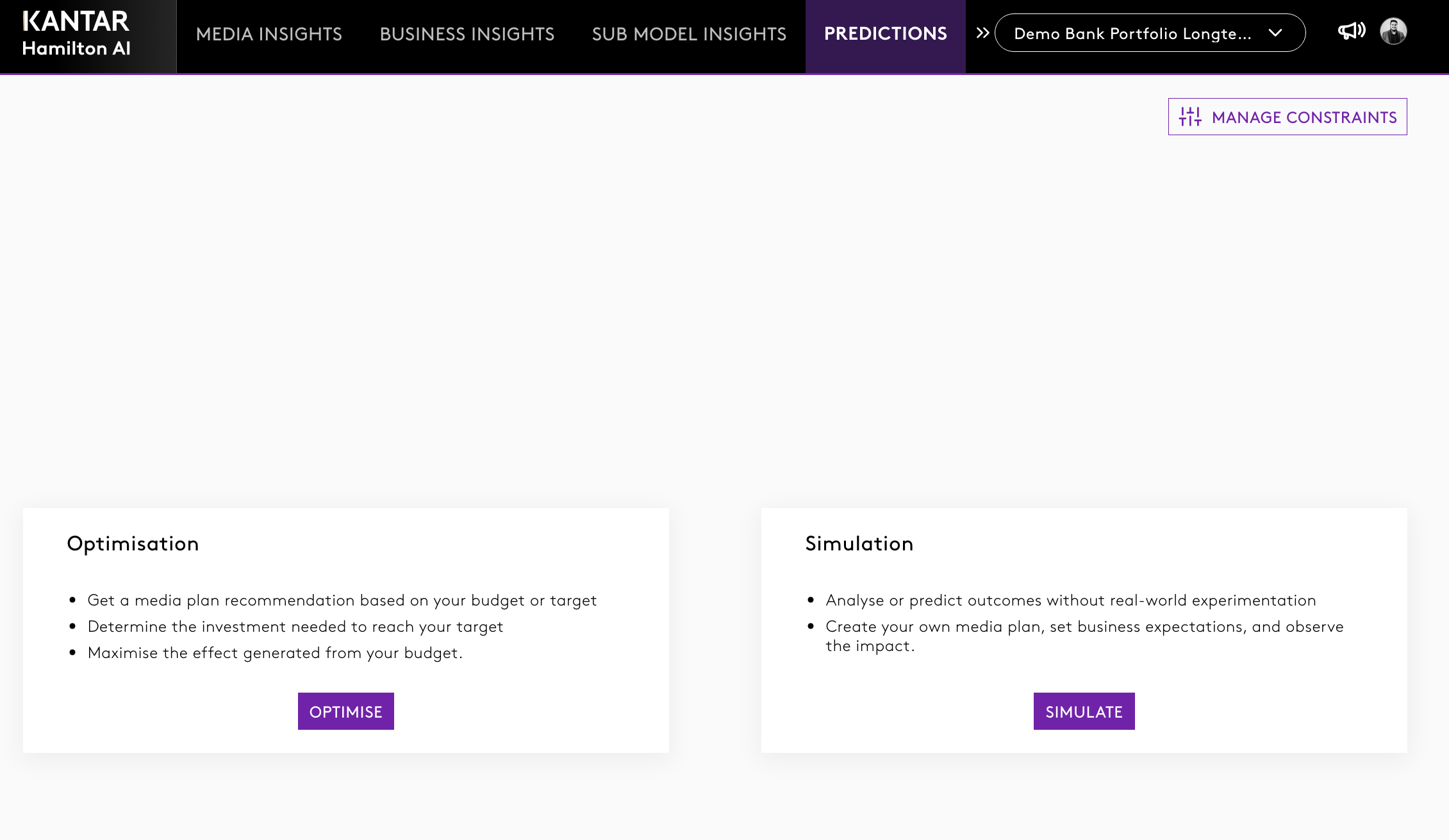
Note: If you are an ADMIN or someone who has access to manage constraints, click here to learn more. |
1.2 Select Optimisation Type
You will see two types of optimisation:
- Investment Optimisation – Use when you have a fixed total budget and want to maximise impact.
- Target Optimisation – Use when you have a target outcome (e.g. +1,000 sales) and want to estimate the required investment.
Select the type of optimisation you want to run.

2. Configuring an Investment Optimisation
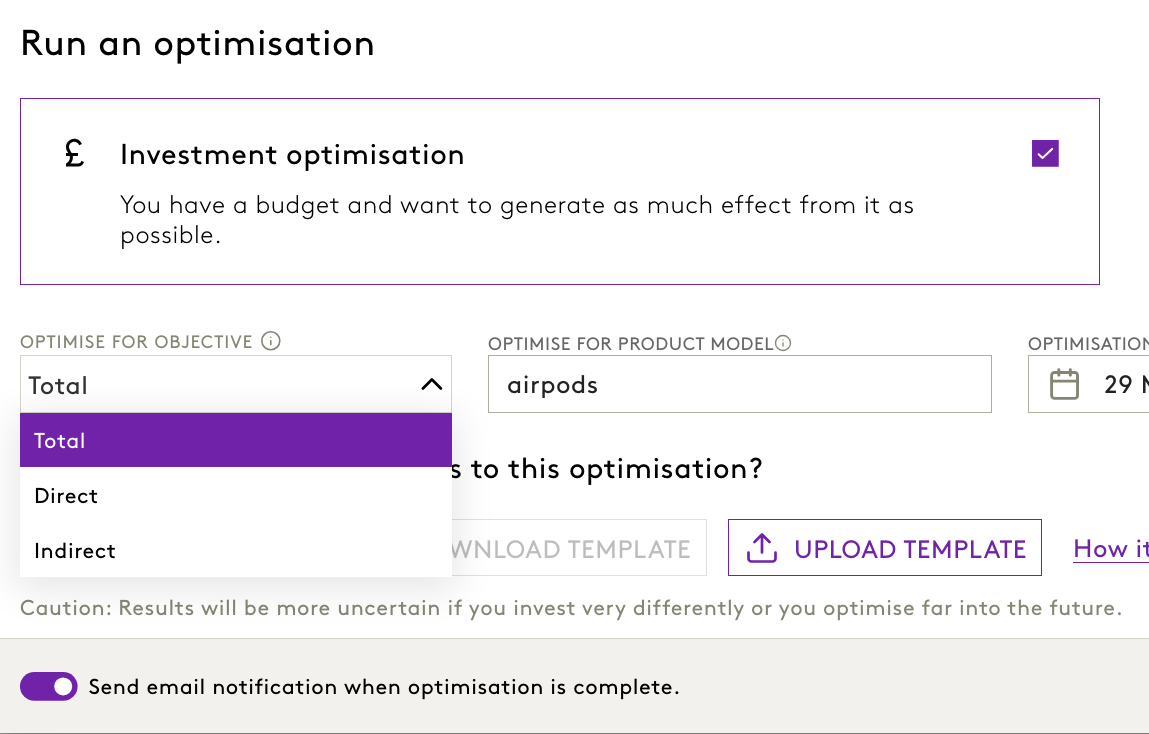
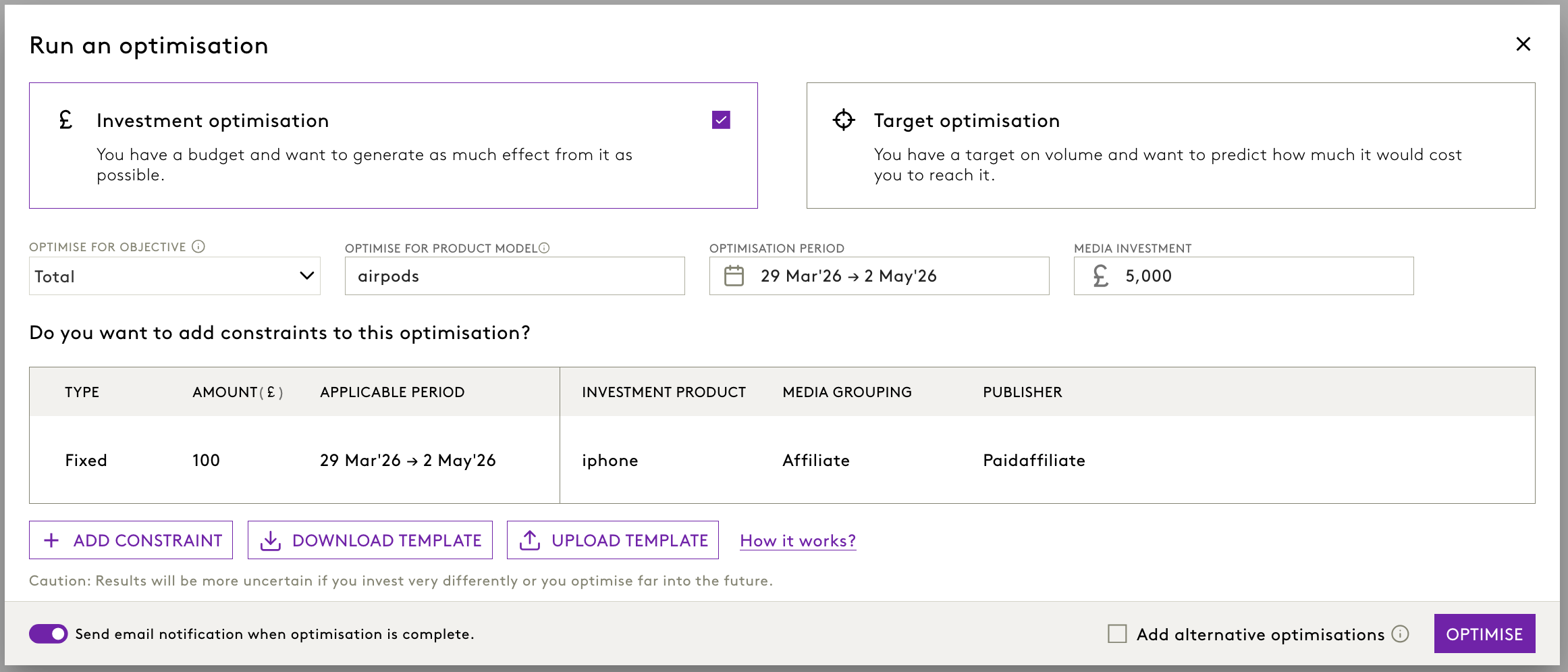
2.1 Choose Optimisation Objective
- Selecting Total will optimise for the combined impact of media on sales. This includes both:
- Direct effects - sales driven immediately by media exposure, and
- Indirect effects - sales influenced by media through brand-building over time.
- Selecting Direct will focus on sales that are directly attributable to media exposure. This excludes any delayed or brand-mediated effects.
- Selecting Indirect will prioritise the indirect impact of media via brand equity-how media improves brand perception, which in turn drives sales over time.
2.2 Choose the Product Model
You can select the total portfolio by clicking All or select specific products that you want to optimise for from the list.

2.3 Define Optimisation Period
- Use the calendar tool to select the applicable time period for your optimisation (e.g., January–March 2025).

2.4 Enter Budget
- In the Budget field, enter the total investment amount to be distributed (e.g., €500,000).
2.5 Add Constraints
Constraints allow you to define specific rules for how the budget should be distributed across products and channels.
In Portfolio Models, you can configure constraints at the investment product level.
Types of Constraints:
- Fixed Constraint: Locks a specific value for a product-driver combination.
- Example: Fix €10,000 for Cards – Paid Social.
- Minimum Constraint: Sets a lower bound.
- Example: Allocate at least €5,000 to Savings – Paid Search.
- Maximum Constraint: Caps the budget for a dimension.
- Example: Do not allocate more than €8,000 to Loans – TV.
To add a constraint:
- Click Add Constraint.
- Choose the constraint type.
- Enter the amount.
- Choose the time period for which the constraint should apply.
- Select the investment product (e.g., Cards, Loans, Savings or Halo products).
- Choose the media grouping, campaign type, channel, format, and publisher.
- Click Add Constraint – the system will check compatibility.
- Repeat for additional constraints.
2.6 Finalise Inputs
- Review the time period, total budget, and any constraints added.
- Tick the box to receive an email notification once the optimisation run is complete (optional).
| You can download optimisation constraint templates and upload bulk constraints easily, click here to know more. |
2.7 Choose Optimisation Package
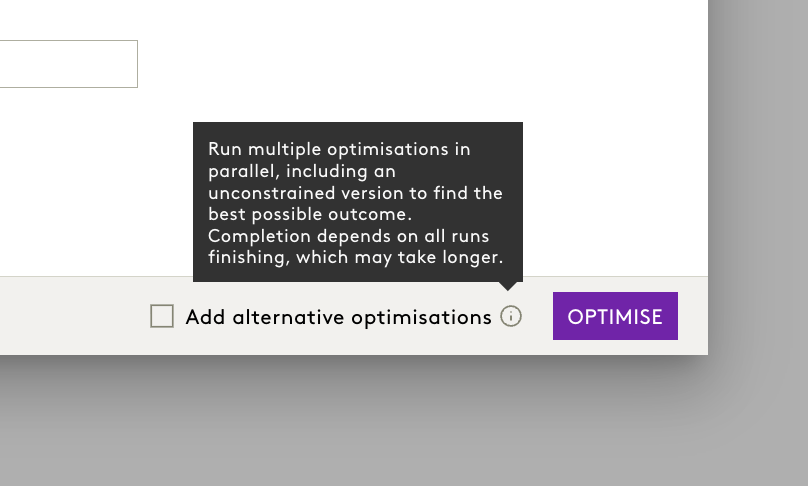
At the botton right, you will find a checkbox:
- Leave the checkbox unchecked to run a single optimisation.
- Tick the checkbox “Add Alternative Optimisations” to run multiple scenarios in parallel.
When to Choose Which Option?
Single Optimisation:
- Runs one scenario based on your input plan.
- Best for quick decisions when time is critical.
- Faster completion compared to multi-scenario runs.
Alternative Optimisations:
When selected, the system runs multiple optimisation scenarios in parallel, including an unconstrained version, to help identify the best possible outcome.
- Your input plan
- A plan with the same investment but without constraints
- A plan with ~10% lower investment
- Your input plan
- A plan with ~10% lower investment
For Target Optimisation:
- One with constraints
- One without constraints
Benefits:
- Provides more options without extra steps.
- Helps identify the best scenario by comparing different outcomes.
- Improves decision-making by offering flexibility and deeper insights.
Impact:
- Users can make more informed choices by reviewing multiple plans in one go.
- No changes to saved plans or existing workflows.
2.8 Run the Optimisation
Click Optimise to begin the process. A blinking indicator will appear to confirm that the system is running your request.
2.9 Running a Target Optimisation
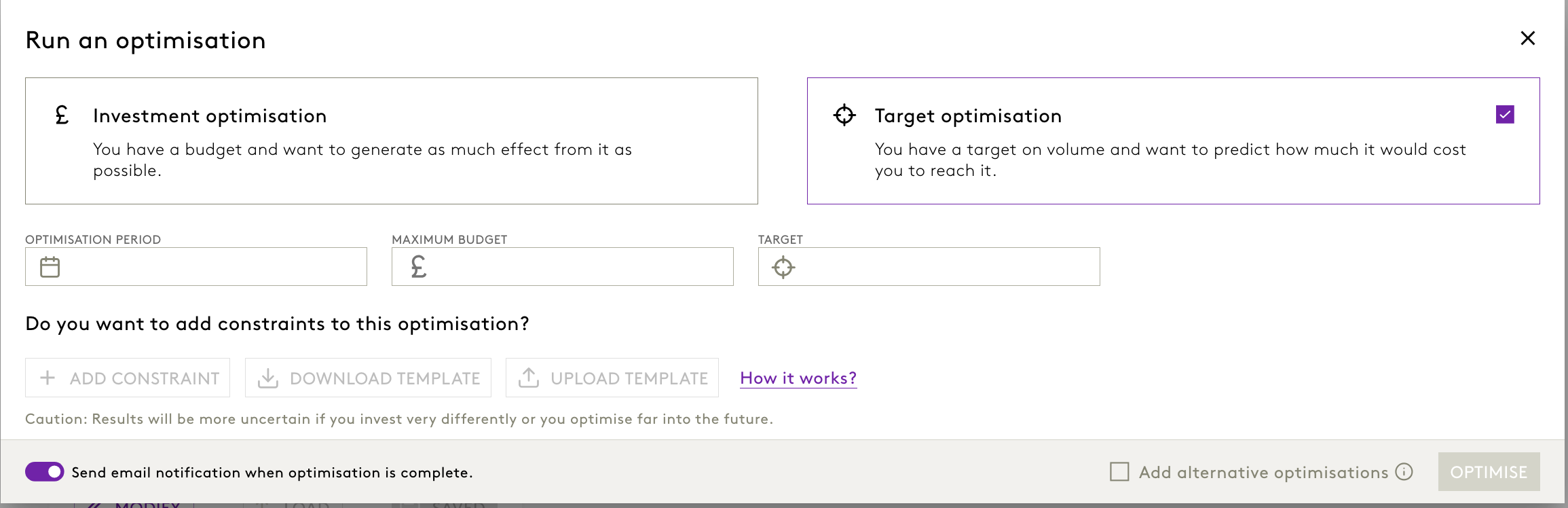
When you select a target optimisation,
You provide:
- The target KPI (e.g., sales uplift, number of orders)
- The maximum allowed budget
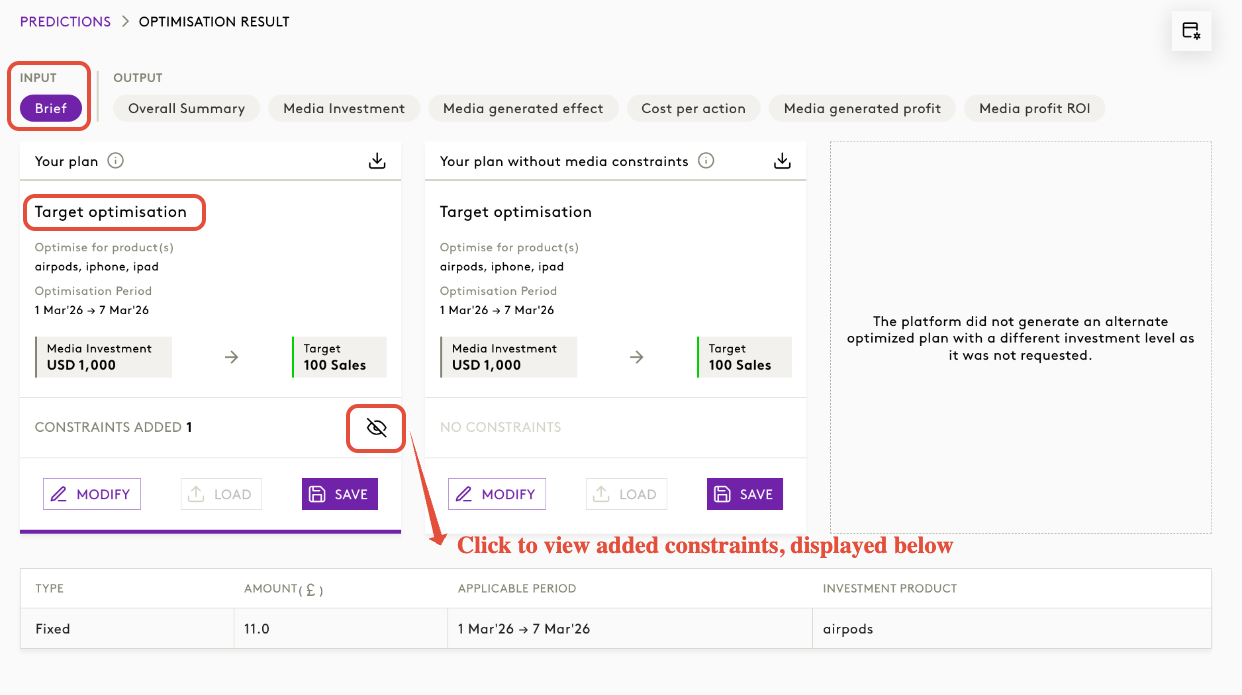
You can note the input and type of optimisation from the results page as well.
Click on the Brief button under the Input section as shown below.
3. Reviewing Optimisation Results
Once the optimisation is complete, return to the Prediction tab and click on Show Unsaved Result under the Optimisation section.
3.1 View Available Plans
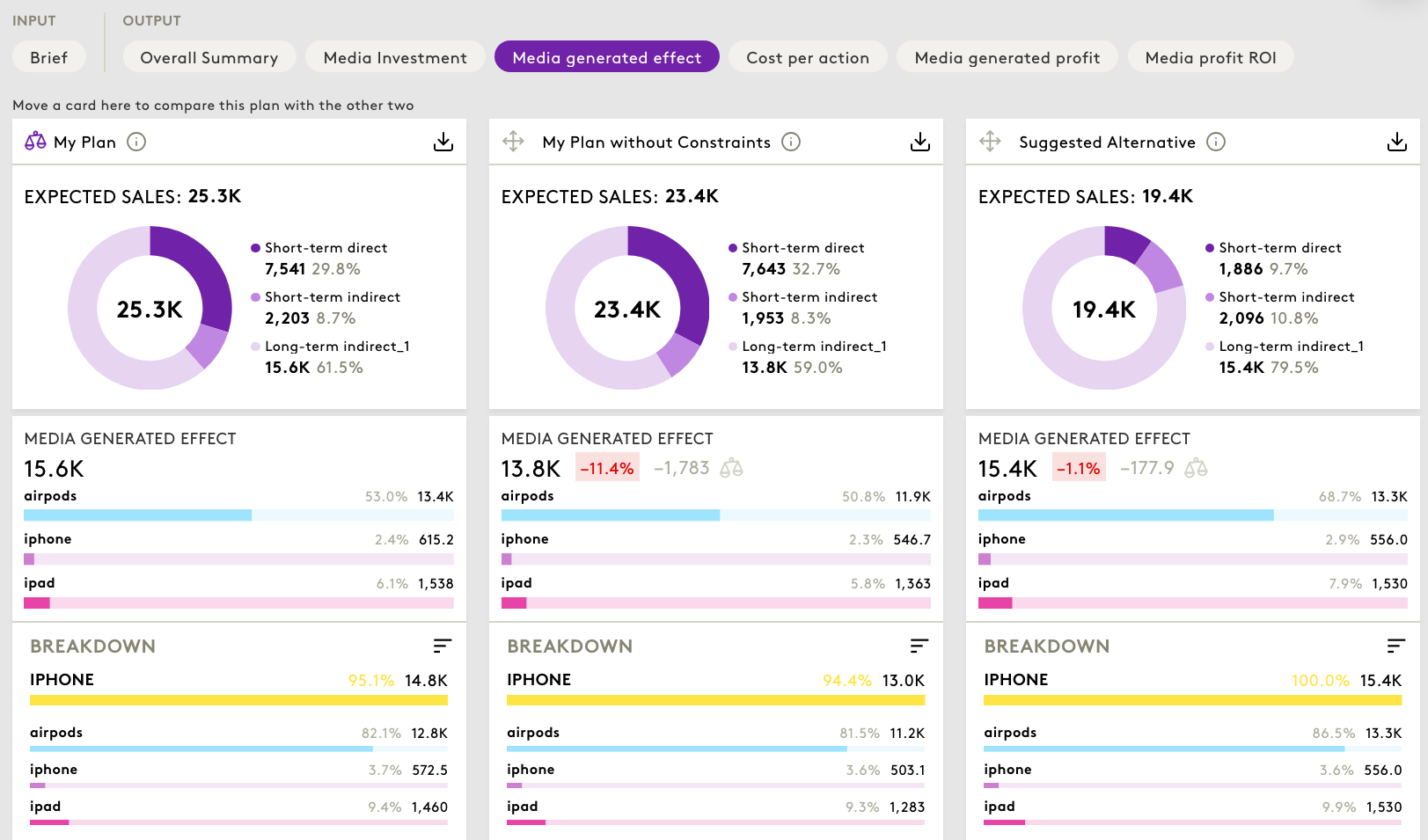
The results page will be as below, note that only when user selects alternate optimisation plans they will be run and displayed here.
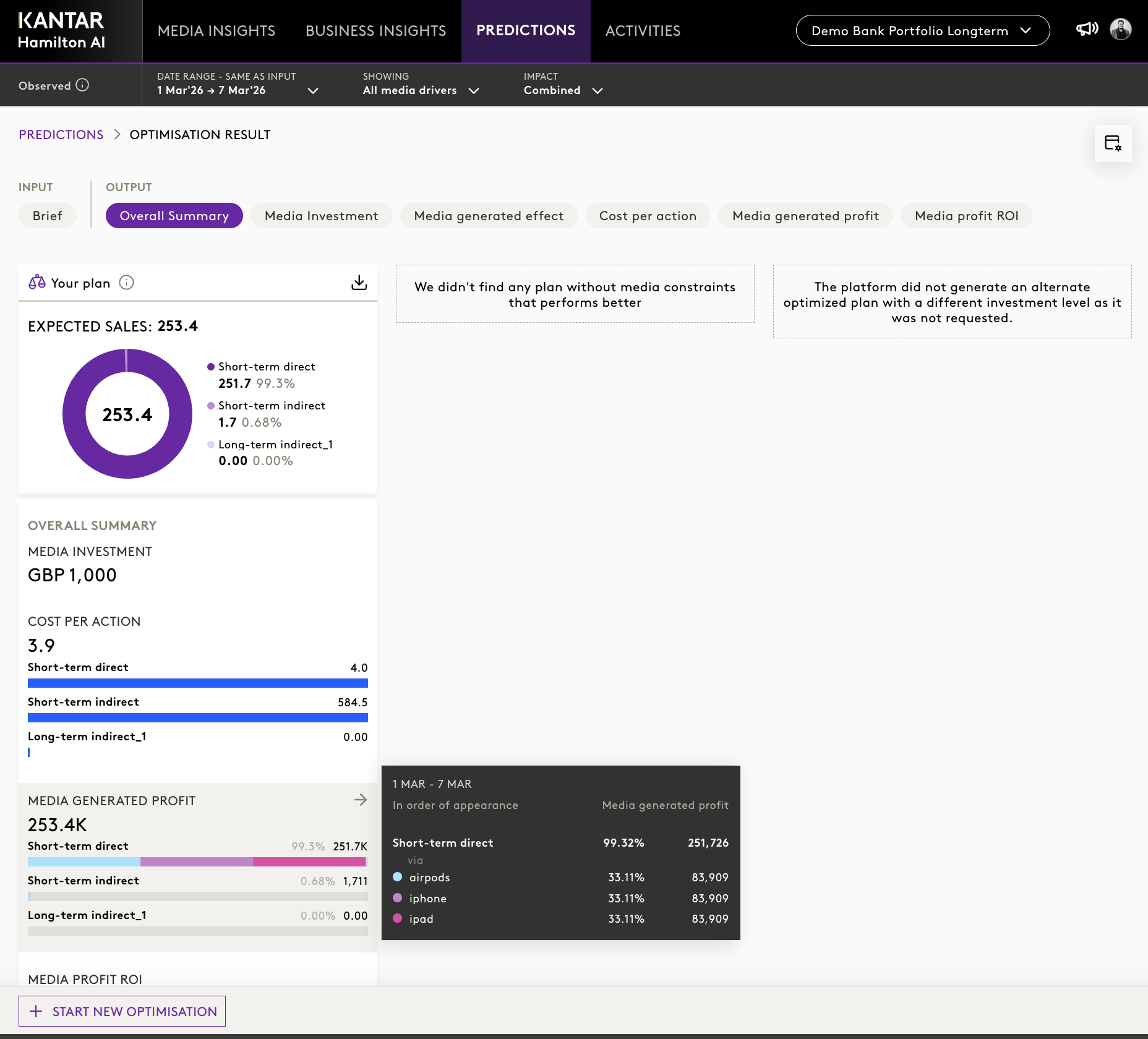
In case Alternative package is selected,
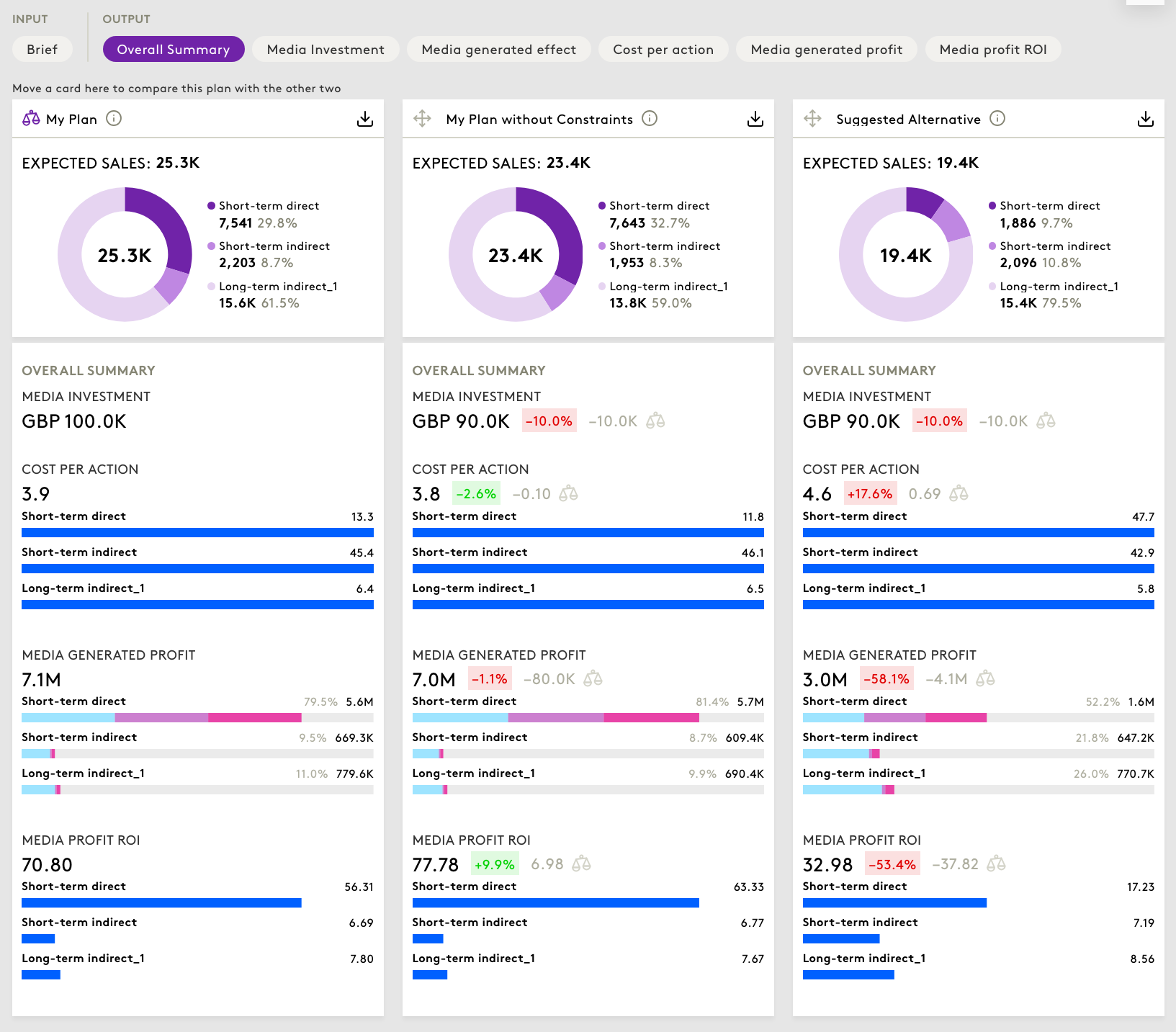
You will see three optimisation plans:
- My Plan – The plan you configured with constraints.
- My Plan without Constraints – Same budget, but constraints removed.
- Suggested Alternative – The system’s optimised plan using 90% of your original budget with constraints.
3.2 Reviewing Inputs and KPIs
Click on the Input tab, then select Brief,
The brief shows,
- Optimisation objective
- Optimisation type
- Optimisation period
- Budget and target, if relevant
- Added constraints
Click on the Output tab, then select Overall Summary.
This summary shows:
- Media Investment
- Media Generated Profit
- Cost Per Action
- Media Profit ROI
Use the colour-coded indicators to see changes relative to your original plan (green for increase, red for decrease).
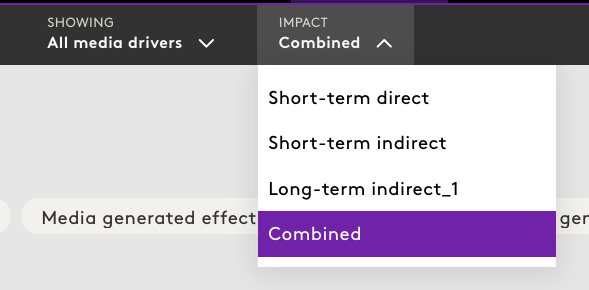
3.3 Selecting date range and Impact
This control allows users to choose between two distinct options:

- Same as Input Date – Displays results calculated for the same time frame as the optimisation input window.
- Long Term – Displays results inclusive of long-term effects
You can also choose to view by Impact, that is short term direct, Short term indirect, Long term indirect or combined impact.
3.4 Exploring the Results by Product
In Portfolio longterm Models, results are visible at the investment product level as well.
To explore performance by product:
1. Use the widget panel to adjust the view. Choose Data Grouping.
2. Select By Investment Products.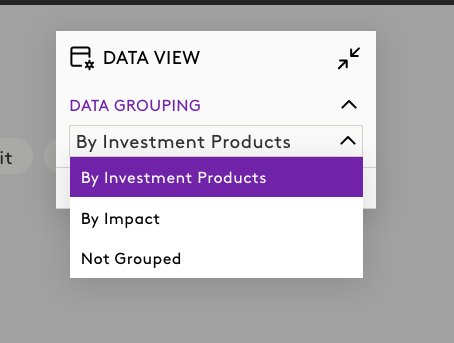 3. You can also Adjust the hierarchy, Drill down from:
Investment Product → Media Grouping → Campaign Type → Channel → Format → Publisher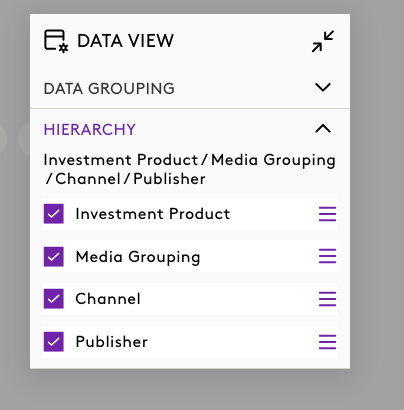
4. Review allocation and outcome differences across products.
4. What's next?
4.1. Loading Simulator Directly From Optimisation Results
Step 1: Click “Load” Into Simulator
On the optimisation output card → click Load.
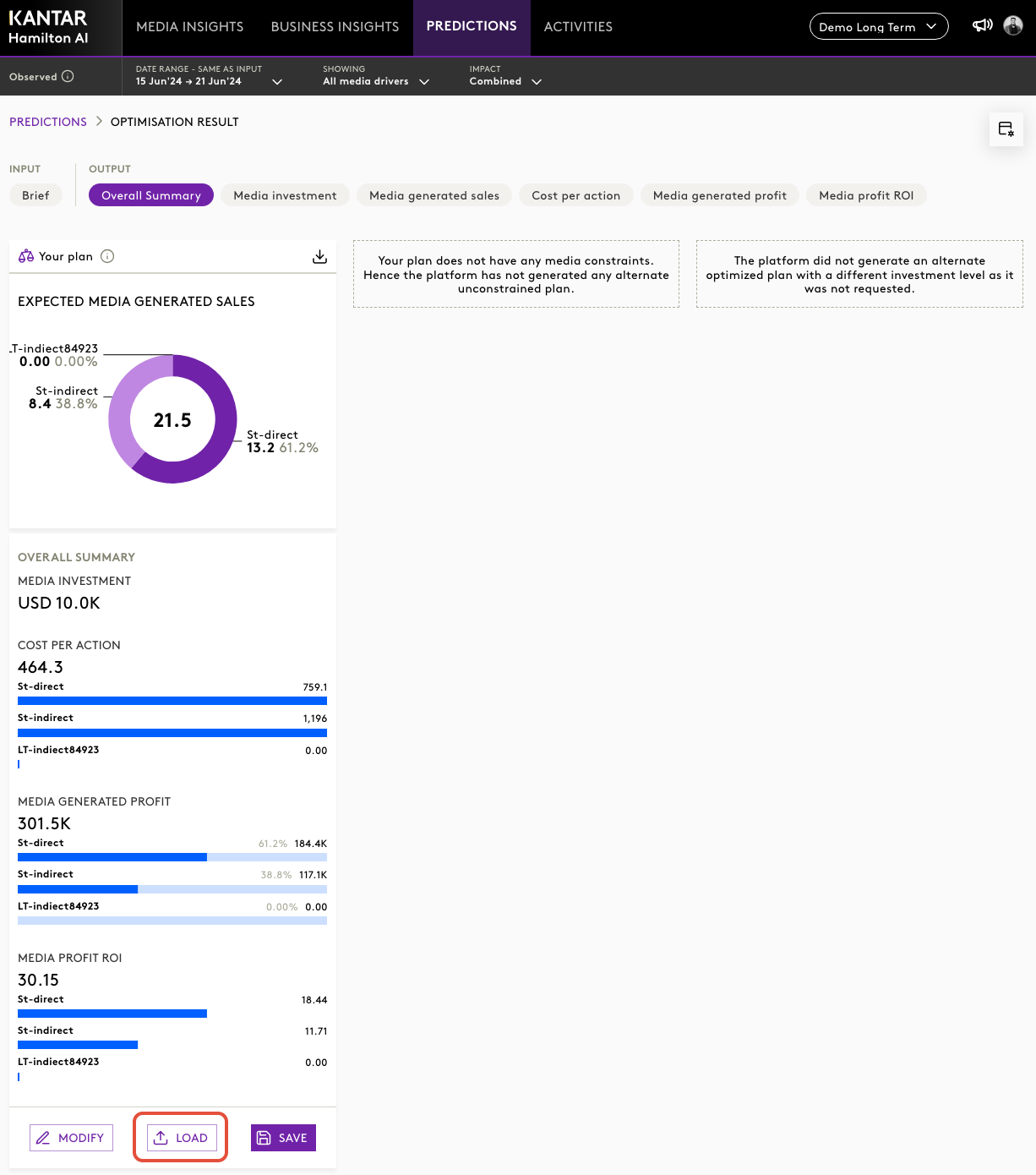
This pushes the optimiser run straight into the Simulator.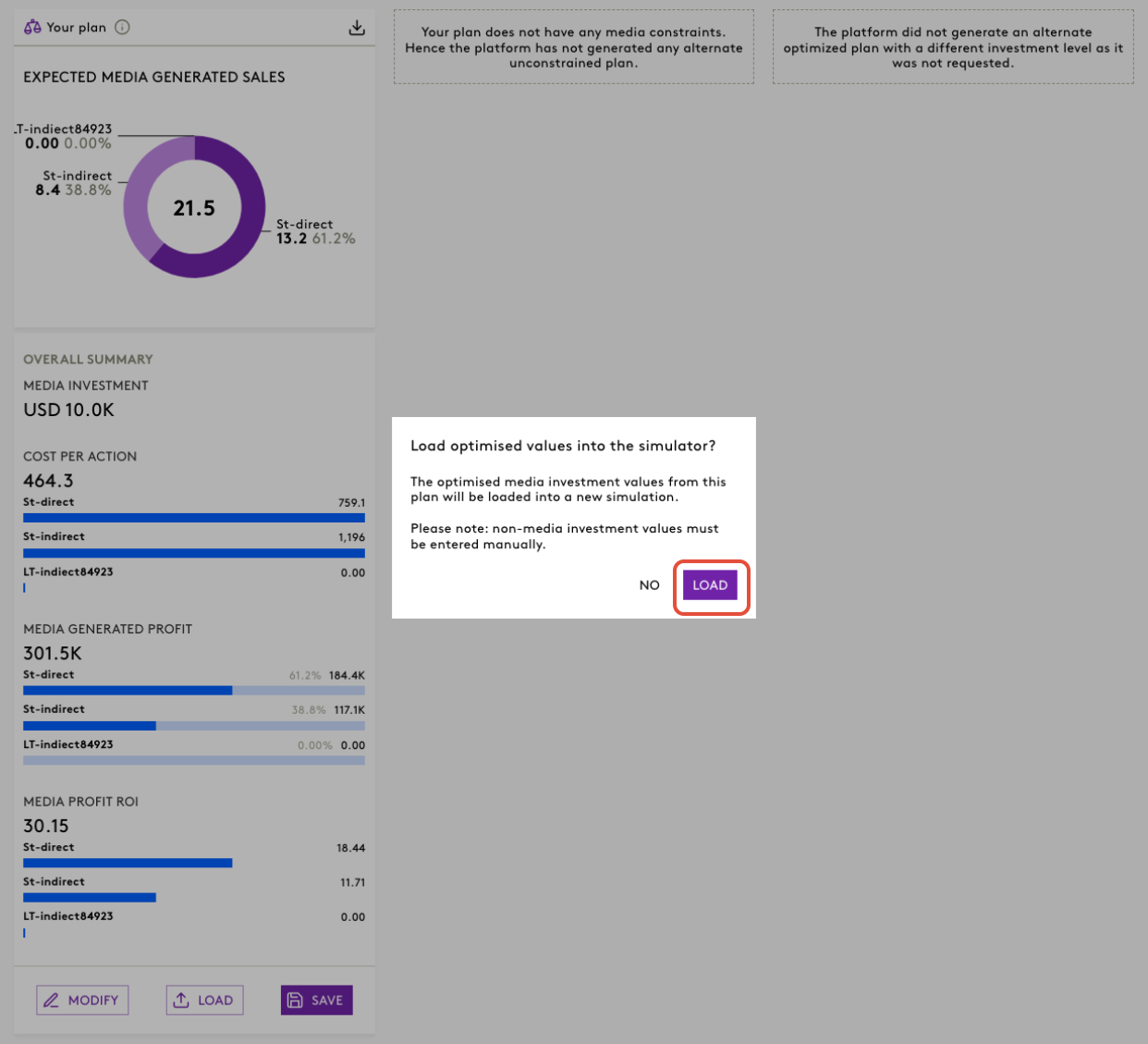
Step 2: System Creates a New Simulation Scenario
A new scenario appears with:
- Media variables already populated
- Scenario name based on optimiser run
- Ready for non‑media inputs
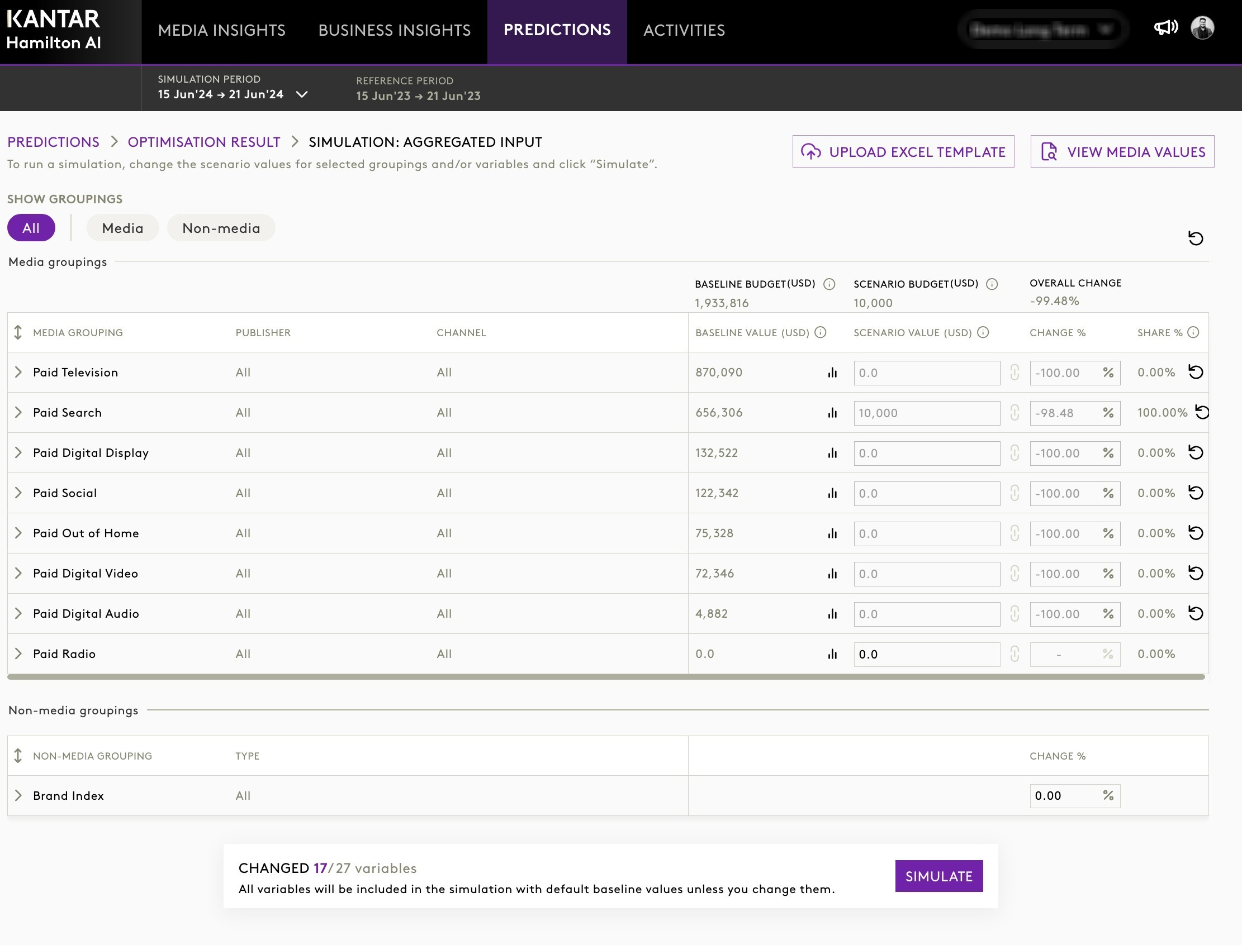
Step 4: Review Inputs
Inside the Simulator:
- Media values → pre‑filled and editable
- Non‑media variables → must be updated manually
Step 5: Click “Simulate”
Once all inputs are ready → run the simulation.
4.2. Saving the Optimisation
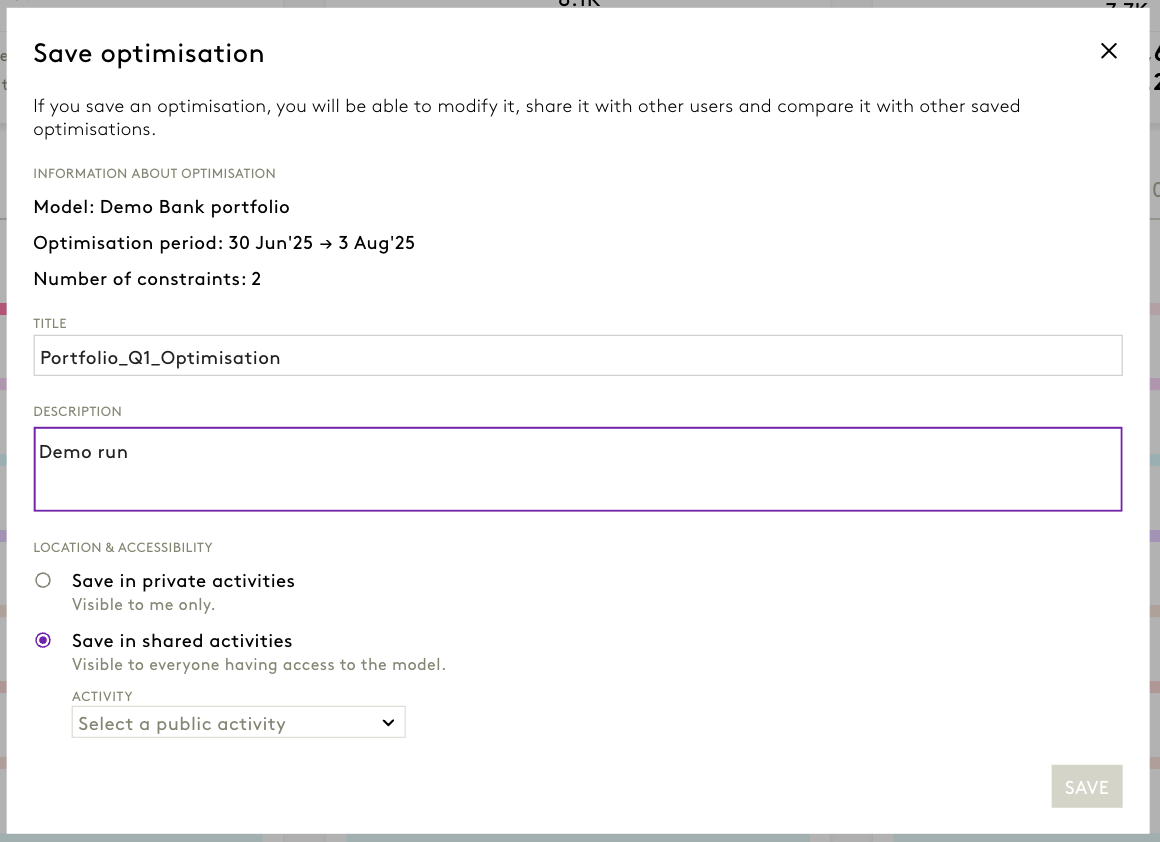
- Click Save Plan at the bottom of the screen.
- Enter a title (e.g., “Portfolio_Q1_Optimisation”) and optional description.
- Choose one of the following save types:
- Private – visible only to you.
- Public – save to a shared folder accessible to your team.
4.3. Modify the Optimisation
Click the modify button, to edit and start over the optimisation run again.
5. Activating the Optimisation
- Open the Activities section from the main navigation bar.
- Locate your saved optimisation.
- Click the ⋮ menu and select Activate.
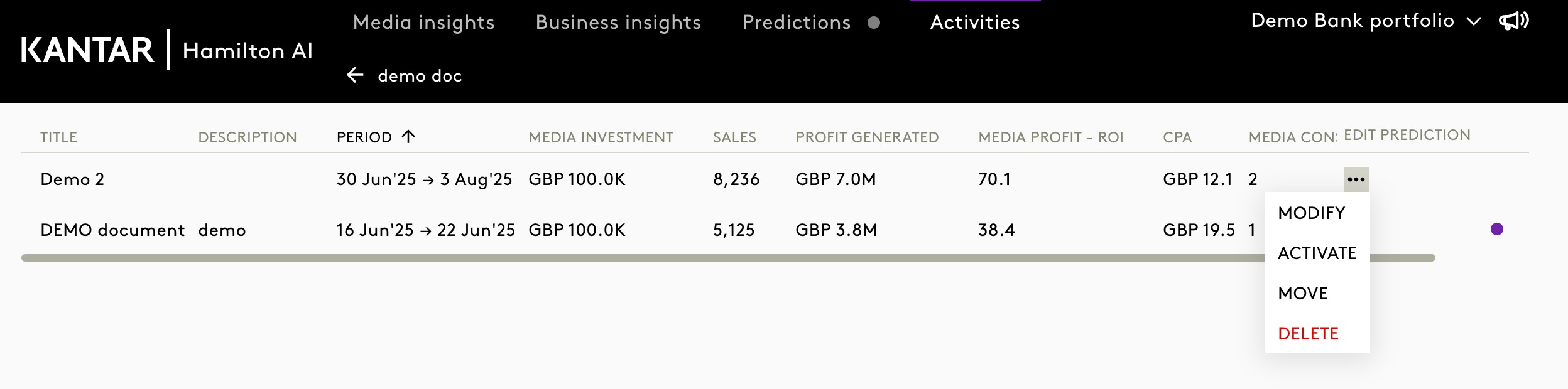
When activated:
- A confirmation popup will appear - click Confirm.
- The buying brief will be automatically downloaded as an Excel file.
- The selected optimisation will be highlighted in the Media Insights timeline for tracking actual vs predicted performance.
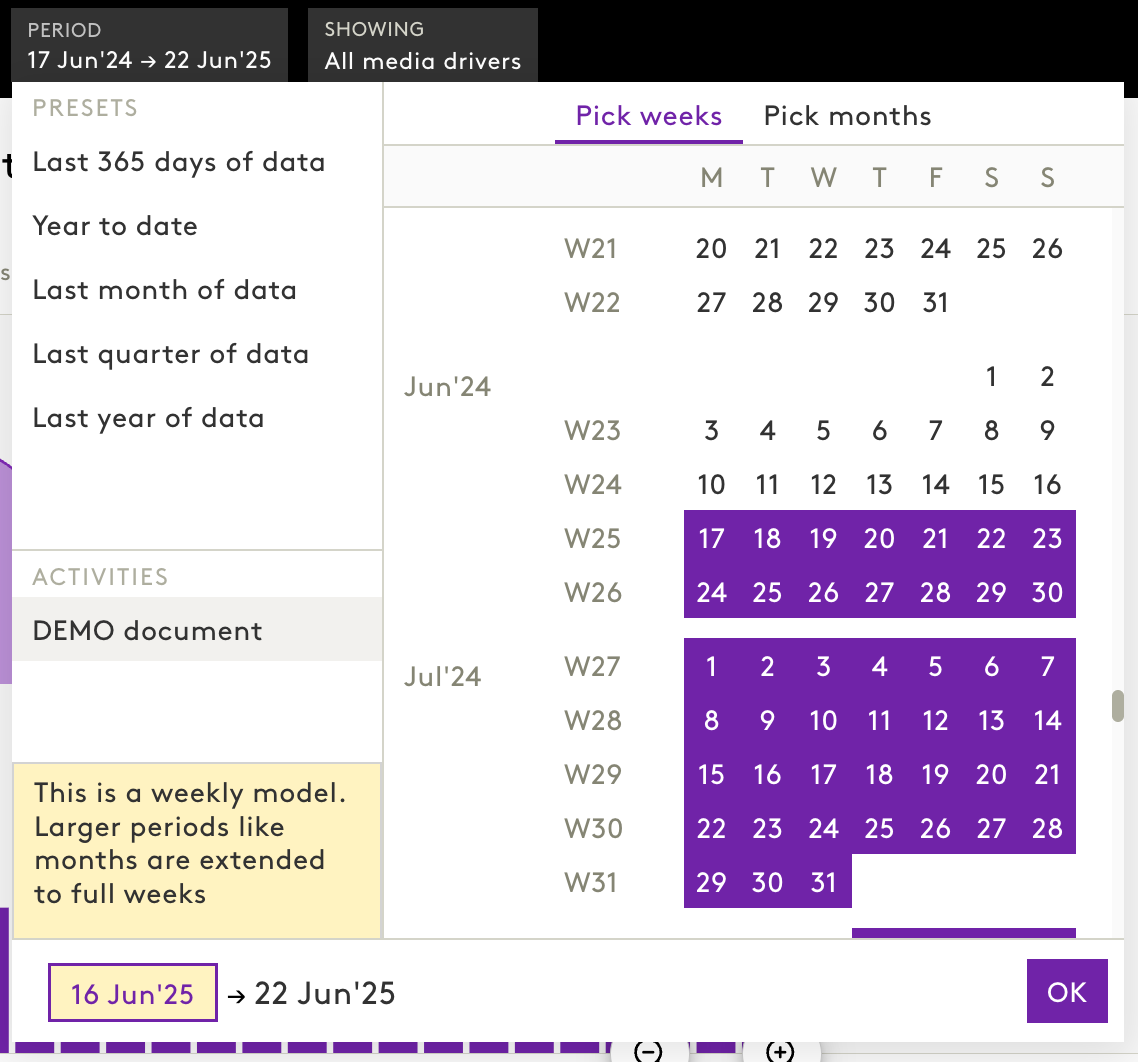
- The optimisation period will now appear as a preset filter under the Activities section in the Global Time Period Filter. This allows you to easily revisit and apply the exact time window used in the optimisation.
5.1 Changes Reflected in the Media Insights Module
Once an optimisation is activated, the following changes occur in the Media Insights module:
- The optimisation period will be highlighted on the Media Performance Over Time graph, making it visually distinguishable.
- You will see a new comparison between:
- Predicted values from the optimisation, and
- Actual observed performance during that same period (If the data is available).
- You can analyse actual media investment, subscribers, profit, ROI, and cost per action against what the model had forecasted.
- This enables you to evaluate how closely real-world performance aligned with model expectations, providing feedback for future planning.
Note: All other dashboard controls like sorting, filtering, and reordering the table are available here similar to the MI module.
Was this article helpful?
That’s Great!
Thank you for your feedback
Sorry! We couldn't be helpful
Thank you for your feedback
Feedback sent
We appreciate your effort and will try to fix the article