The Simulate feature in the Portfolio Long term Model enables "What-if" testing to estimate the impact of media and non-media investment changes across different investment products (e.g., loans, cards, savings) over a selected time period.
TABLE OF CONTENTS
- 1. Running a Simulation
- 2. Reviewing Simulation Reports
- 3. Viewing a Detailed Report
- 4. Saving the Simulation
1. Running a Simulation
1.1 Enter Input values
1. Navigate to the Simulate tab under the Predictions module.
2. Click the Simulate button.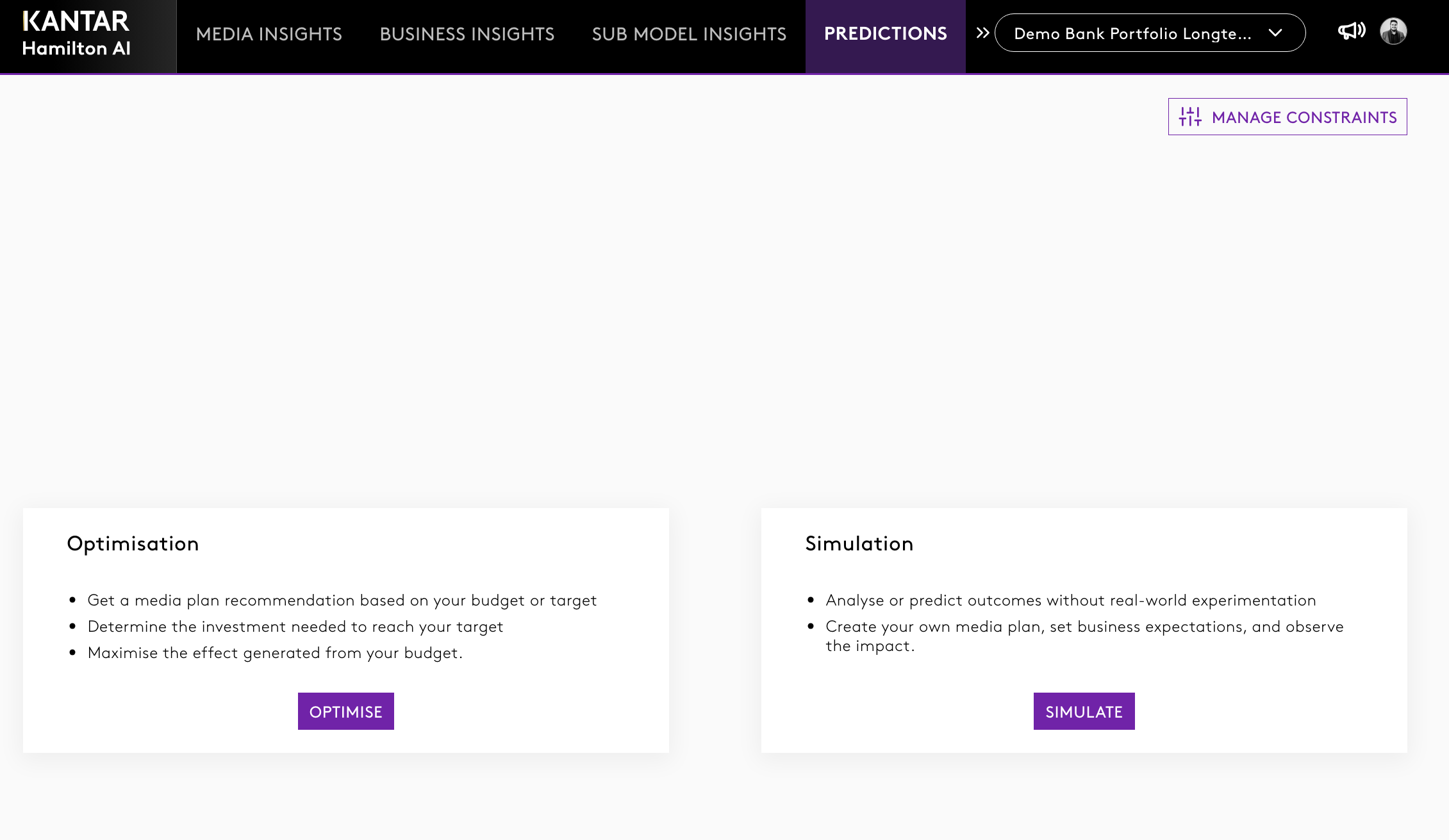
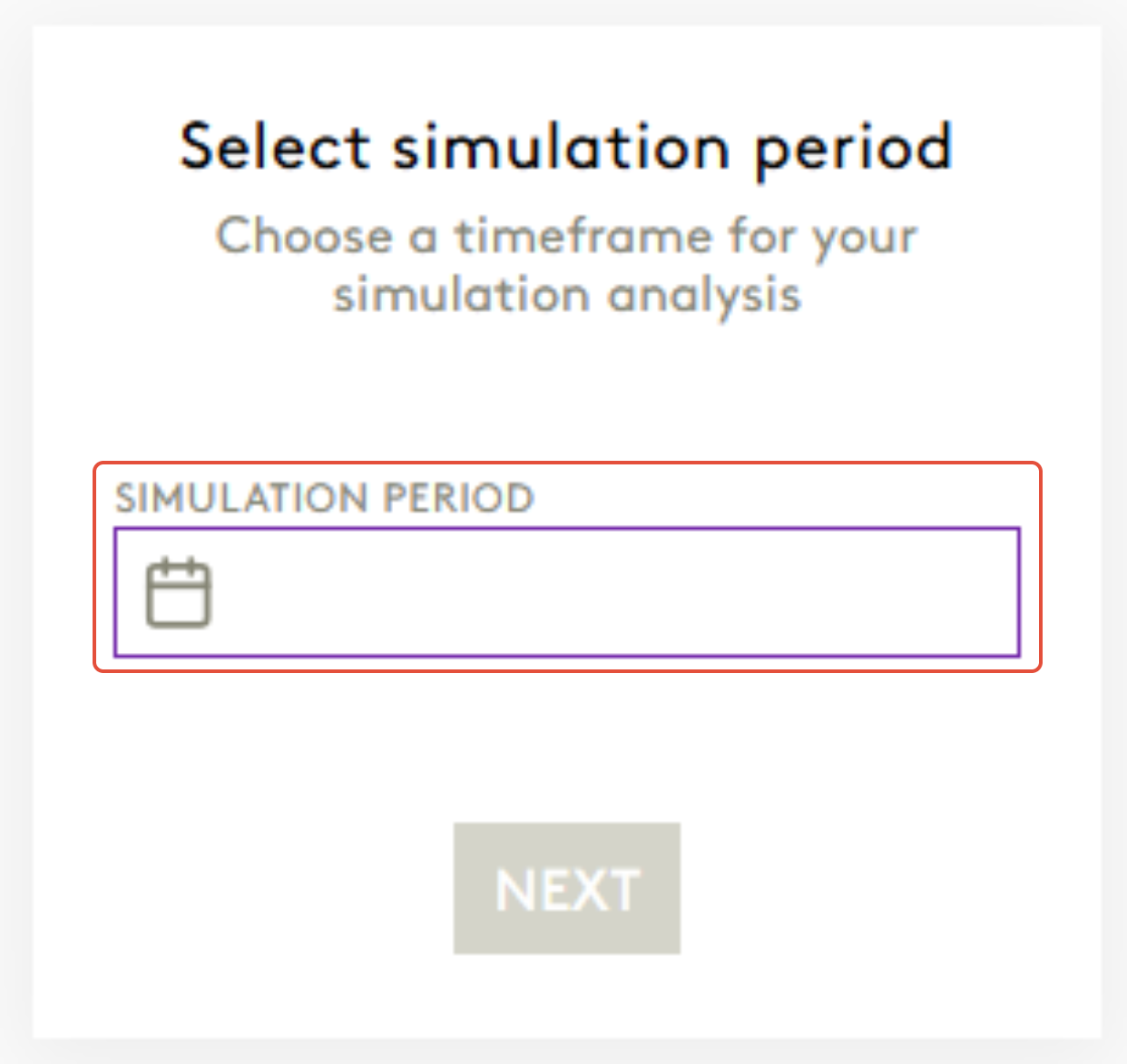
3. Select the time period for the simulation.
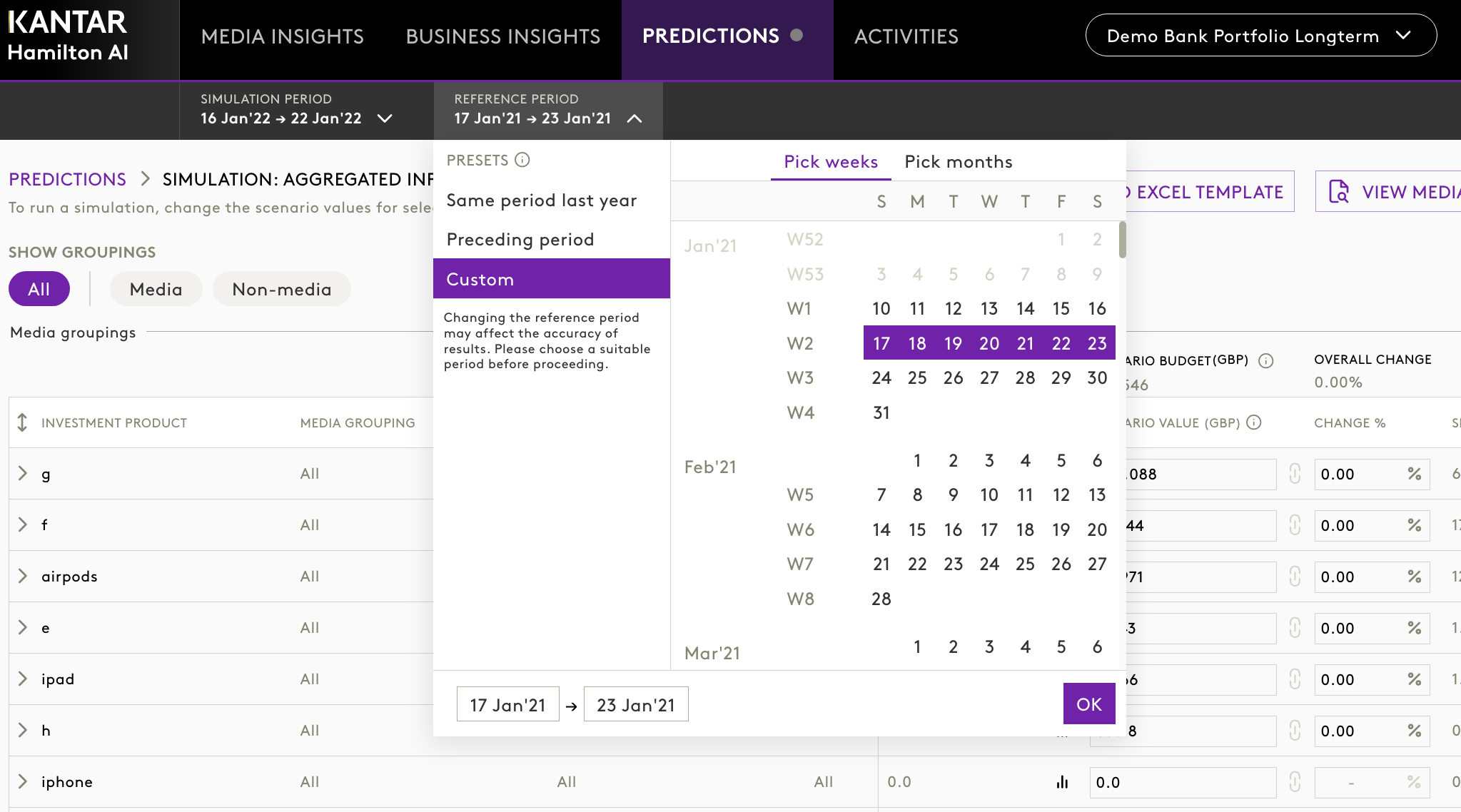
4. You can change the Reference period for the simulation from this drop down.
5. Adjust budgets for different drivers:
- Media drivers can be adjusted by absolute values or percentages.
- Non-media drivers can be changed only through percentage inputs.
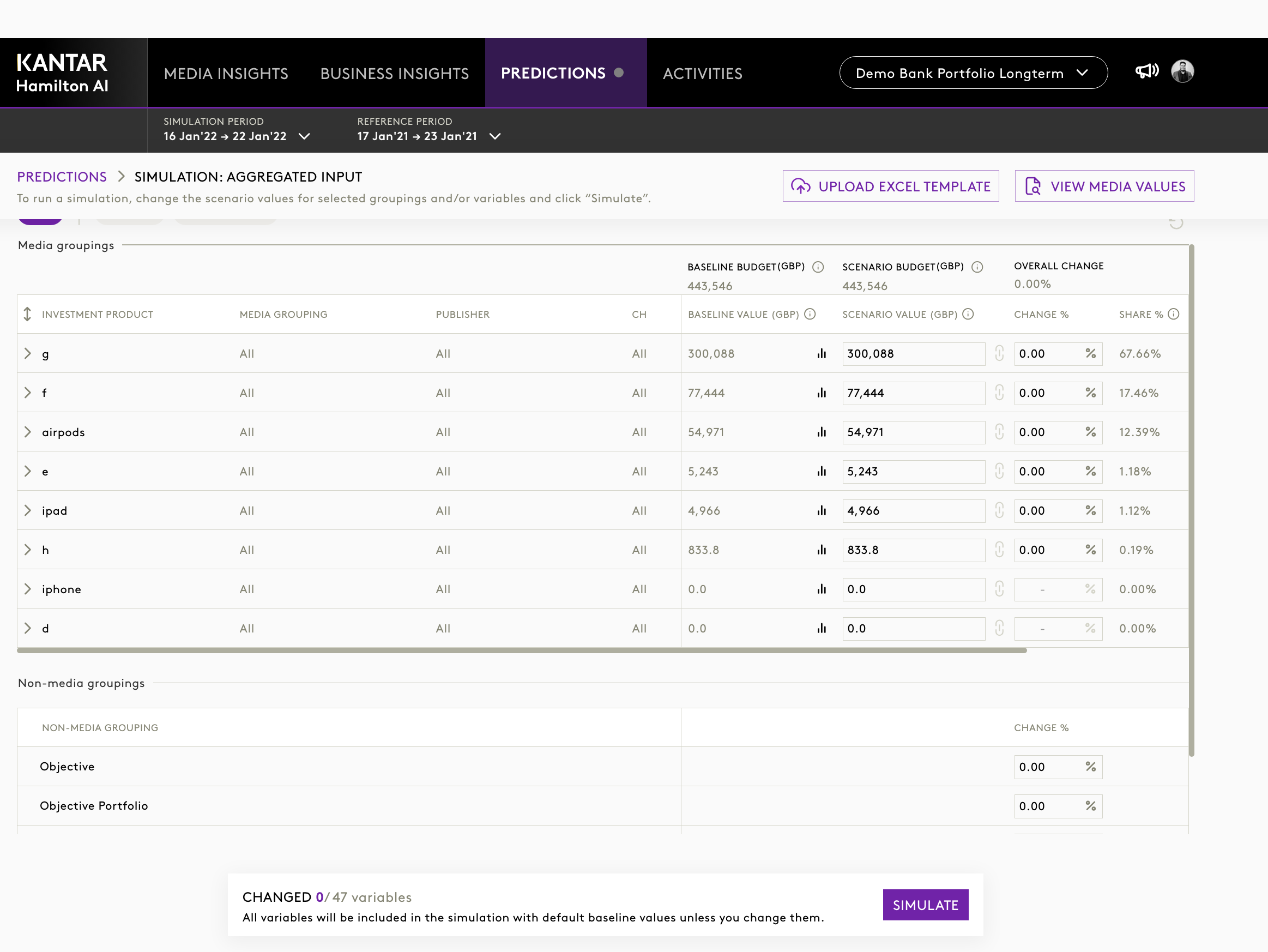
5. You can select the media groupings to enter detailed inputs, by default both media and non media groupings will be visible.
6. To enter more detailed inputs:
- Expand the Media driver to view campaign/channel/publisher breakdown.
- You can change the scenario values or overall change in terms of percentage.
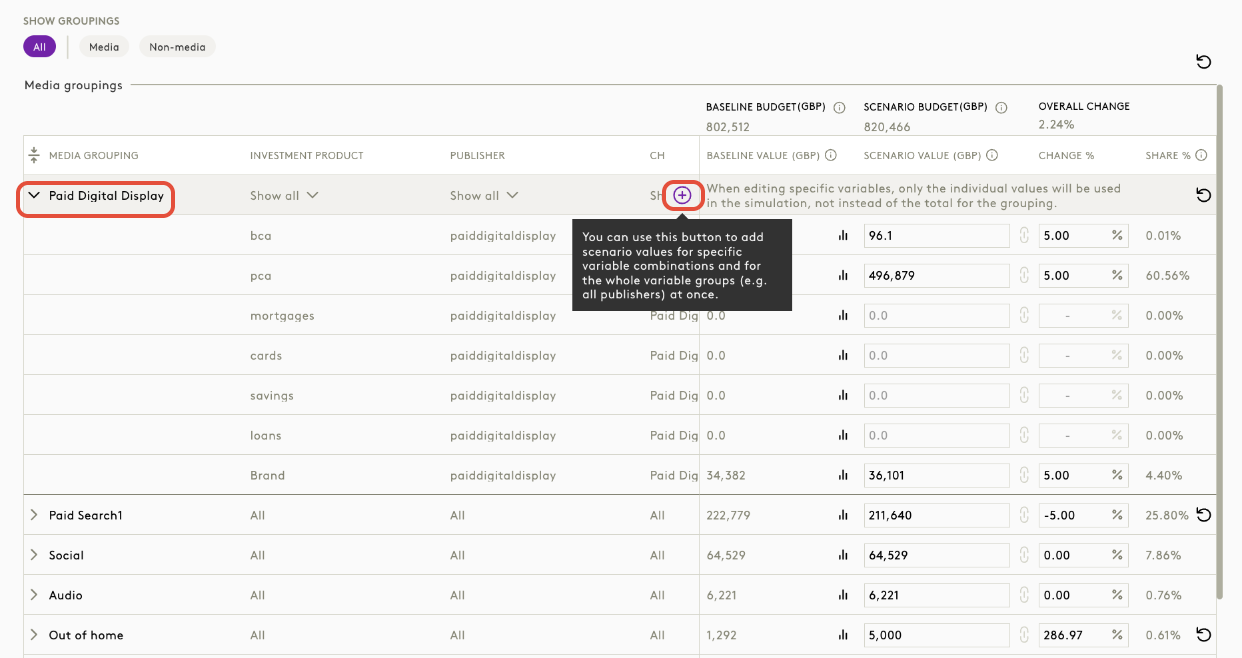
- Click the “+” icon next to a media line item to input adjustments at the investment product level (e.g., specific to Loans, Cards, etc.).
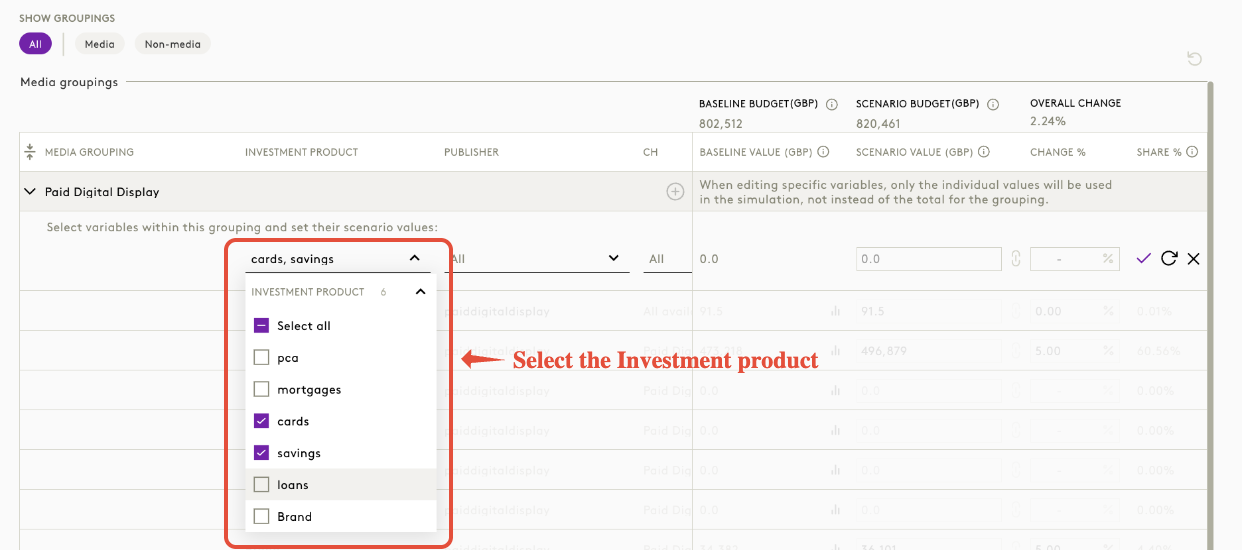
7. Once inputs are finalised, click Simulate button at the bottom. You can also keep a track of variables that you changed here.

8. Choose your preferred result type:
- High-Level Result – Quick summary output for iterative analysis.
- Detailed Result – Deeper breakdown; takes longer to process.
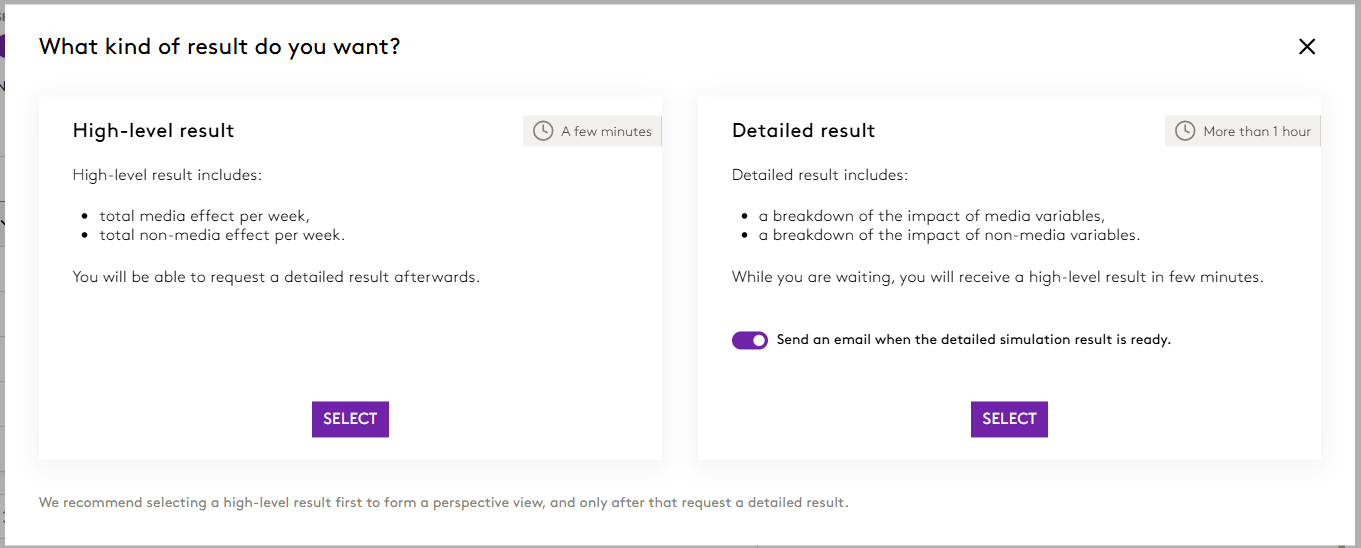
| Note: High-Level Results are shown first by default. You can choose to compute the Detailed Result later from the same scenario. |
Pro-Tip: You can load simulaton values in bulk using either of the following methods:
|
2. Reviewing Simulation Reports
Once the simulation finishes processing, you’ll receive an email notification.
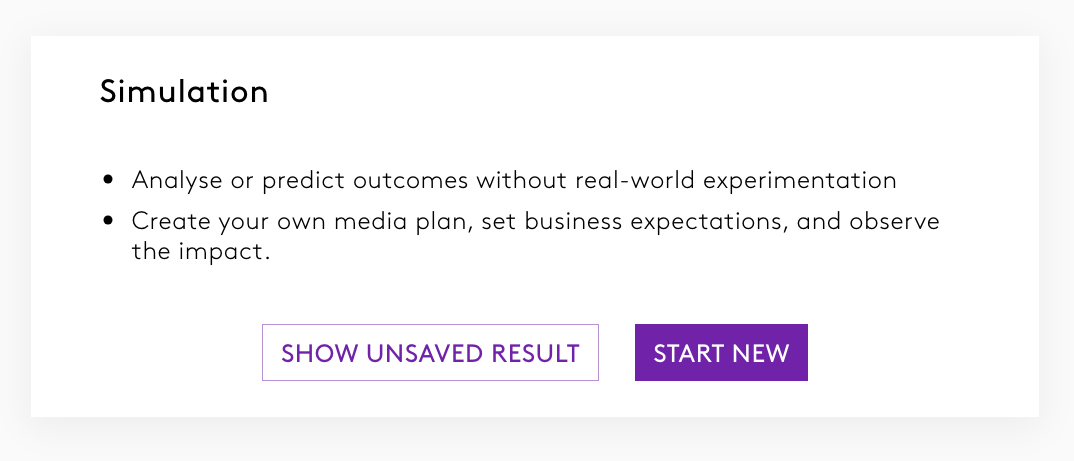
Navigate to the Simulation tab and click Show Unsaved Result to view outputs.
2.1 Viewing High-Level Report
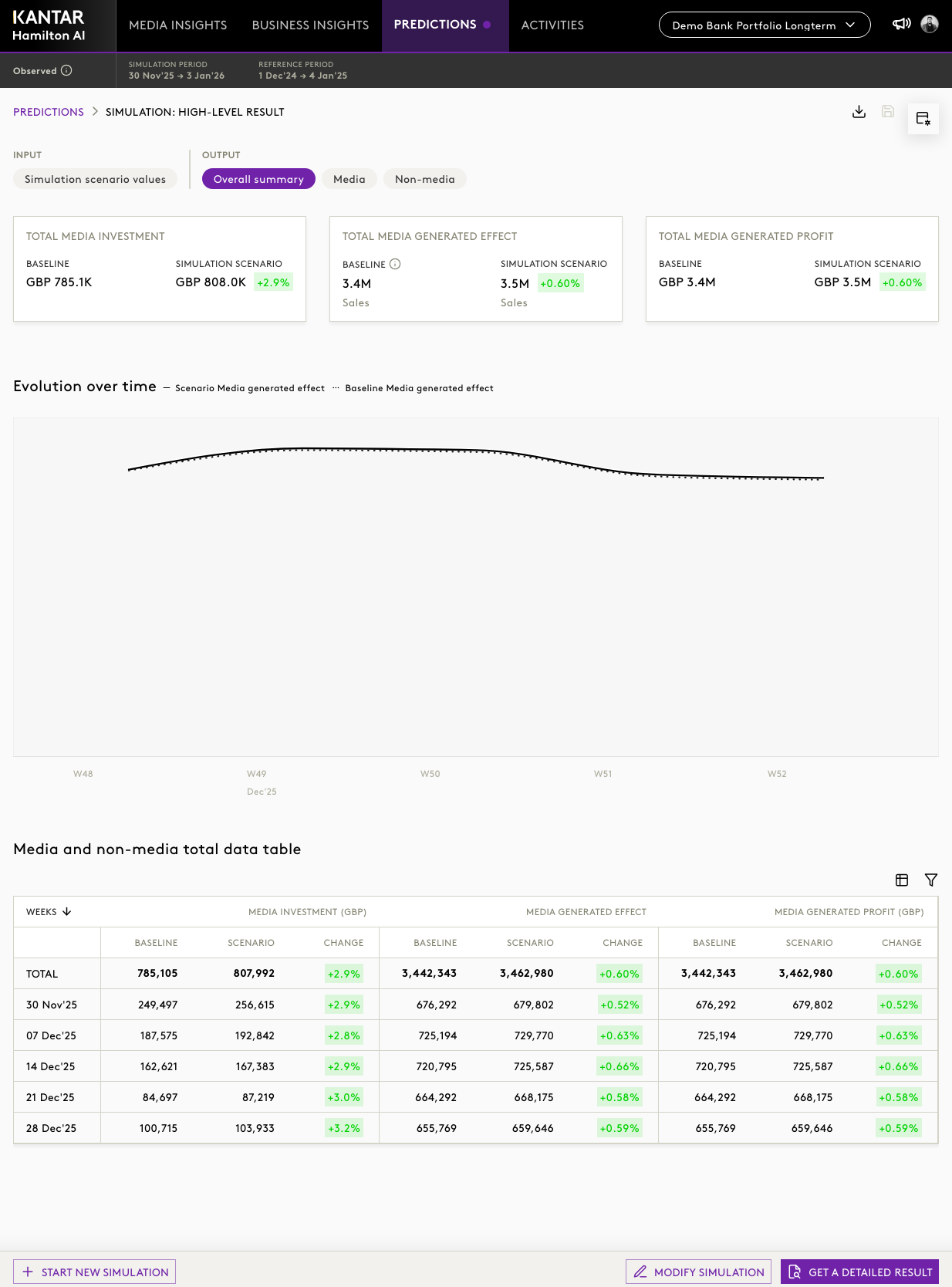
- Review baseline KPIs (e.g., business outcomes under current conditions) alongside the simulation scenario.
- View key changes in output KPIs, such as total profit, effect, or business outcomes.
- Use the “Evolution Over Time” graph to compare baseline vs. simulated projections.
- Additional tables available:
- Investment
- Effect
- Generated Profit
2.2 Functionalities
Granularity and Filtering
- Results can be viewed at weekly or total period levels.
- Hierarchy toggles (e.g., channel → publisher → product) are not available in high-level output.
- Data table controls include:
- Hide rows with zero values
- Column reordering
Export Options
Click the download icon to export results to Excel for further analysis.
2.3 Refining Simulation
- You may:
- Adjust inputs and run another iteration, or
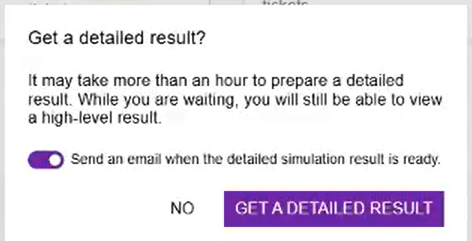
- Click Get Detailed Result to generate in-depth outputs.
- You’ll be notified by email once detailed results are ready.
3. Viewing a Detailed Report
- Go to the Simulation tab and click Show Unsaved Result.
- This will open the high level results and at the buttom of the page, you willl find a button to view detailed report.

3.1 Exploring Detailed Results
- At the top, review the Input Summary (e.g., drivers adjusted, time period selected).
For example,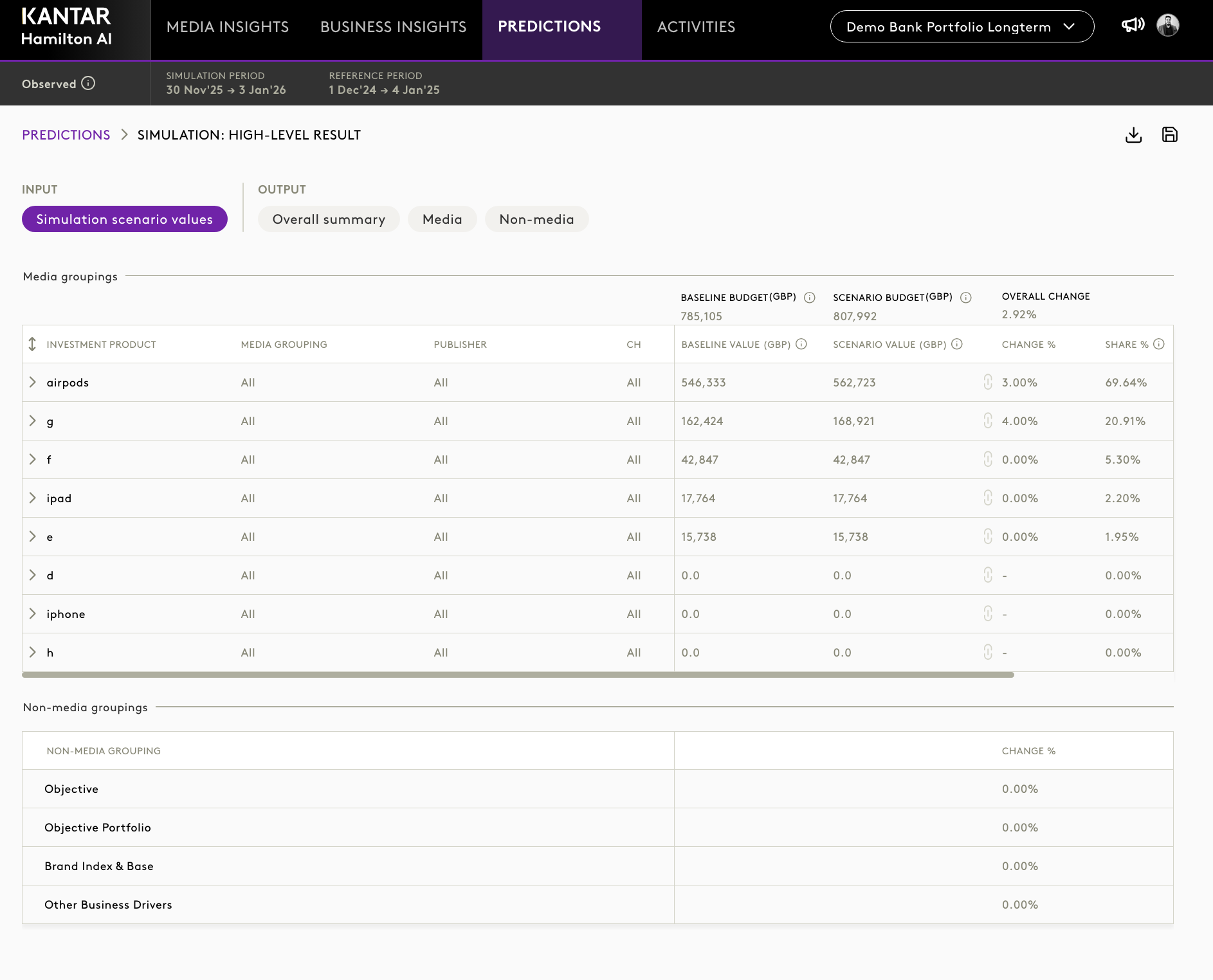
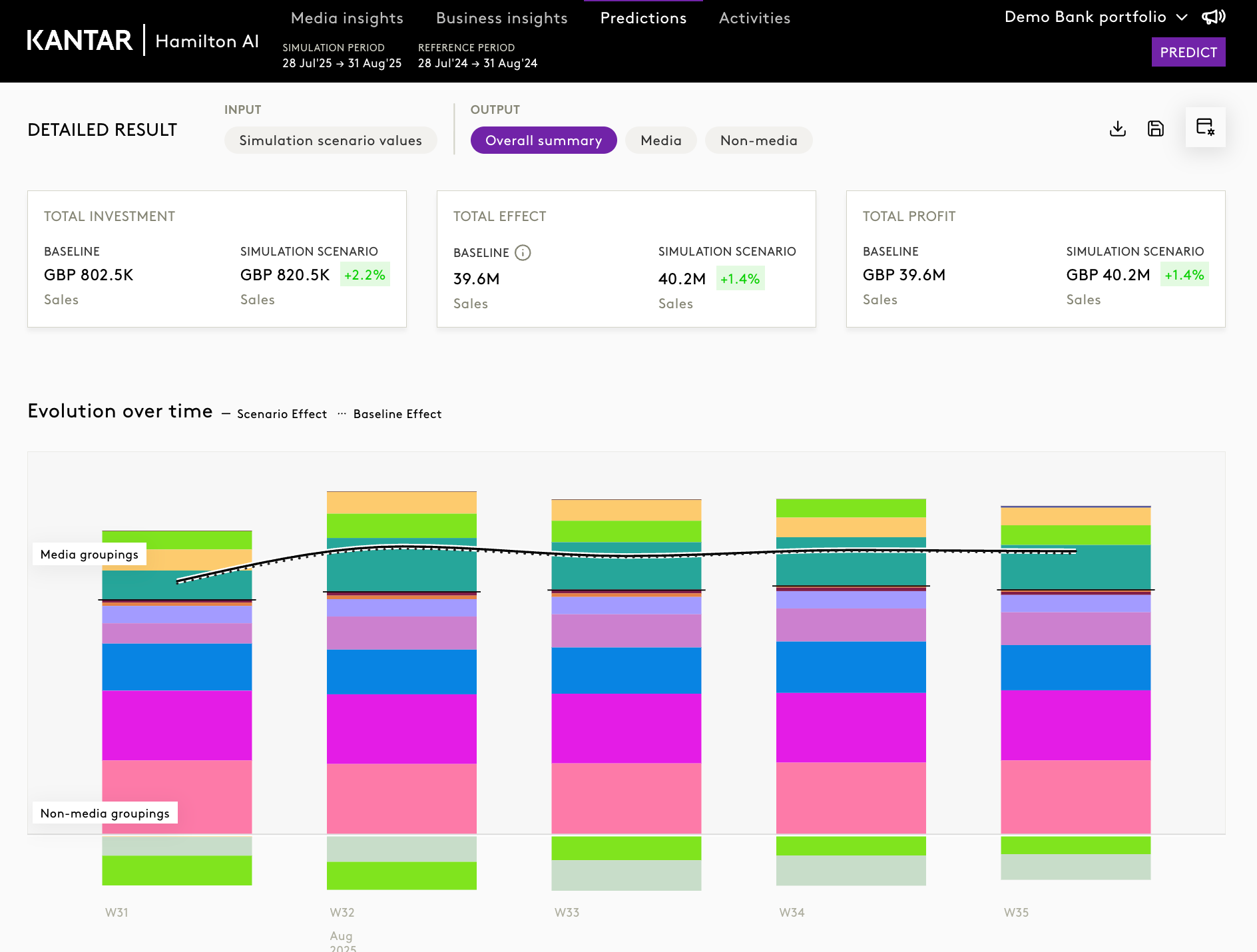
- Below, view the Output Summary example, including:
- Total Investment
- Total Effect
- Total Profit
- % Change from Baseline to Simulation (colour-coded: green = increase, red = decrease)
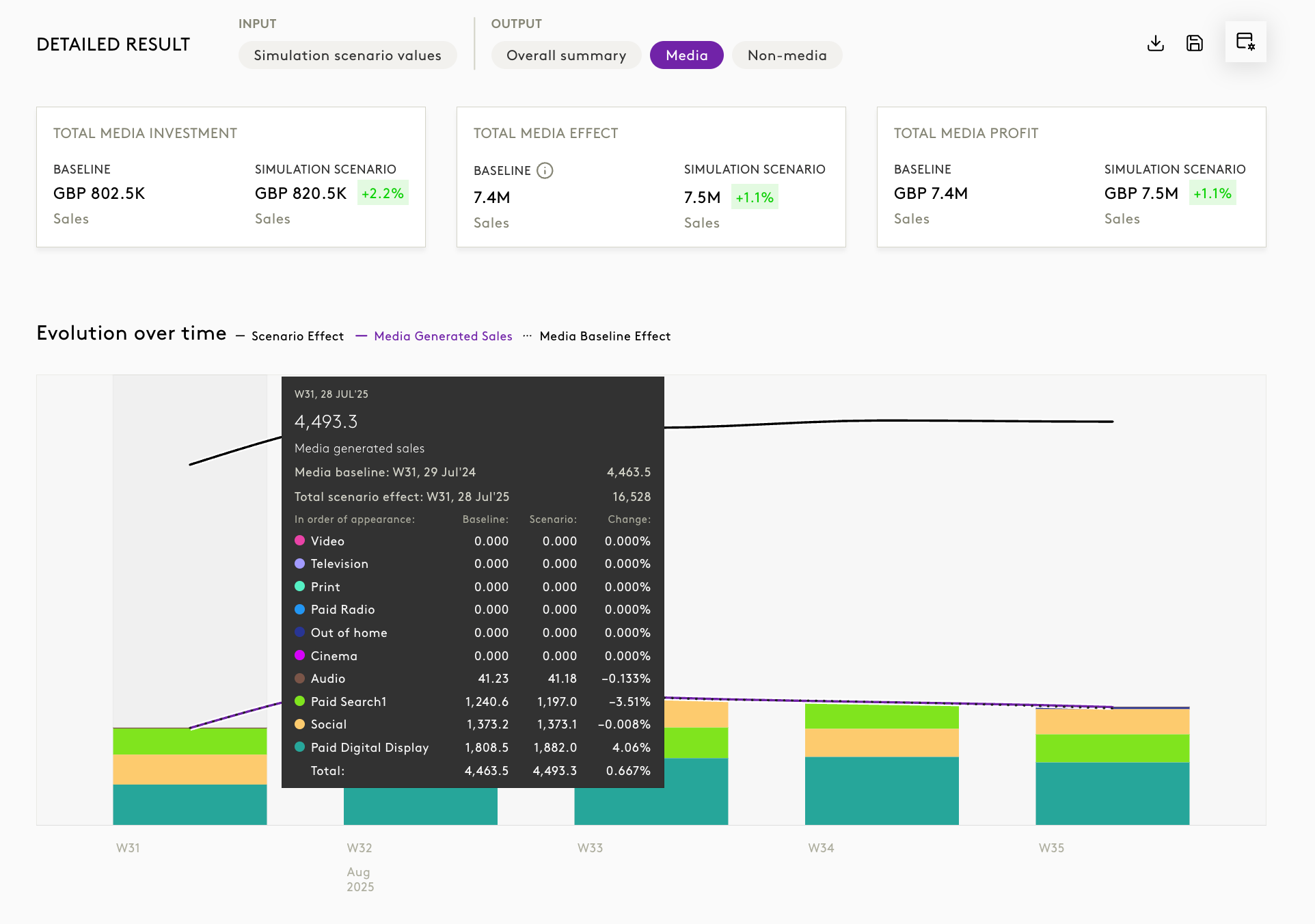
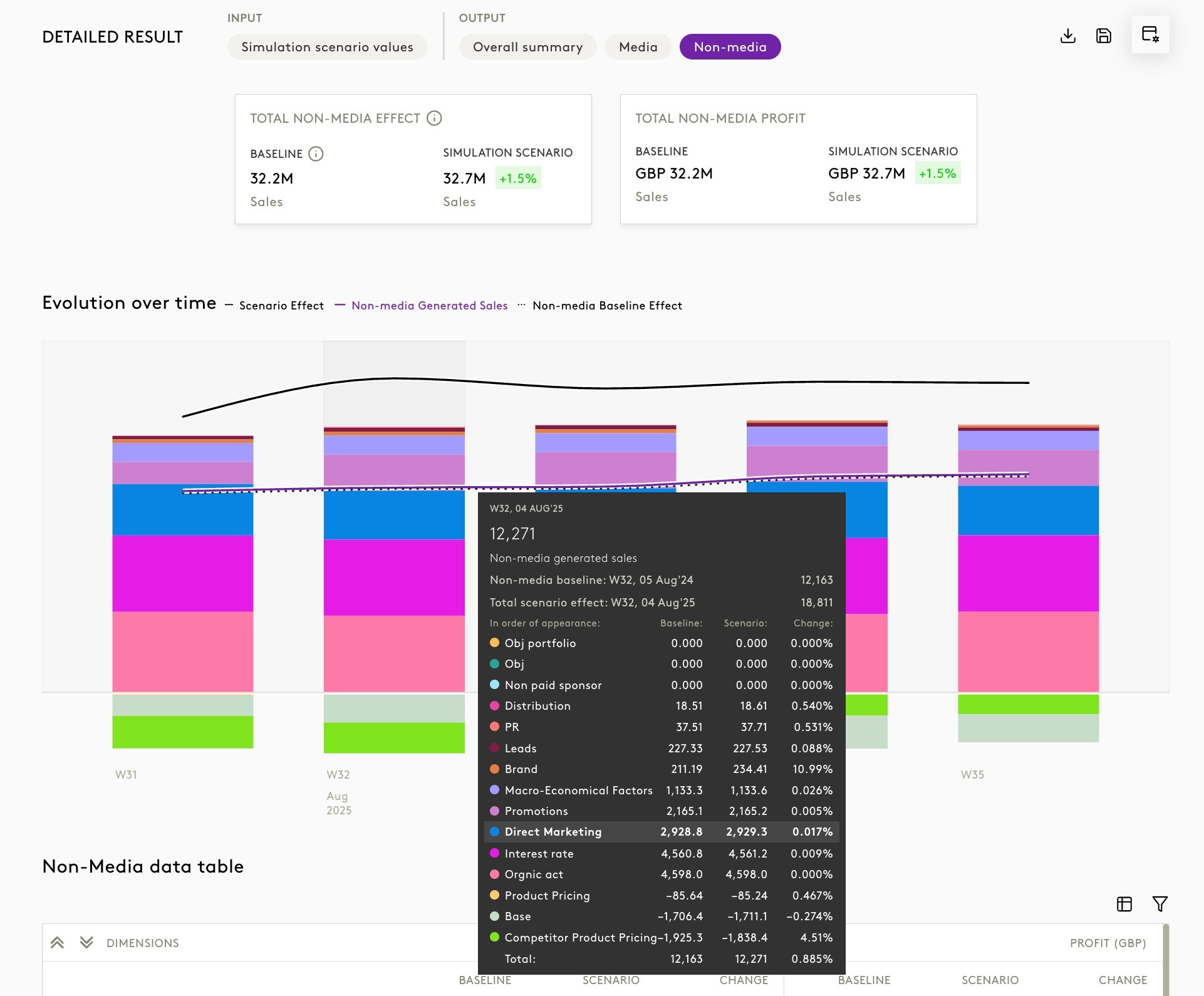
3.2 Evolution Over Time Graph
- Hover over data points to view:
- Baseline values
- Simulation values
- % Change
- Visual cues:
- Media and Non-Media are displayed separately.
- You can toggle between group views for clarity.
 |  |
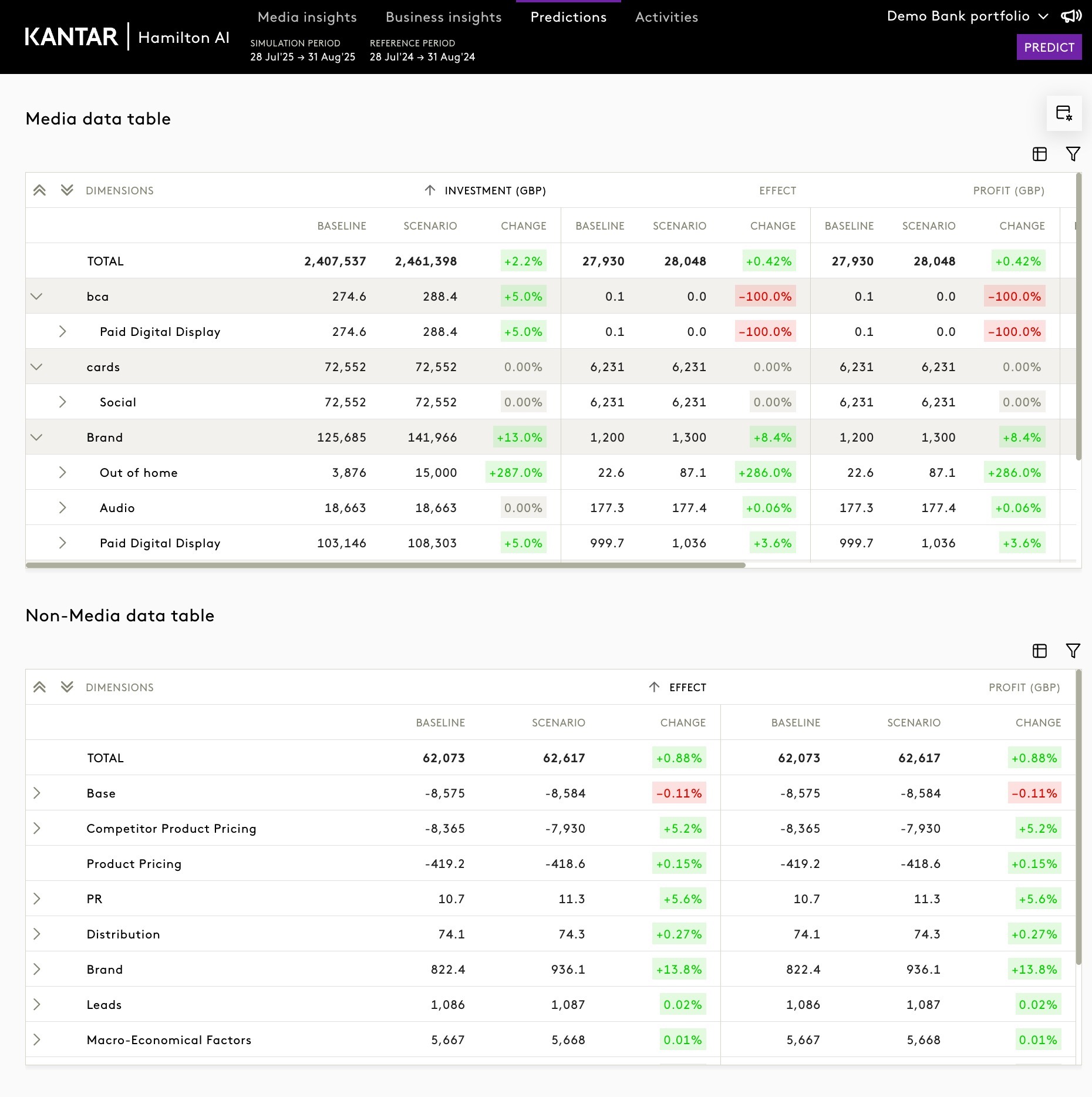
3.3 Exploring Media and Non-Media Data Tables
- Media Table:
- Navigate through breakdowns: Grouping → Channel → Publisher
- Drill down to investment product level where applicable
- Non-Media Table:
- View detailed output for non-media drivers (e.g., pricing, external factors)
Controls include:
- Granularity Toggle (weekly/monthly)
- Filters (e.g., hide zero rows)
- Column Reordering for comparison
4. Saving the Simulation
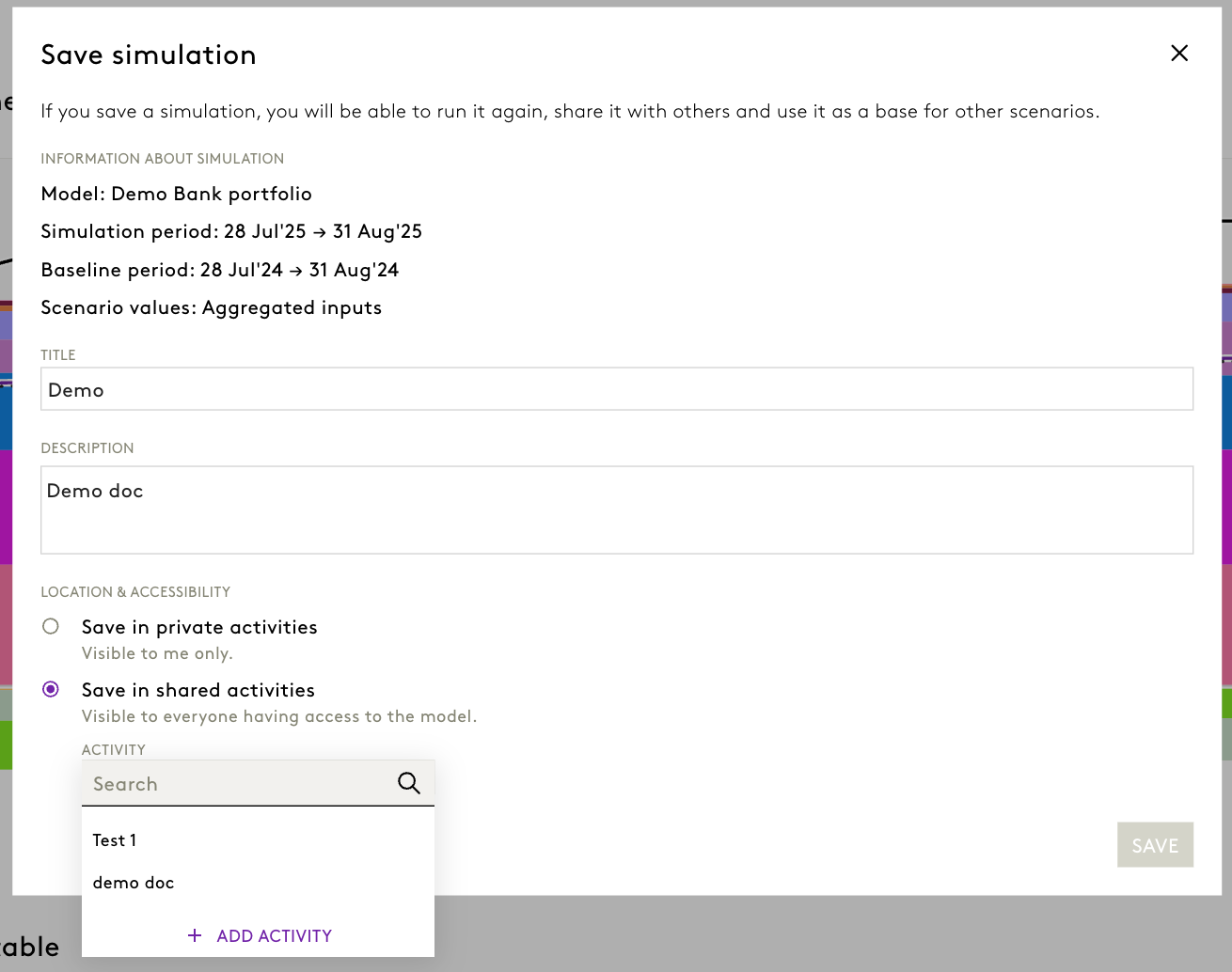
At the bottom-right of the report view, click the Save Simulation button.

4.1 Entering Simulation Details
- Provide a Title (e.g., “Q4 Budget Shift – Portfolio Model”)
- Optionally, add a Description
4.2 Saving Options
Choose one of the following:
- Private Save:
- Visible only to you
- Suitable for personal analysis or drafts
- Public Save:
- Shared with your team
- You can save into a shared folder or create a new one
Click Save to confirm.
Was this article helpful?
That’s Great!
Thank you for your feedback
Sorry! We couldn't be helpful
Thank you for your feedback
Feedback sent
We appreciate your effort and will try to fix the article