The Activities section acts as a repository for all previously run optimisations.
TABLE OF CONTENTS
- 1. Accessing the Activities Tab
- 2. Viewing Saved Files
- 3. Edit Titles and Descriptions for Saved Plans
- 4. Interacting with Saved Results
1. Accessing the Activities Tab
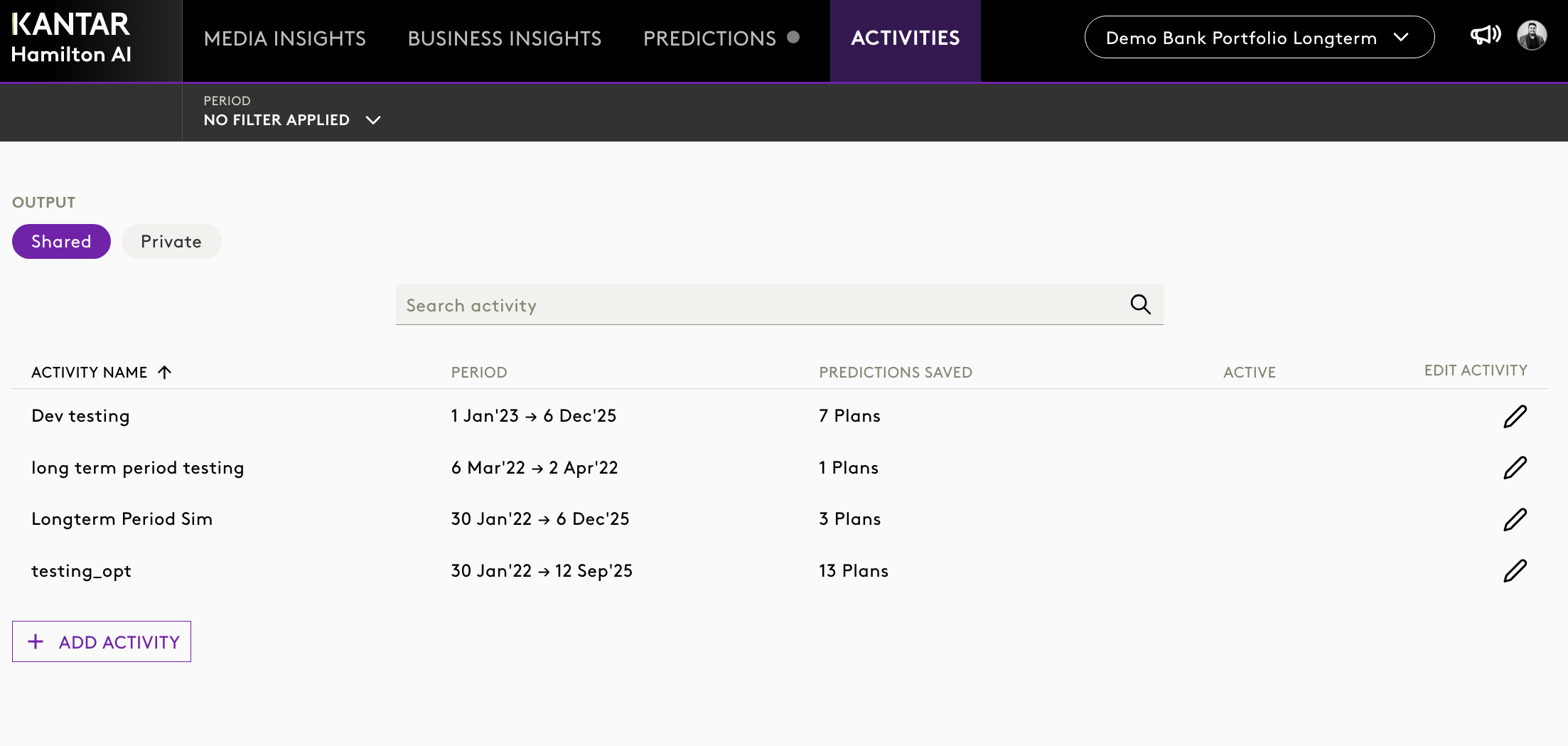
Click on the Activities icon from the main menu.
2. Viewing Saved Files
1. Browse between:
Private Files – Simulations or optimisations saved only by you
Shared Files – Files shared by you or your team or organisation
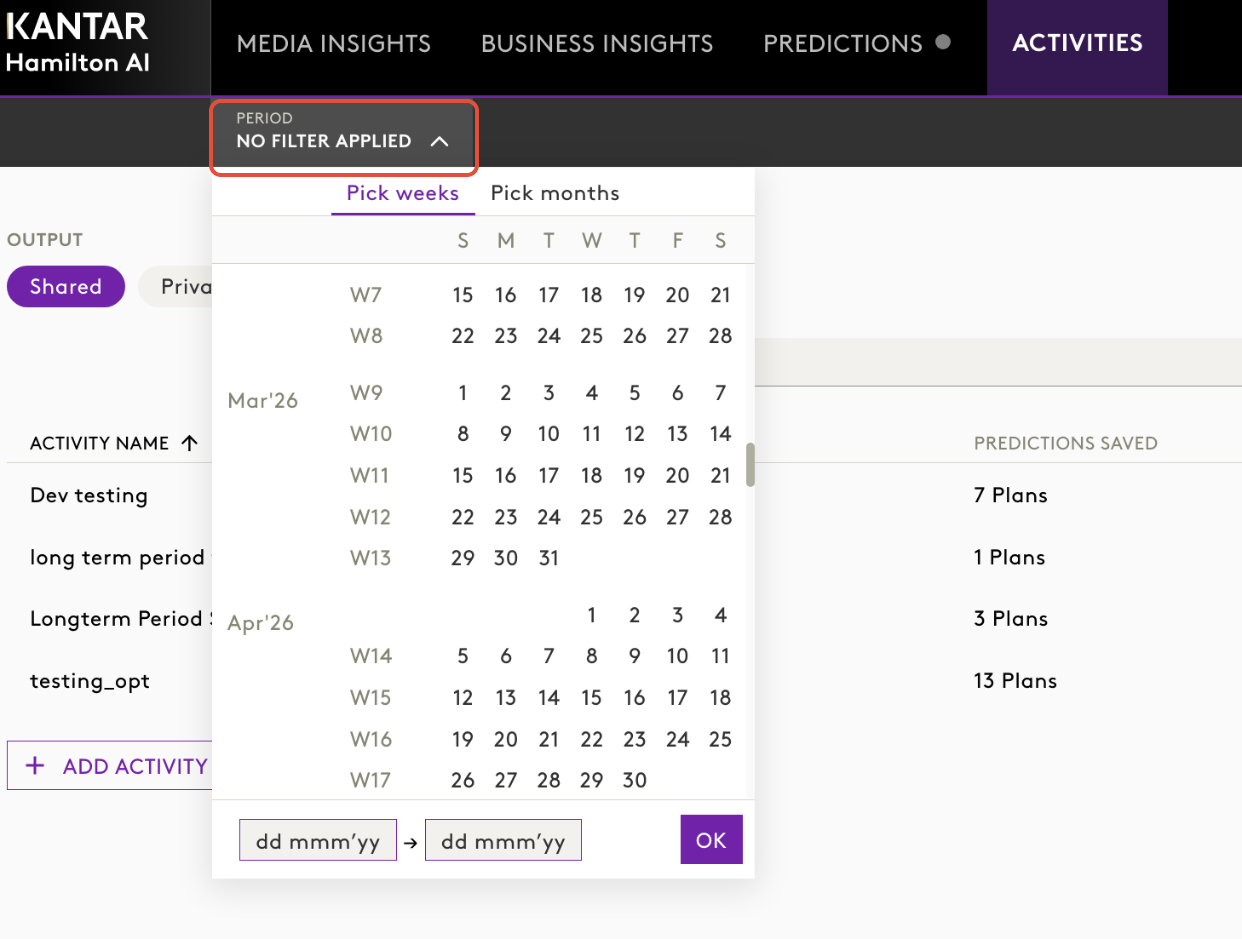
2. You can use the period filter to select specific time frame of your saved activity.
3. Select the saved simulation or optimisation (e.g., “Demo Document”).
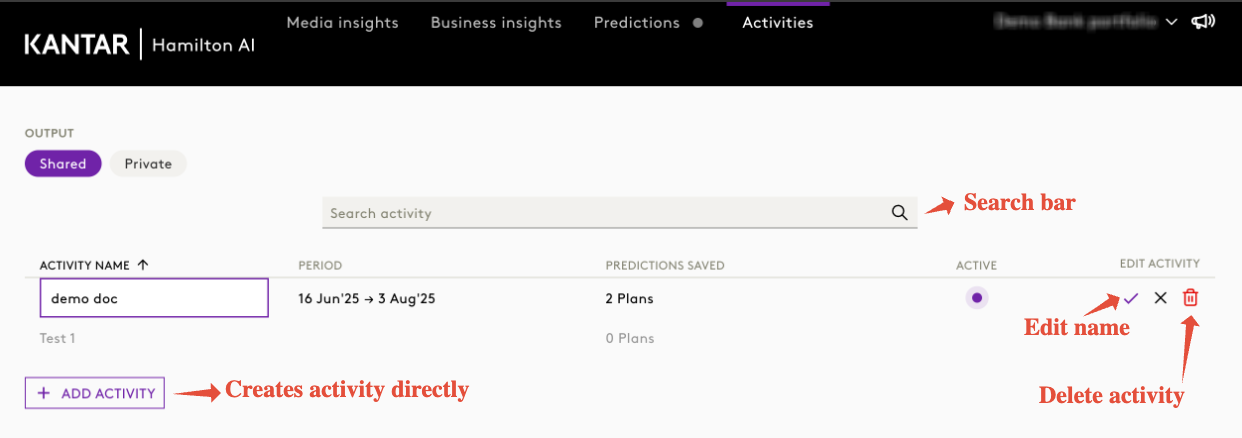
4. You can also note which optimisation plans are active.
5. You can rename and delete an activity folder.
3. Edit Titles and Descriptions for Saved Plans
- Users can now update the title and description of saved simulation or optimisation plans after creation.
- This feature improves clarity and tracking, especially when managing multiple saved activities.
- Accessible via the Saved Plans section in the Activity module.
- Save and Cancel controls are available during editing.
- Changes are automatically synced across all users with access.
How to:
Step 1: Navigate to the Activity of interest in the Insights Platform.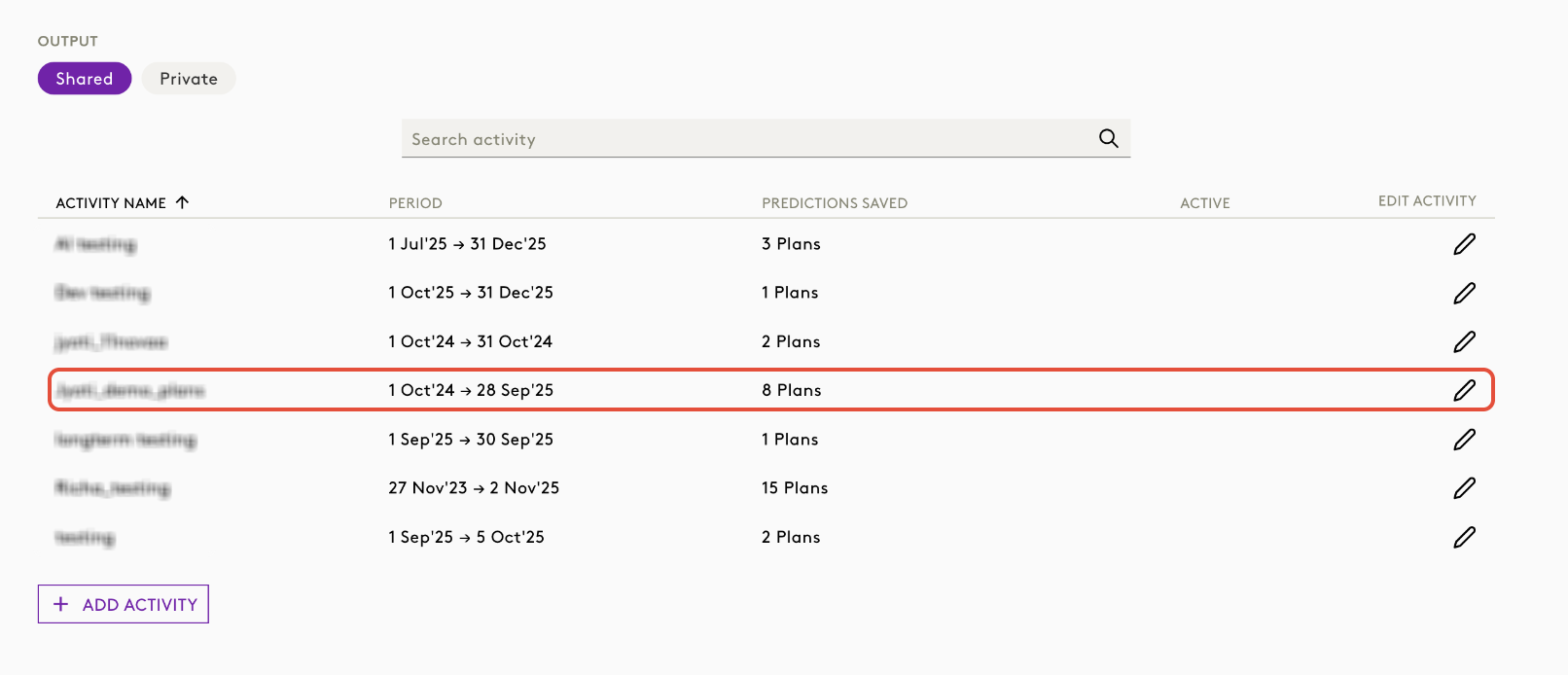
Step 2: Click on the activity and open the saved plan.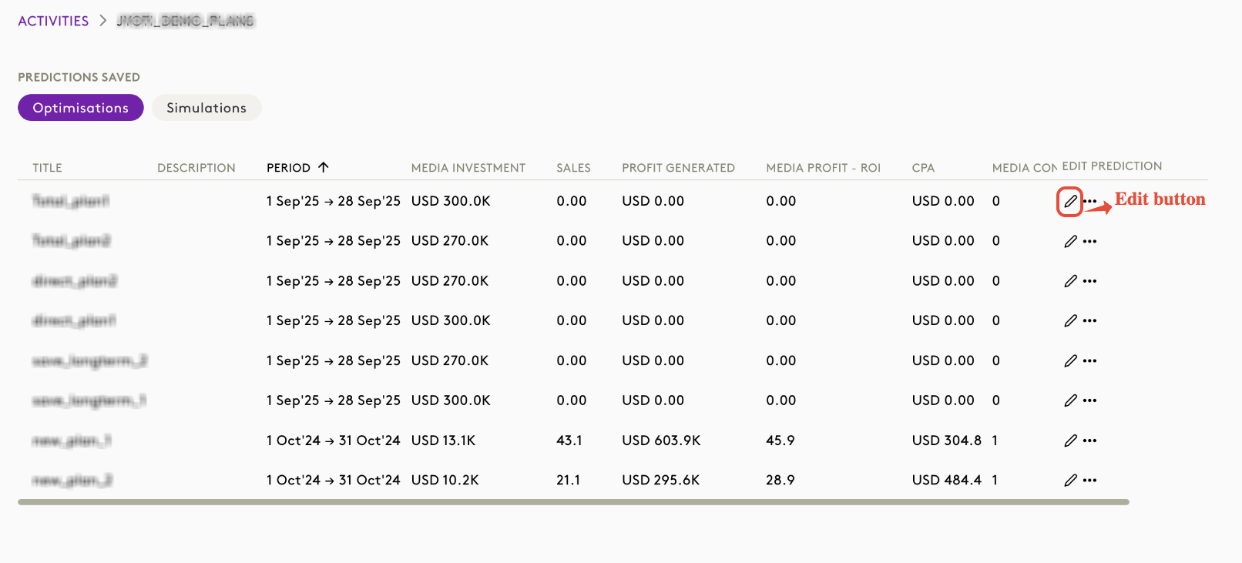
Step 3: Click the Edit icon or button next to the plan’s title or description.
Step 4: Enter your new title and/or description in the provided fields.
Step 5: Use the Update button to confirm your changes. If you change your mind, click Cancel (X) to discard edits.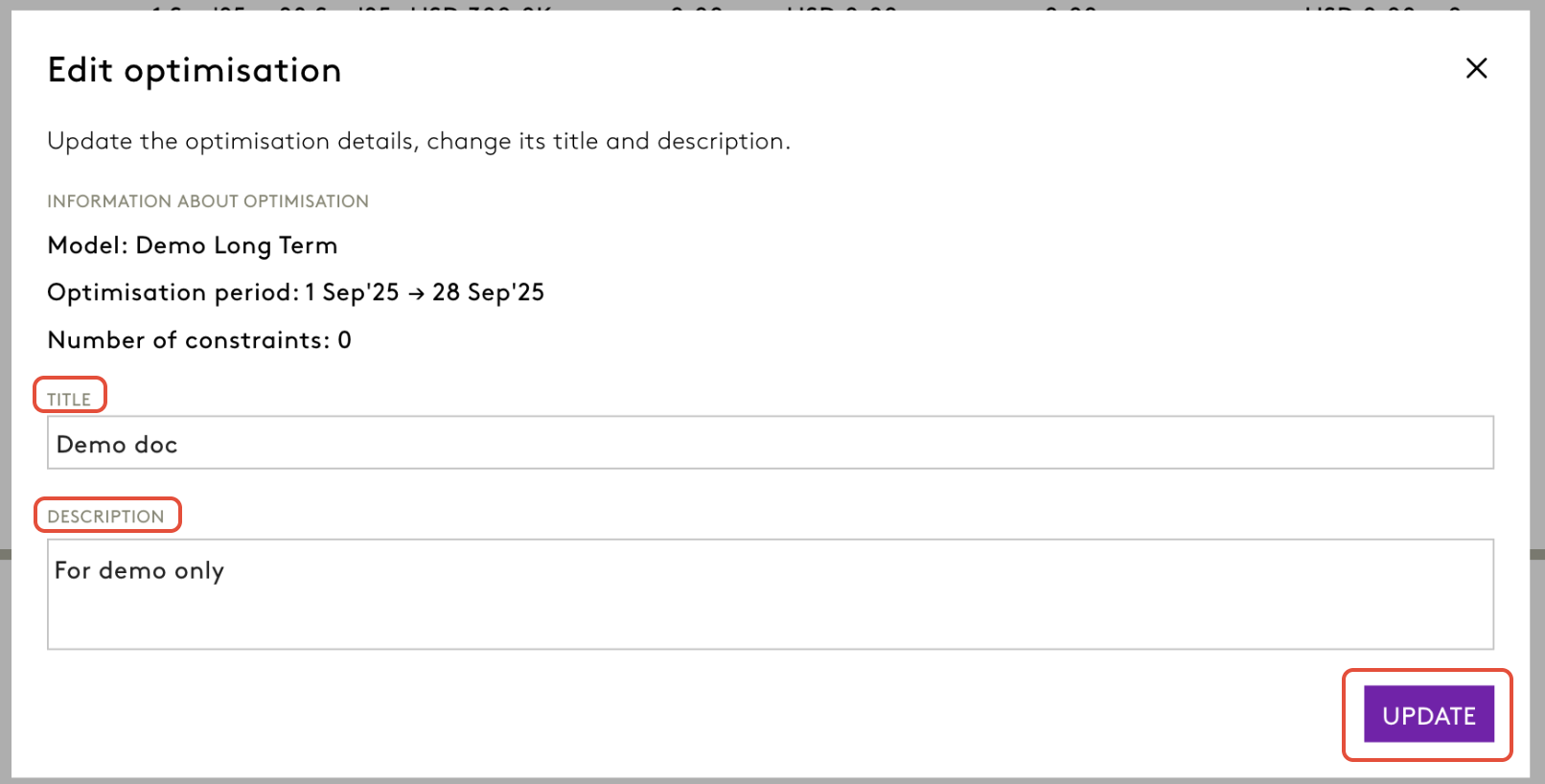
Step 7: Once saved, your updates are automatically synced and visible to all users who have access to the plan.
4. Interacting with Saved Results
1. Select a Folder and choose the file:
2. Select the file you want to view. 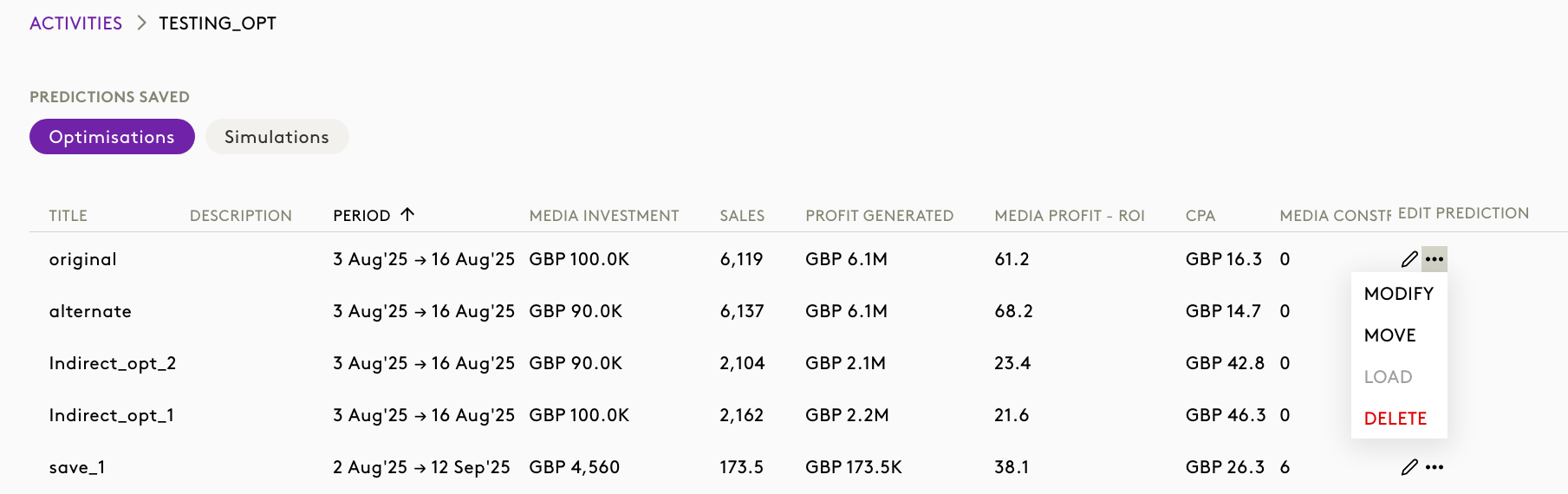
In case of Optimisations, Click on three dots to modify, move, load to simulation or even delete a file from here.
Note: Click here to learn more on how to load simulator results from activities.
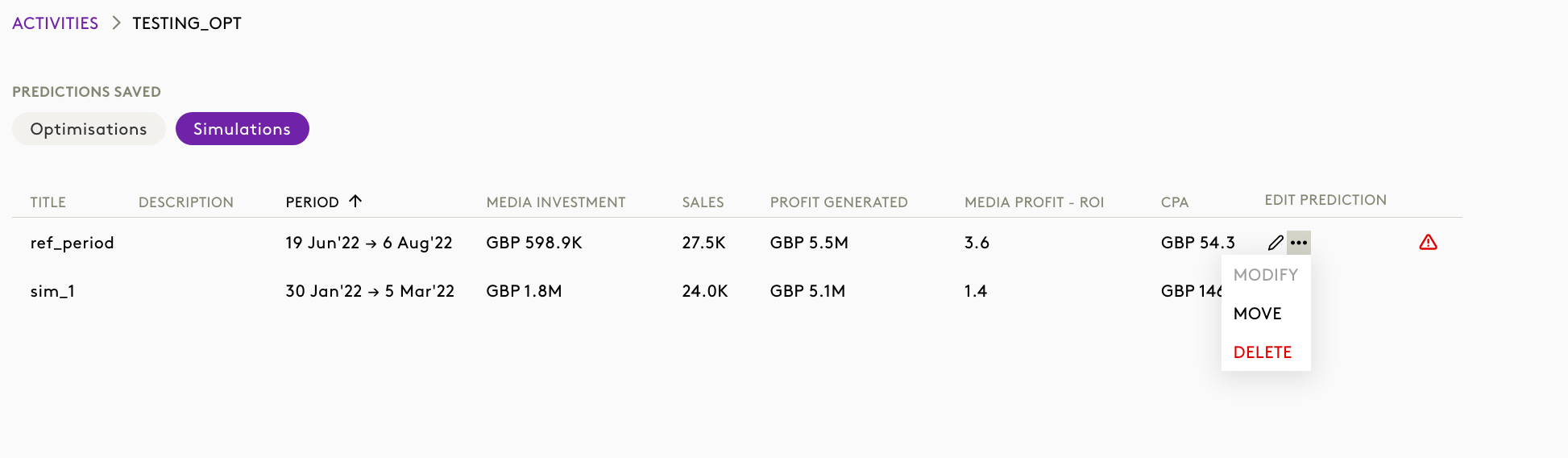
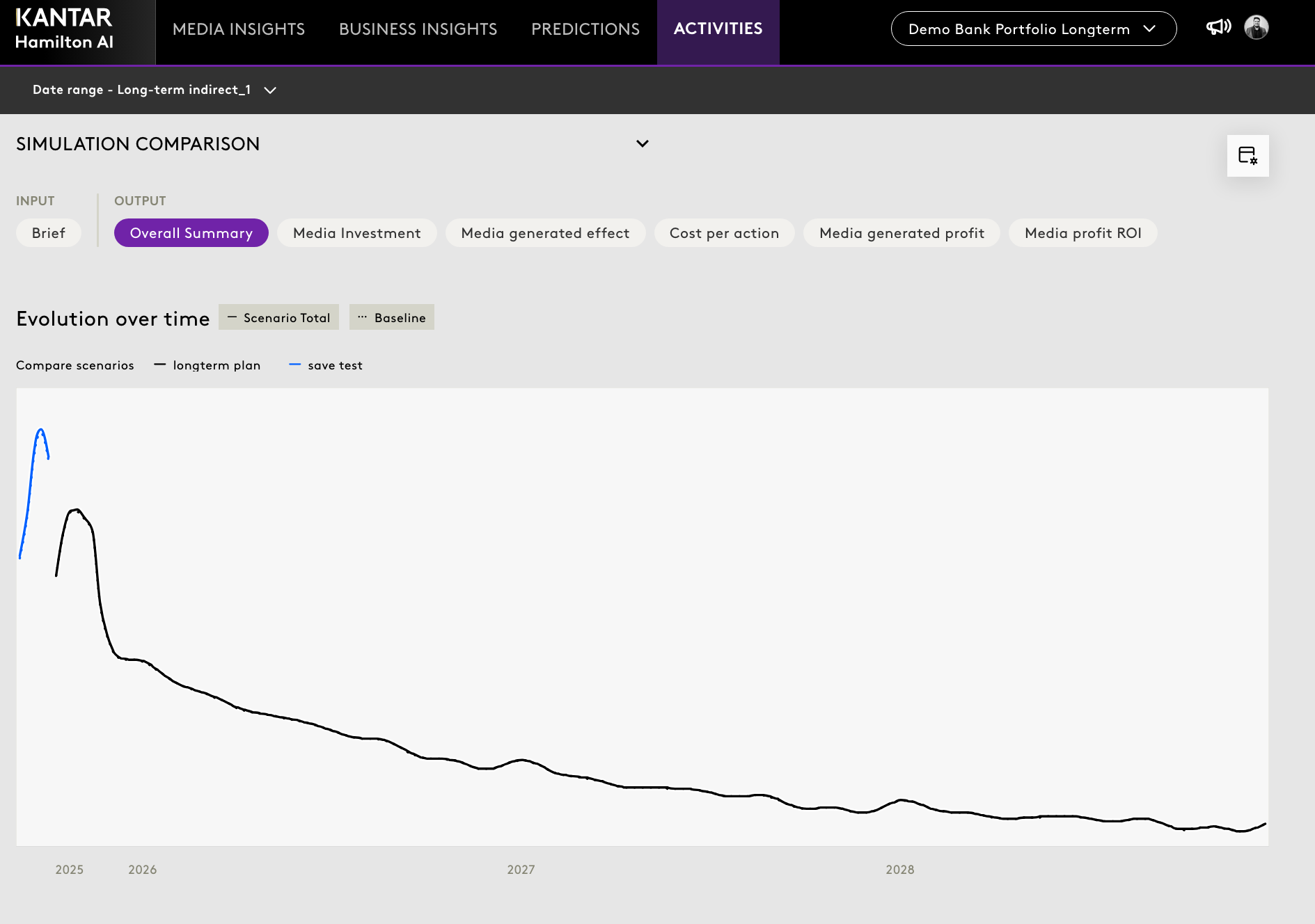
In case of Simulations, Click on three dots to modify, move or even delete a file from here.
3. View the result:
Expand to full screen
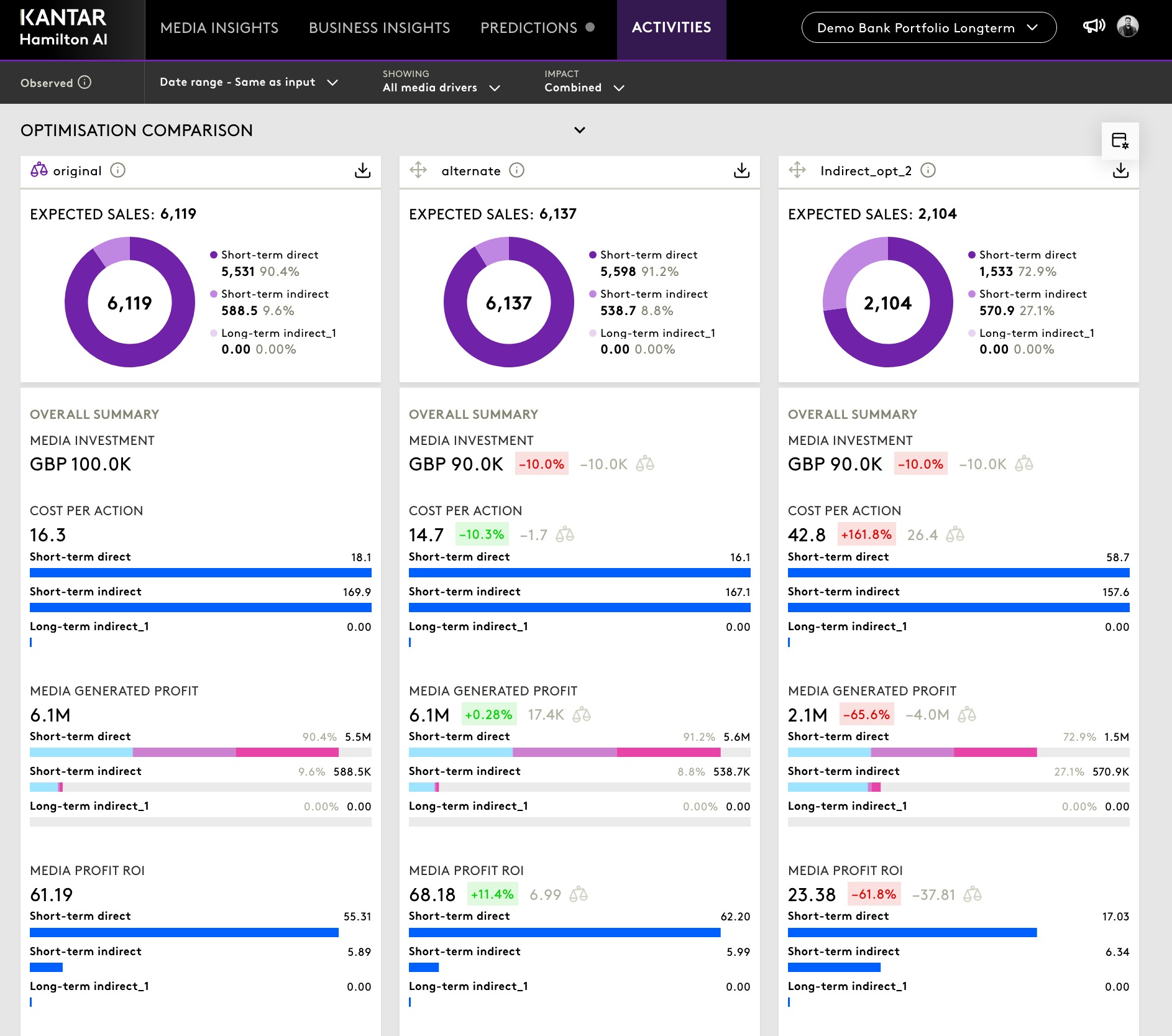
Compare side-by-side (if more than one optimisation/Simulation is selected)
View details across media dimensions
A. In case of Optimisation plans:
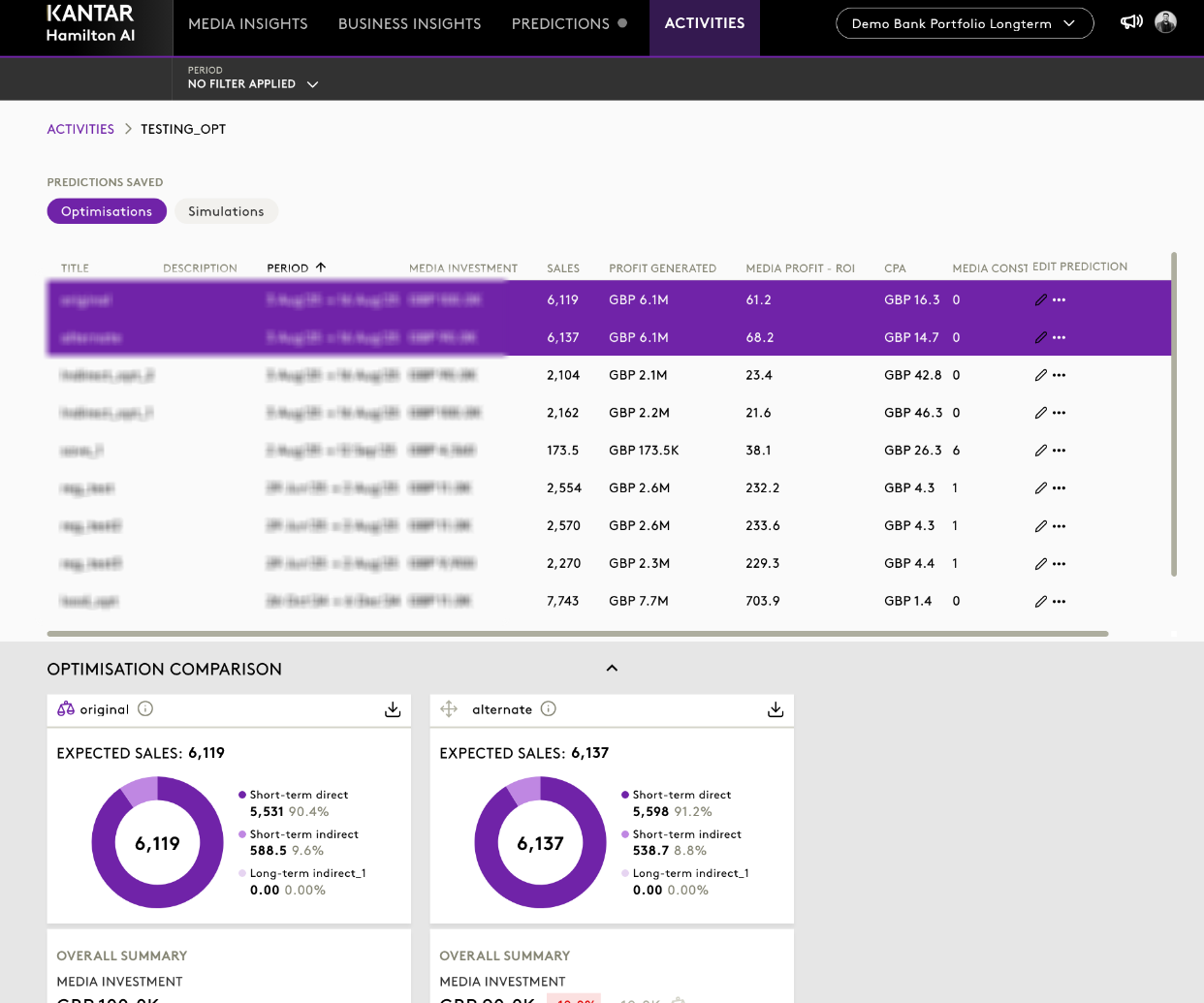
4. Drill down by selecting different KPIs and View results as you did in Optimisation/Simulation results sections.
| Optimisation plan | Simulation plan |
 |  |
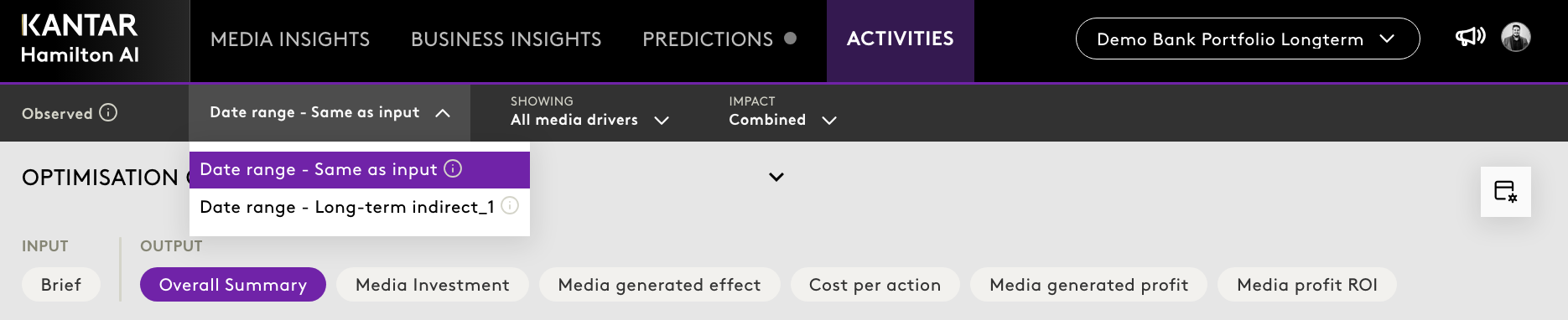
5. You can choose to view between two distinct options:
- Same as Input Date – Displays results calculated for the same time frame as the optimisation input window.
- Long Term – Displays results inclusive of long-term effects (for example, incorporating up to 90% long-term impact).
Note- Short‑term vs Long‑term splits is not yet available for simulation results. |
Was this article helpful?
That’s Great!
Thank you for your feedback
Sorry! We couldn't be helpful
Thank you for your feedback
Feedback sent
We appreciate your effort and will try to fix the article